© 2014 SeaStar Solutions Optimus Installation Manual, Rev. E
C-3
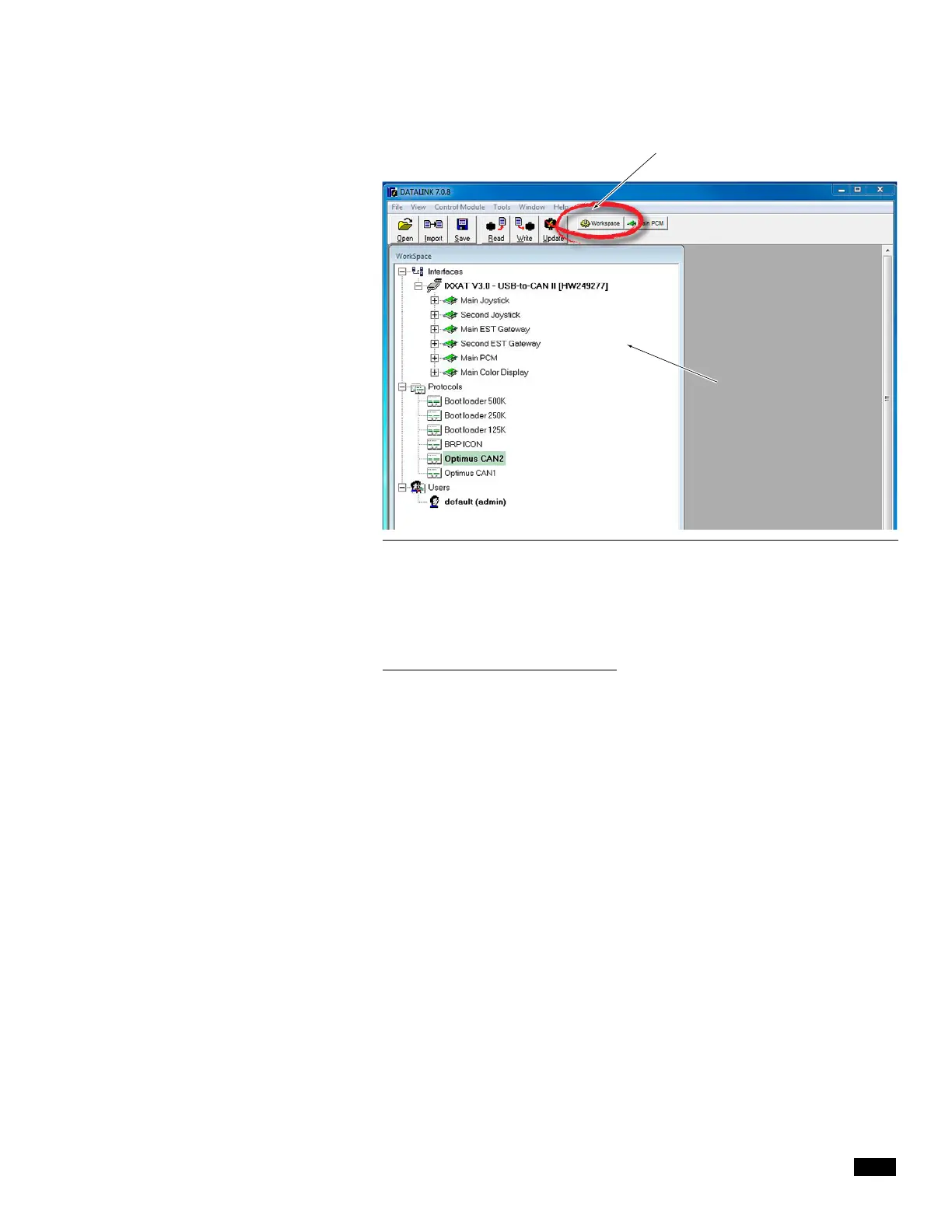
Figure C-2. Datalink Workspace. Your available interfaces may not be exactly as shown.
RETURN TO WORKSPACE BUTTON
ACTIVE WORKSPACE
Double click on a device in the Interfaces list to open the configuration
page for that device. Click Workspace in the toolbar at any time to
bring up the Workspace window.
Important notes about Datalink
Datalink is not like most software packages you are used to. Unlike
a word processor, you don’t open a file, make changes, and save
them. Instead, you open an Interface, which is actually a database
that is specially formatted on your screen. The parameter fields (any
box with editable values) are cross-referenced to data tables in the
devices, but it is not in real-time.
What this means is that the parameters you see are just a snapshot
of what is in the device. If you edit these parameters on screen,
the changes exist only in Datalink. They will not exist in the device
until you click the Write button on the toolbar. Write takes all the
database values that exist in Datalink and copies them to the
device, where they are saved in nonvolatile memory (i.e. memory
that is not lost when power is removed).
Similarly, clicking Read will copy parameters from the connected
device into the Datalink database, allowing you to see the current
state of the actual device. This is a good way to check that any
changes you make have been correctly copied to the device.
For this reason, you will generally not need to use the Open and
Save buttons on the toolbar. They have a different function in
the context of Datalink, and aren’t used for editing parameters.
Likewise, if you are prompted to save changes when you close an
Interface, just click No and exit. The save function has nothing to do
with whether the changes are saved on your device.


 To Next Page