E-1
© 2014 SeaStar Solutions Optimus Installation Manual, Rev. E
APPENDIX E UPDATING FIRMWARE
From time to time it may become necessary to update the Datalink
notebook software and the Optimus component firmware as new
versions become available.
NOTE: The installer only loads the required files to the computer; it
does NOT perform the actual component updates. Refer to Section
E.2 for detailed component updating instructions.
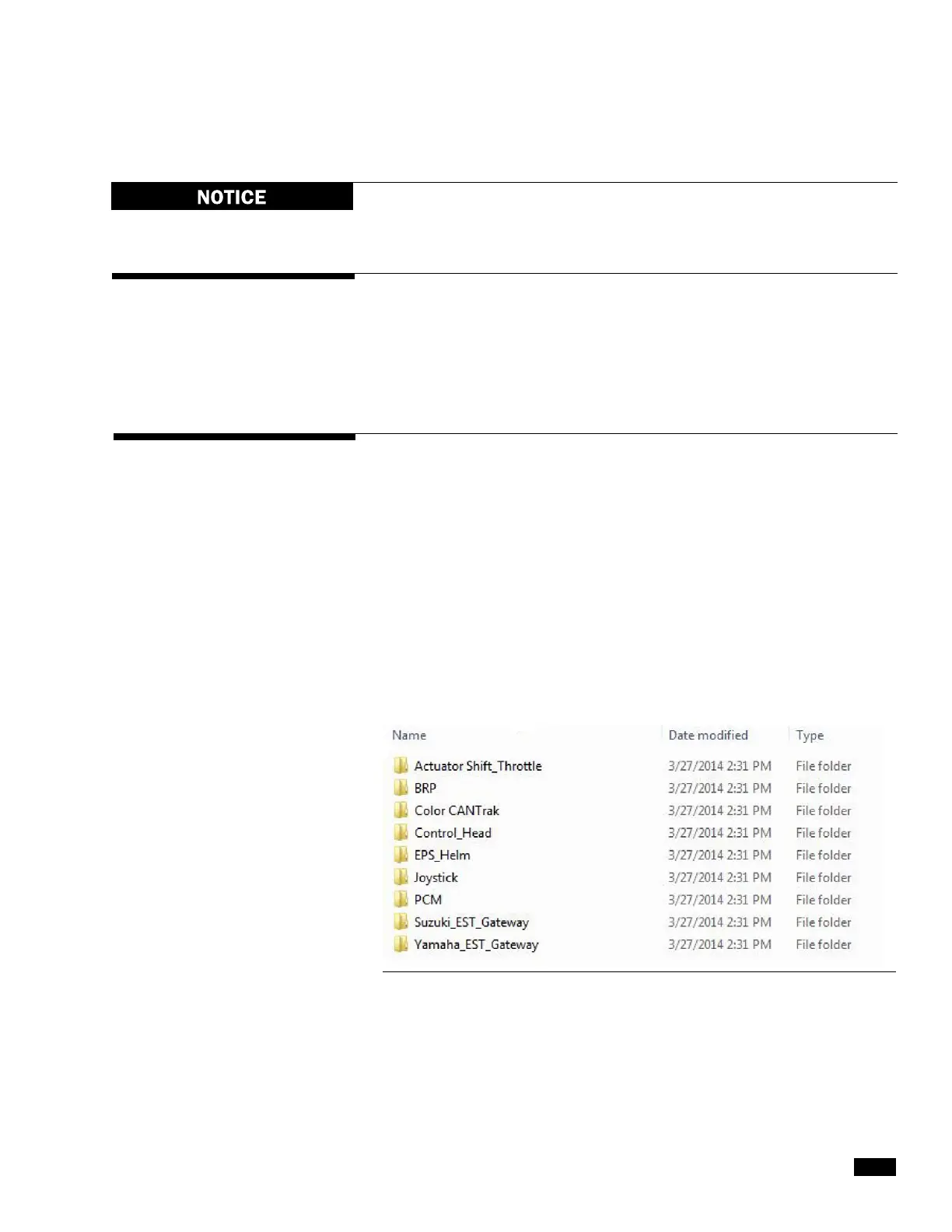
Figure E-1. Desktop\Optimus Firmware – Folder Structure.
This appendix contains instructions for both Optimus EPS and
Optimus 360 systems. If you are working with an EPS system,
disregard any reference to the Optimus 360 system or its components.
E.1 Downloading Software Update Files
Check www.optimusdealers.com for latest available firmware. The
updates are packaged in a single download file called ‘Optimus and
Optimus 360 Datalink Updater Version X’, where X indicates the revision.
A readme file describes the nature of the updates, the component
revision files included in the package, and any special instructions.
ALWAYS read the readme file prior to updating. There is a link to the
Readme file on the website, or it can be accessed from the Datalink
Help menu. Choose Help > readme.txt to view the file.
When run, the Updater will first install the latest version of Datalink
on your computer, then automatically load the latest firmware files to
the notebook computer and put them
inthe[Desktop\Optimus
Firmware]folder.Eachcomponentupdatele
will be in a separate
folder with the component name. See Figure E-1.


 To Next Page