© 2014 SeaStar Solutions Optimus Installation Manual, Rev. E
E-3
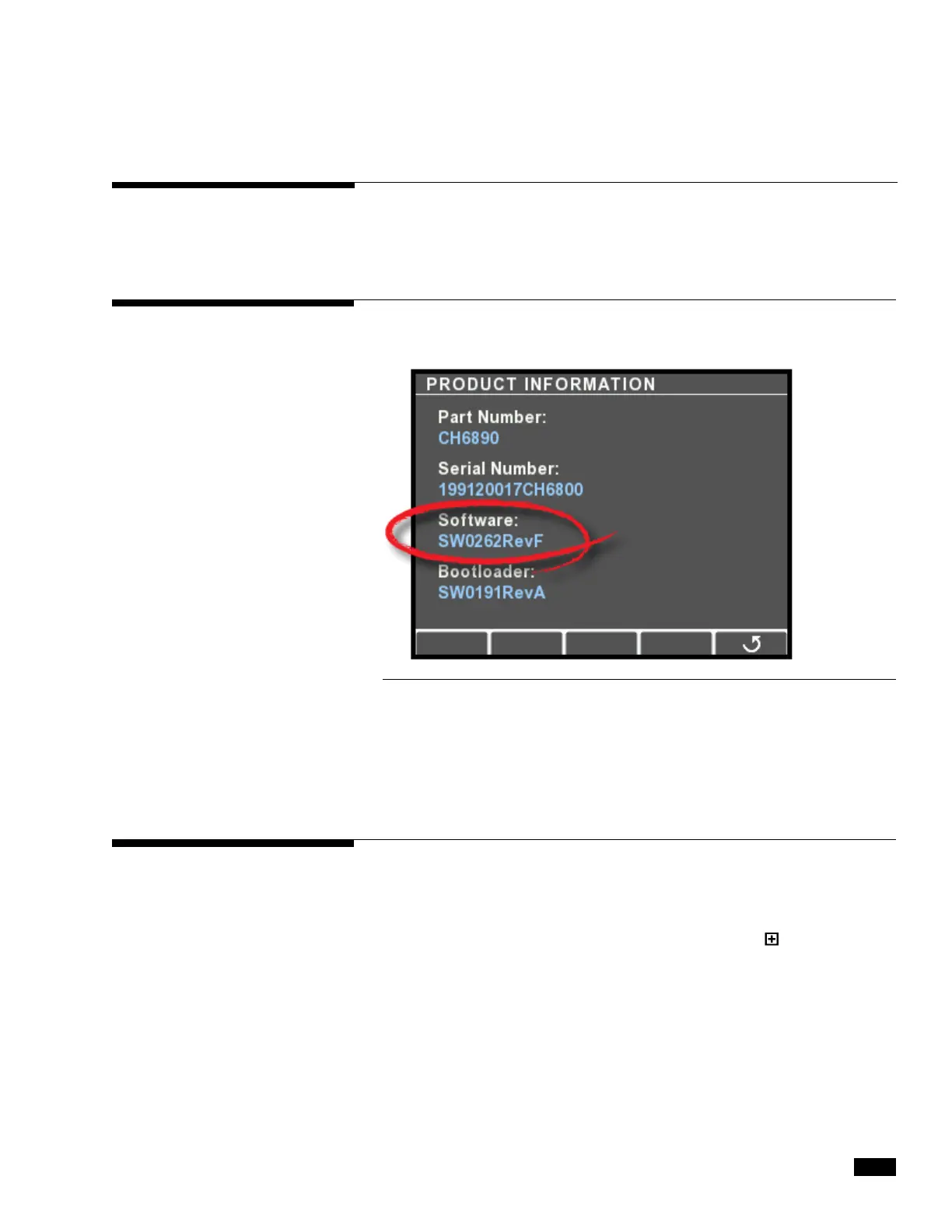
1. Navigate to Dealer Menu > Devices > [component name] >
Product Information to go to the Product Information page.
You can check the current firmware revision of each component using
the CANtrak display or Datalink.
E.3 Checking Component Firmware
Revision Levels
Figure E-3.
2. The software revision is listed, along with the part number and
serial number of the component.
Connect the computer to the Optimus system as follows:
• OptimusEPS:viaCAN1connectionasshowninsection6.1.2.
•Optimus360:viaCAN2connectionasshownintheOptimus360
Installation Supplement (Book 60).
1. In the Interfaces section in Datalink, click on the box to expand
the component information. See Figure E-4. (In an EPS system
you will see only the PCM and Helm in the component list.)
2. Firmware revision can be found under the ‘Firmware Part
Number’ field.
E.3.2 Using Datalink
E.3.1 Using CANtrak


 To Next Page