© 2014 SeaStar Solutions Optimus Installation Manual, Rev. E
E-7
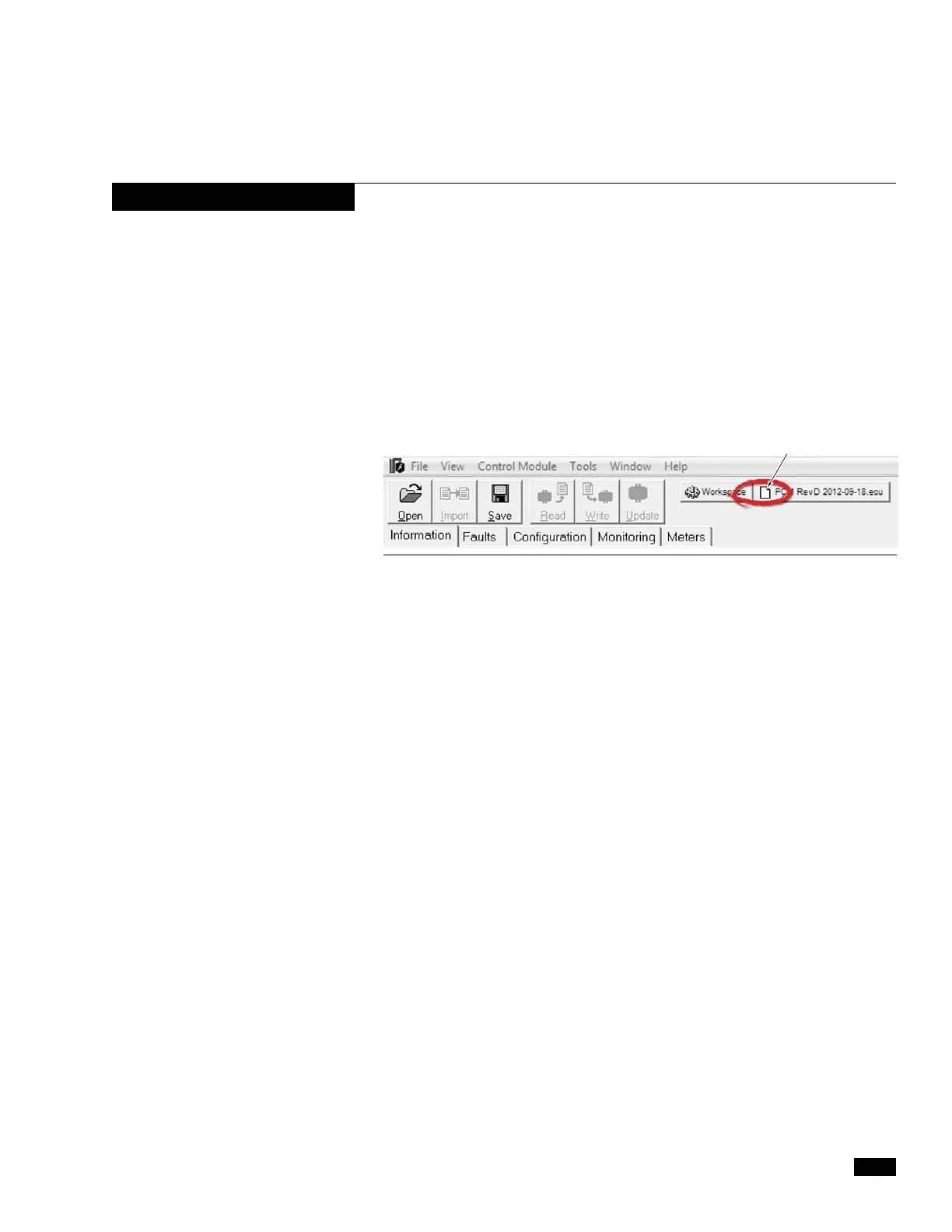
Figure E-6. ECU File Icon.
NOTICE
Opening an ECU file will not import it’s settings to the system.
Opening an ECU file should be used only for reference to verify that
configuration parameters were saved correctly after an update. This
is only valid for Datalink, as there is no way to do this through the
CANtrak.
1. With the notebook computer connected and Datalink open, click
on Open on the top toolbar.
2. Navigatetothebackuplelocation(Typically[Desktop\DATALINK
Folder\ECUFiles]),selectthedesiredbackupleandclickOpen.
3. The backup file will open. It can be identified at the top of the
Datalink screen by a different name and icon.
E.7 Opening a Back-up (ECU) File
WHITE SHEET ICON INDICATES
AN ECU FILE IS OPEN


 To Next Page