Doc# E166703 5-10
5: Communicating with the Meter
Electro Industries/GaugeTech
The Leader In Power Monitoring and Smart Grid Solutions
Electro Industries/GaugeTech
The Leader In Power Monitoring and Smart Grid Solutions
Electro Industries/GaugeTech
The Leader In Power Monitoring and Smart Grid Solutions
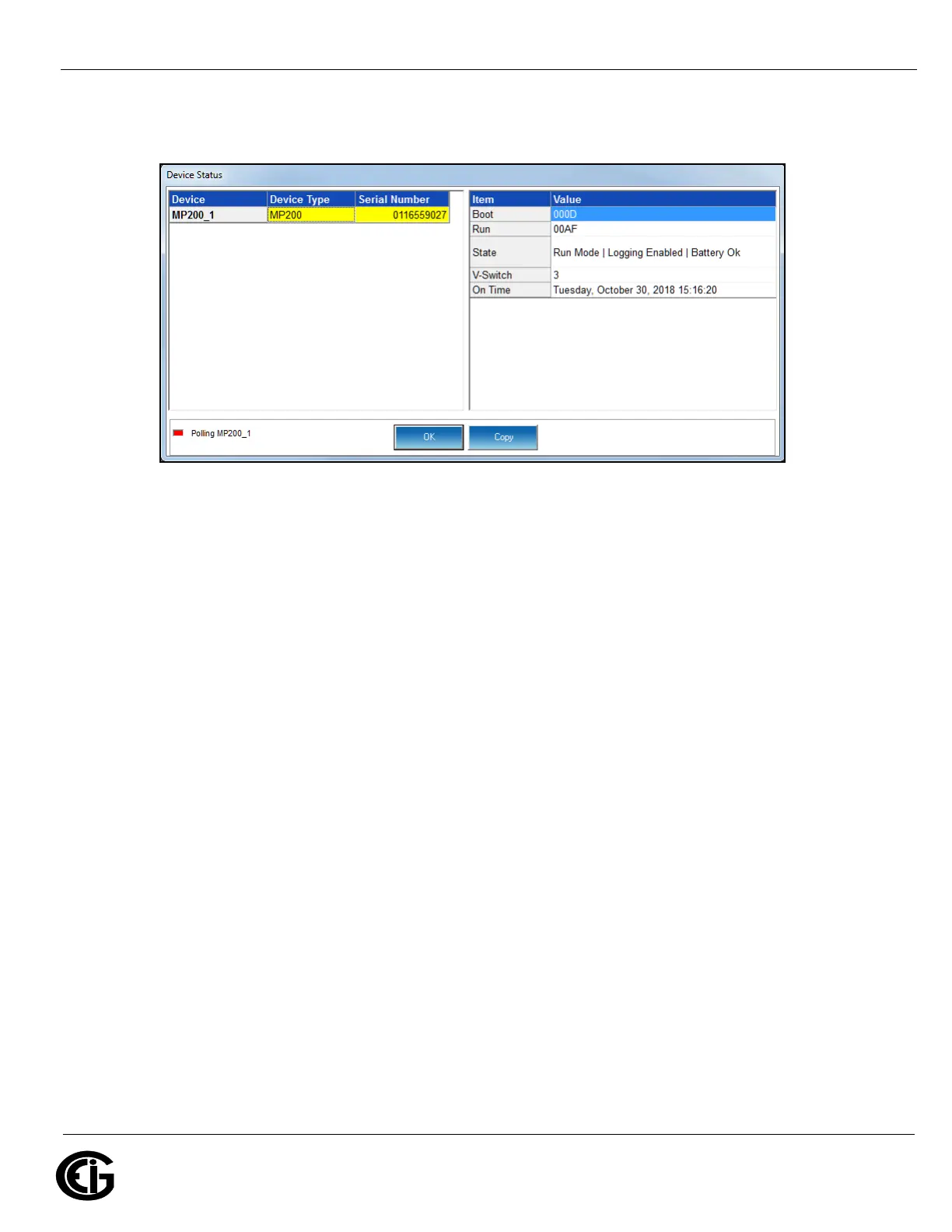
4. Click the Connect button. You will see the Device Status screen, confirming con-
nection to the MP200 unit. Click OK.
The fields on the right of the screen give you information about the connected
MP200 unit:
• Boot: the version of the Boot firmware the meter currently has.
• Run: the version of the Runtime firmware the meter currently has.
• State: information about the meter, e.g., shown above Run Mode, Logging
Enabled, Battery OK means that the meter is running, logging is enabled for the
meter, and the meter battery has sufficient operating power.
• V-Switch: the number of the V-Switch
TM
key currently installed in the meter.
• On Time: the date and time the meter was last powered on.
5. Click the Profile icon in the Title Bar.
6. You will see the MP200 metering system’s Device Profile screen. The menu on the
left side of the screen lets you navigate between Settings screens (see screens on
next page).
NOTE: The settings you see on the first screen depend on your MP200 unit’s circuit
configuration.


 To Next Page