Doc# E166703 5-20
5: Communicating with the Meter
Electro Industries/GaugeTech
The Leader In Power Monitoring and Smart Grid Solutions
Electro Industries/GaugeTech
The Leader In Power Monitoring and Smart Grid Solutions
Electro Industries/GaugeTech
The Leader In Power Monitoring and Smart Grid Solutions
Note that the settings you see on the System Settings screen depend on your MP200
unit’s circuit configuration. The top screen on the previous page is for an MP200 unit
with the three phase circuit configuration, either Wye or Delta. That configuration has
eight meters. The bottom screen is for an MP200 unit with a single phase configura-
tion, which has 24 meters.
From this screen, you can do the following:
• Enable or disable password for Reset (reset max/min Energy settings, Energy
accumulators, and the individual logs) and/or Configuration (Device profile): click
the radio button next to Yes or No.
NOTES:
• If you enable a password for reset, you must also enable it for configuration.
• The MP200 unit’s default is password disabled.
• Enabling Password protection prevents unauthorized tampering with devices.
When a user attempts to make a change that is under Password protection,
Communicator EXT
TM
software opens a screen asking for the password. If the
correct password is not entered, the change does not take place.
IMPORTANT! You must set up a password before enabling Password protection.
Click the Change Password button if you have not already set up a password.
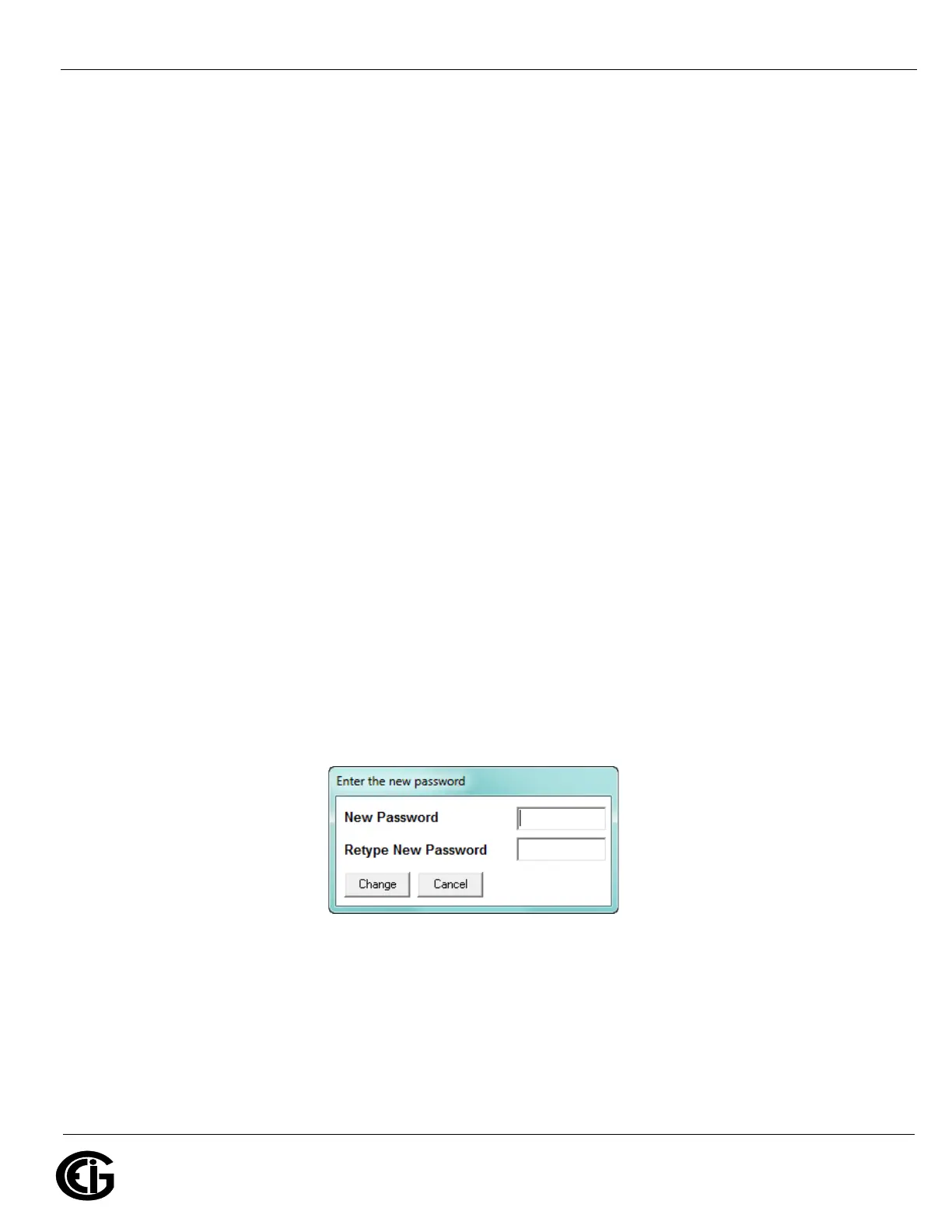
• Change the Password: click the Change Password button. You will see the Enter
the New Password screen, shown below.
1. Type in the new password (0 - 9999).
2. Retype the password.
3. Click Change. The new password is saved and the MP200 unit restarts.
NOTE: If Password protection has already been enabled for configuration and
you attempt to change the password, you will see the Enter Password screen


 To Next Page