Offline Map Image:
In addition to the preset map options, the user can also upload a custom image or blueprint in place of
the map.
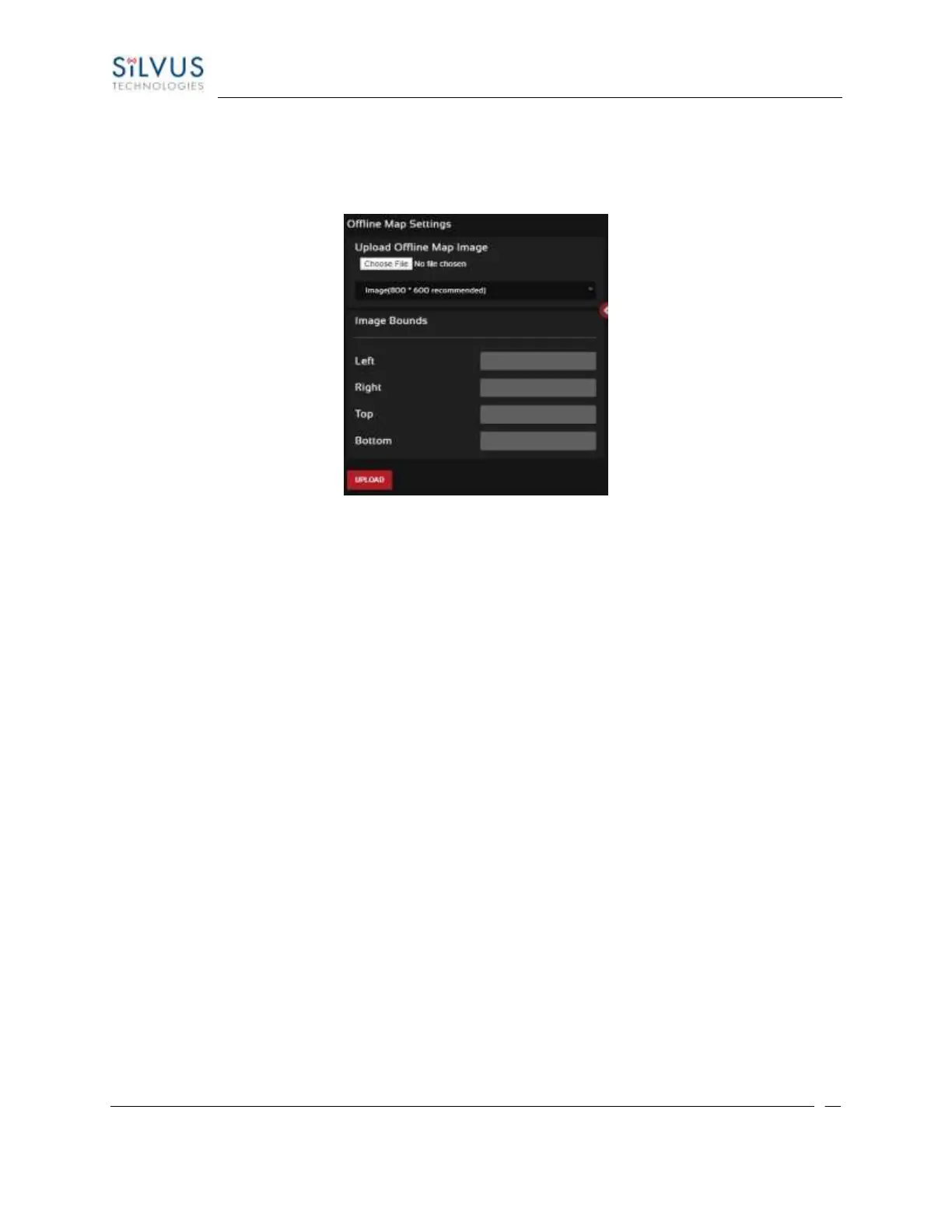
Figure 55 Offline Map Image
To upload a custom image (800 x 600 pixels recommended), first choose the file from your desktop. You
will then need to provide the image bounds. These bounds will be the latitude of the left and right bounds
of the image and longitude of the top and bottom bounds of the image. Once entered, click upload and
there will now be a 4
th
option when clicking the ‘+’ at the top left of the map overlay.
5.2.2.3 Downloading Maps
An internet connection is required to obtain map data, however, users can cache map data on a node
beforehand. For map caching follow these steps:
1. Attach the radio to a laptop and open the Networking/LAN settings.
2. Set the Virtual IP address, netmask and gateway to values appropriate for your local network.
Your local network should be able to access the internet.
3. Attach the radio to your local network and open the Map Overlay tab.
4. Input the address of the location you wish to download
5. You now have two options for caching map data:
a. Zoom/pan around the area you are interested in at the zoom level you will be using.
This will automatically cache the map data at this zoom level.
b. Fill in the radius field (in meters), set the Min/Max zoom levels and click on ‘Seed the
Map’. This is a beta feature and will attempt to cache the entire area for all
appropriate zoom levels. Users should be careful in using this feature since it may



 To Next Page