Sirius 800 www.snellgroup.com Nucleus Advanced Functions and Upgrades
Issue 1 Rev 1 Page 129 © 2014 Snell Limited
5. The Nucleus2 controller will reboot and the new software will be copied to the
Nucleus2 controller. See Table 24. for the LED status that is displayed when the
update is complete.
6. When LEDs 3 to 7 (see Table 24.) on the controller flash green the process is
complete.
7. Remove the USB memory stick and press the Reset button to reboot the Nucleus2
controller.
8. The Nucleus2 controller will be rebooted.
9. If the router is fitted with a single Nucleus2 controller the update is complete.
If the router is fitted with two Nucleus2 controllers go to section 10.2.7.1.
10.2.7.1 Running the Actions.txt file on the Second Nucleus2 Controller
Wait for at least two minutes once the updated controller has finished rebooting before
updating the second Nucleus2 controller (see section 9.5.3 for the controller LED state
displayed once it’s rebooted).
1. Make the second Nucleus2 controller Idle by pressing its Reset button
(see Table 24.). The Active and Idle Nucleus2 controllers swap over.
2. Repeat the procedure from step 2. on page 128 to step 7. on page 129 for the second
Nucleus2 controller.
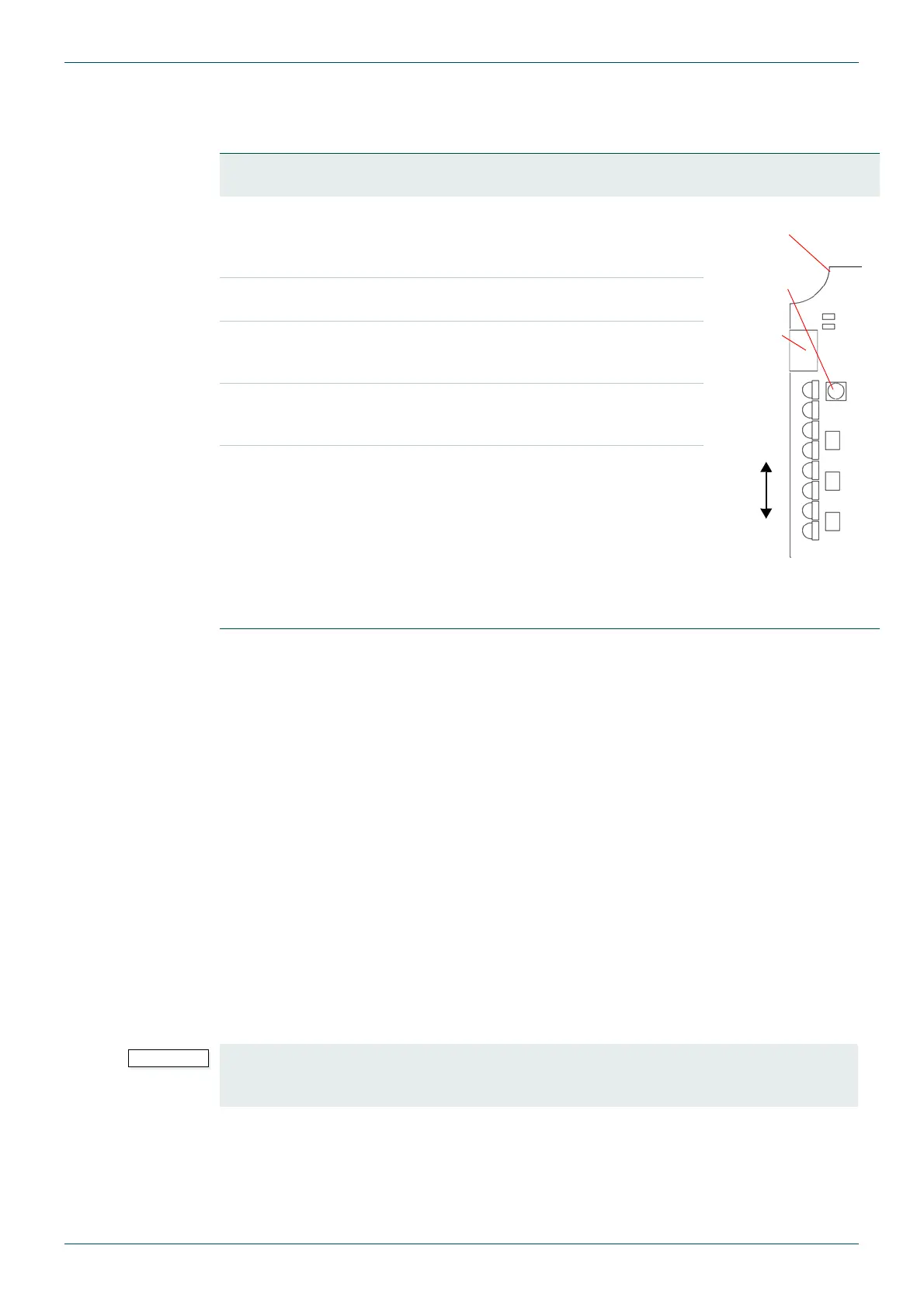
LED 3 to 7
Status
Description LED Location
Flashing
Green
When LEDs 3 to 7 continuously flash Green the actions
have been successfully carried out and it is safe to
remove the USB memory stick and re-start the
controller. See step 6.
Fault Conditions
Flashing
Orange
If LEDs 3 to 7 continuously flash Orange there has been
a minor error or an action marked as NON-FATAL has
failed during the update.
Flashing
Red
If LEDs 3 to 7 continuously flash Red it indicates that an
action marked as FATAL has failed to complete and
therefore the rest of the actions were not processed.
In the Event of one or more Errors
Plug the memory stick into a PC and check the RunLog.txt file for
errors. It’s best to start at the bottom of the RunLog.txt file and work
up as this is usually the quickest way to find the problem.
Typical errors will be missing files on the memory stick and incorrectly
spelt Actions.txt commands. Correct any errors found, reinsert the
USB memory stick into the idle Nucleus2 controller and press the
Reset button to re-run the update if required.
Table 24. Controller LED Status After Software Update
Reset
Button
Power OK
LED 3
LED7
Nucleus2
Controller
USB
connector
LED 1
Remove the USB memory stick before shutting the Sirius 800 door. Leaving the USB
memory stick in the Nucleus2 controller will result in damage to the USB memory stick and
the Nucleus2 controller.


 To Next Page