Sirius 800 www.snellgroup.com Module Maintenance
Issue 1 Rev 1 Page 44 © 2014 Snell Limited
6.2 Upgrading Firmware on Modules
The firmware installed on input modules (4915, 5919, 5915), output modules (4929, 5949,
4925, 5925) and crosspoint modules (5903, 5905) can be updated if required. Updates are
supplied by Snell Customer Support when they are available and if they are required for your
system, see section 1.2 for contact details.
Read through the firmware upgrade process before starting to ensure that you understand the
process and have everything you need to complete the work.
Equipment and files required before starting the upgrade procedure:
• A computer to write the firmware to the module SD cards.
• An SD card reader to copy the firmware upgrade files to the SD cards.
• Self extracting Firmware update package PA1250x_update.exe supplied by Snell
Customer Support. The compressed firmware update package contains a folder for
each of the supported module/license types, see the table on page 45 for details.
6.2.1 Extracting the Upgrade Folders/Files to your Computer
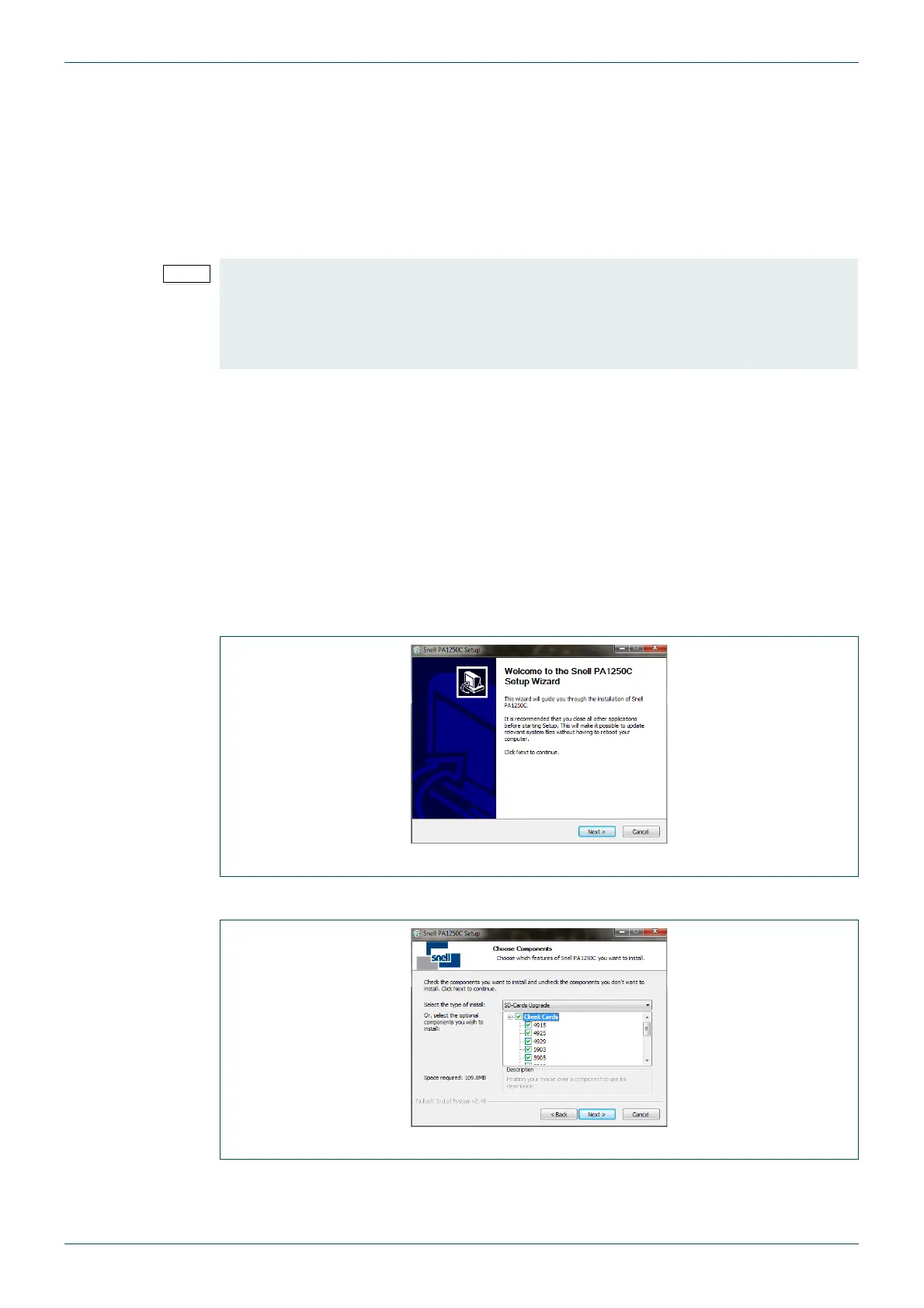
1. The upgrade package PA1250x_update.exe is a self extracting file. Double click on it
to extract the upgrade folders and files:
2. Click on the Next> button.
3. By default all of the module upgrades are selected to be copied to the computer. Make
any changes required and then click on the Next> button.
• The module being updated will not work while the firmware update is in progress.
• Do not set any routes or change processing settings while performing the module
upgrades.
• All of the router modules must be running the same firmware release version.
Fig 13. Initial Screen for Self Extracting Firmware Upgrade Package
Fig 14. List of Upgrade Folders to be copied to the Computer


 To Next Page