37
v1.02
Admin and Installation Guide M900 Firmware Update
Using Snom's update server
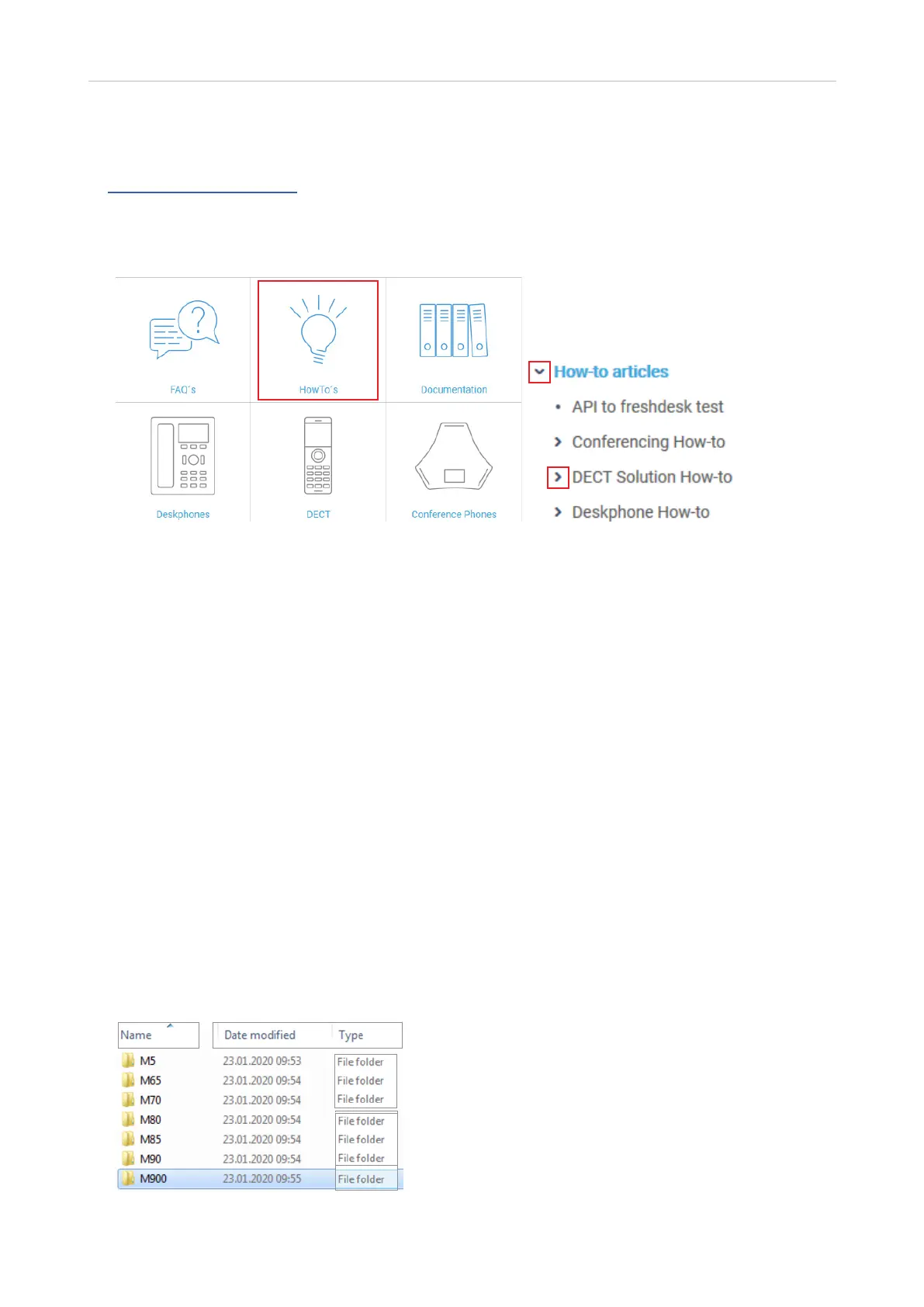
At https://service.snom.com click HowTo's (Fig. 1). In the menu on the left side, click the arrows of
How-to articles and DECT Solution How-to, then select bullet points How to update M300,M700,M900
DECT Base Station and How to update M-Series DECT handsets for the descriptions on how to update
and for downloading the latest firmware versions to your device(s).
Fig. 1 Fig. 2
Using your own server
Before starting the update, you must download all required files and save them in folders using the
exact structure described below.
Do not rename the update files as the base station will look for file names that adhere to the
M-series naming scheme. All M-series product names start with a capital M, followed by one to three
numerals. The names of the firmware files also start with the capital M and are followed by one to
three numerals, i.e., M900, M70, M5, etc. The product name is followed by the underscore _ which, in
turn, is followed by a small v and the three-digit firmware version preceded by a zero, i.e., 0410, 0450,
etc.
Examples:
◦ The update file for updating the M900 to version 450 must be named M900_v0450.fwu.
◦ The update file for updating the M70 to version 450 must be named M70_v0450.fwu.
Downloading update files to your server
1. Set up a folder for each M-series product on your http server.


 To Next Page