39
v1.02
Admin and Installation Guide M900 Firmware Update
b. Repeaters will perform the update as soon as there are no active calls in the system.
Updating the base station
6. In the Update Base Stations section, click one of the radio buttons. The default is Update this
Base Station Only.
7. Enter the three-digit firmware version for updating the base station in the text field of Required
Version, i.e., 410, 450, etc.
8. Click on Start Update.
Updating registered handsets
You have provided the firmware to the handsets registered at the base station in steps 4 and 5, above.
The update of each handset will be performed the next time it is placed in the charger and will take
approximately one minute.
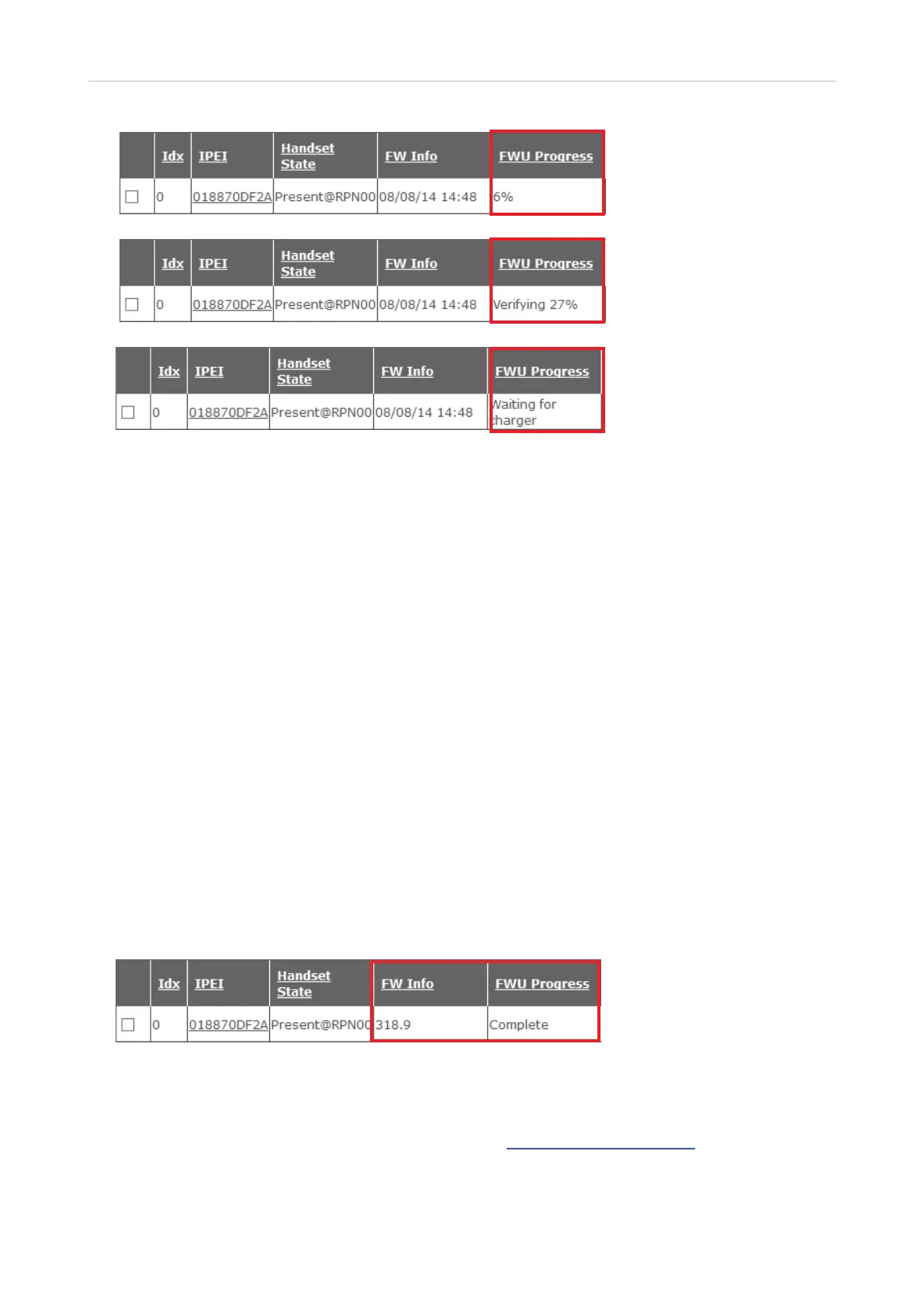
9. Place the handset in the charger to start the firmware update. The LED will flash rapidly, first
green, then red.
If the update was successful, the handset will turn on again, and the web interface will indicate
the completion of the update and the current firmware version on the handset.
Provisioning updates
Please see the Provisioning Guide M900/M700/M300 at https://service.snom.com.
Progress of firmware
transfer in %; LED on
handset is blinking red.
Firmware has been
transferred and is being
verified (progress in %).
Firmware transfer has
been completed; update
will start the next time the
handset is placed in the
charger.



 To Next Page