Labelling CC Numbers
When a CC layer is active, the display of Controller Numbers in the scribble strip can be replaced with user-created labels which
identify the parameters being controlled.
When a CC layer is active in the DAW tab and the Transport/Utility soft keys are selected, the CC Scribble Strips box
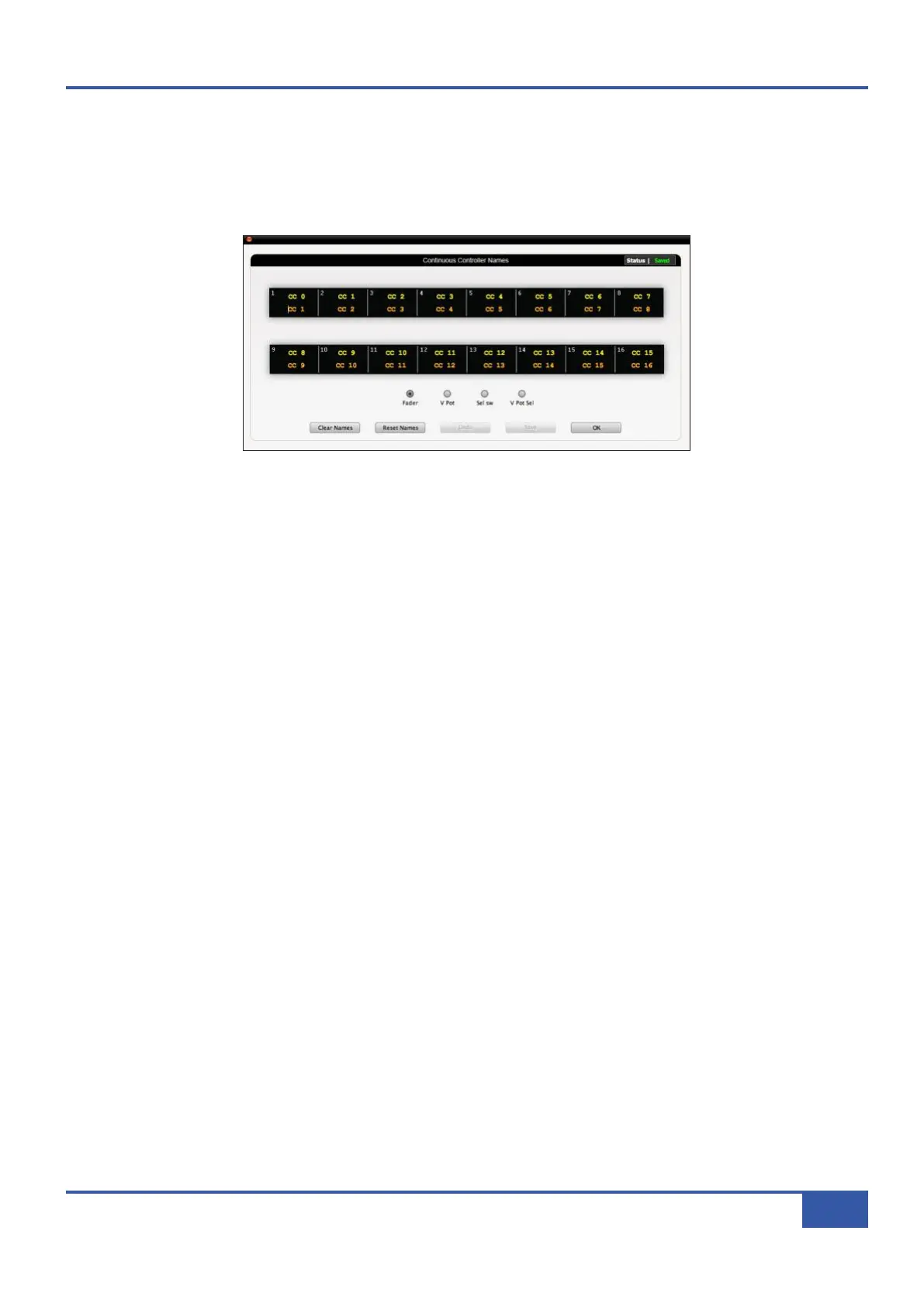
appears to the left of the saved data Status box. Checking this box brings up the Continuous Control Names pop-up:
The main part of the pop-up displays a representation of the Matrix digital scribble strip, with the channels’ CC numbers displayed
in the top row in light yellow and the current label displayed in the bottom row in darker yellow. Clicking on the scribble strip
in any channel will allow the channel label to be edited.
Below the scribble strip are four small buttons which switch the scribble strip display between the four sets of CC numbers
assigned to the console faders, V-Pots and switches: Fader, V-Pot, lower Sel switch and V-Sel. These buttons switch the
labelling function between the four CC assignable channel controls and their respective CC number ranges. If you switch ranges
without saving your changes, a pop-up will appear inviting you to save the changes before switching ranges.
At the bottom of the window are five larger buttons:
Clear Names leaves the CC labels for that CC range blank. When you press this button, a pop-up appears confirming whether
or not you want to continue.
Reset Names returns the scribble strip CC labelling to the CC numbers assigned to the controls. When you press this button,
a pop-up appears confirming whether or not you want to continue.
Undo returns the labels for the current CC range to their last saved state. When you press this button, a pop-up appears
confirming whether or not you want to continue.
Save saves the labels for the current CC range as part of that layer’s configuration.
OK closes the pop-up and returns you to the Remote’s DAW tab. If you have unsaved changes, a pop-up will appear inviting you
to choose between losing your unsaved changes or saving on exit.
Chapter 6 - DAW and CC Configuration
93
Matrix Owner’s Manual


 To Next Page