iJack and Headphones
The iJack and headphone sockets are located to the right of
the transport control panel
.
iJack: Stereo 3.5mm jack Allows the connection of an external line level signal source (such as an
i
Pod or MP3 player) to be switched directly to the Matrix’s monitors.
Headphones: Stereo 1/4" jack Headphone connection
D
D
a
a
t
t
a
a
C
C
o
o
n
n
n
n
e
e
c
c
t
t
i
i
o
o
n
n
s
s
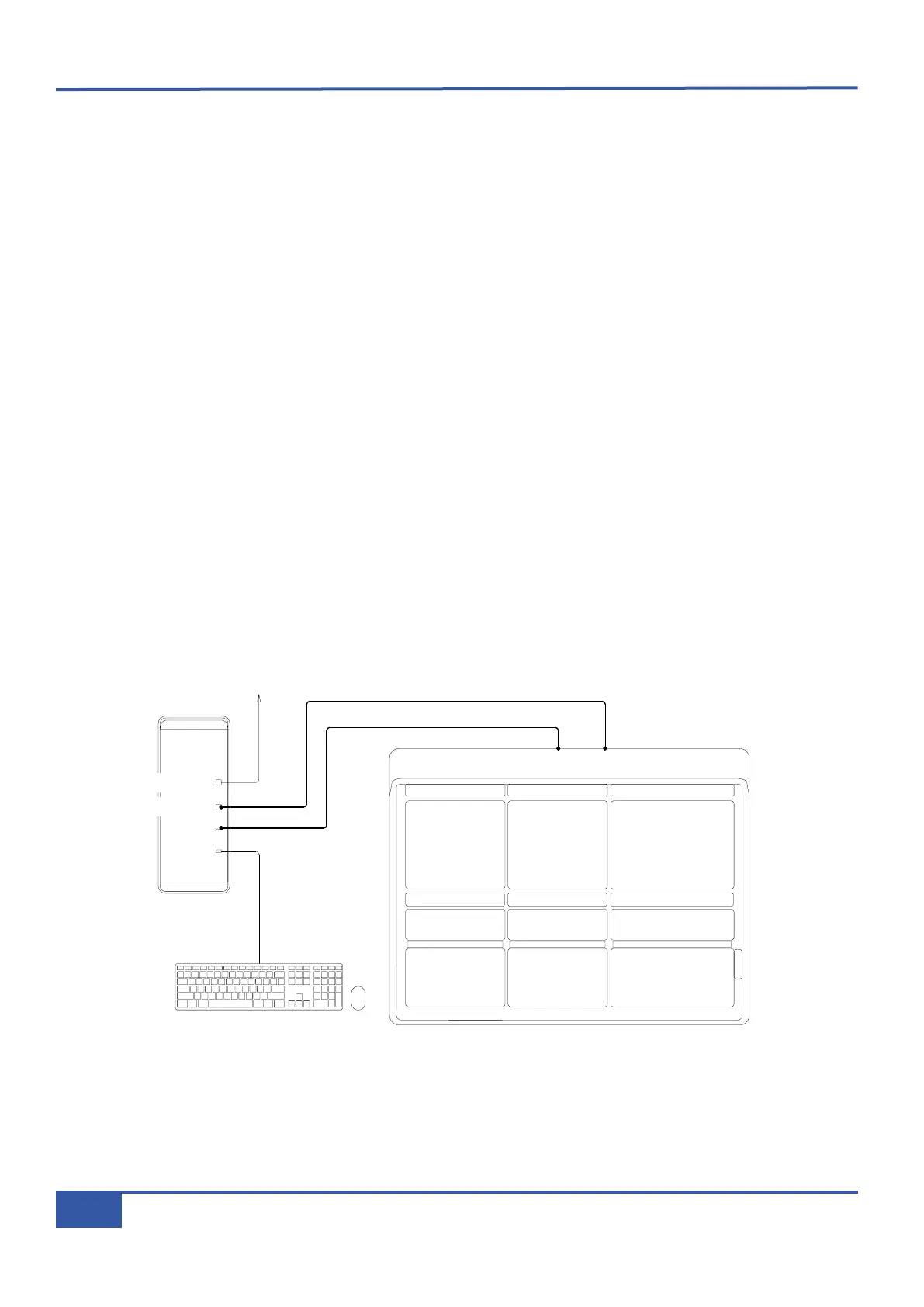
Both Network and USB connections must be made between Matrix and the computer. For systems including multiple computers,
see Page 8.
Network
® A standard RJ45 connector for Matrix–Workstation network data. A 3m crossover cable is provided which should be used
to connect to a separate ‘Network’ port on the workstation computer.
USB
® Use the 3m USB-A to USB-B cable provided to connect the Matrix to a free USB port on your workstation computer. This
connection carries USB keyboard commands generated from the console soft keys. This information can be routed to a Mac
or PC and used to control a DAW via its supported keyboard shortcuts, supplementing the existing MIDI DAW control
offered on Matrix.
Defining QWERTY Keyboard Nationality (Macintosh)
® Matrix emulates a UK keyboard. When Matrix is first connected to a Macintosh, a dialogue will be displayed which asks you
to identify the new keyboard. In order to identify the keyboard type, the Mac then requires the key to right of the left Shift
key to be pressed. In the SSL
MMiisscc
soft key set (see Page 44), there is a key labelled
KKeeyybbIIDD
. Pressing this key will send
the required keystroke to the Mac to correctly identify Matrix as a UK keyboard.
Network connection
USB connection
IP Network
Matrix Console
Workstation Computer
Network
USB
Ethernet 1
USB
Ethernet 2
Chapter 1 - Setup
4
Matrix Owner’s Manual


 To Next Page