M
M
a
a
t
t
r
r
i
i
x
x
R
R
e
e
m
m
o
o
t
t
e
e
C
C
o
o
n
n
f
f
i
i
g
g
u
u
r
r
a
a
t
t
i
i
o
o
n
n
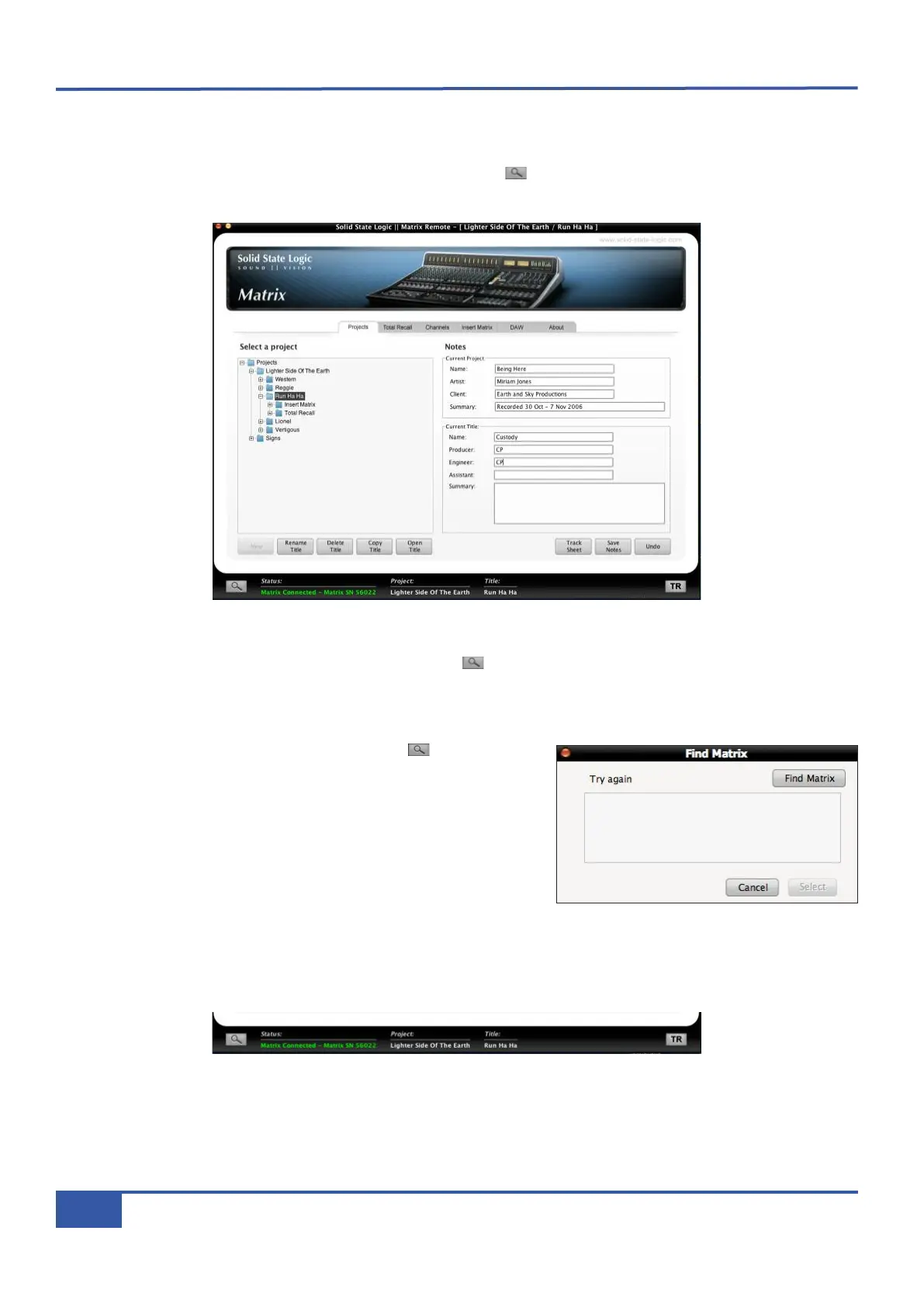
® Having completed the set-up guidelines described above, run the Matrix Remote software.
In the bottom left-hand corner of the Remote window there is a Find ( ) button, along with indication regarding the current
status of the connection to Matrix:
When the Matrix Remote first opens, it searches for a Matrix console to control. If it finds one, it will automatically link to that
console. This will be indicated by the Status to the right of the button displaying a green ‘Matrix Connected - Matrix
SN XXXX’ message, where SN XXXX is the ID of the Matrix console found.
If the Remote cannot find any Matrix consoles, its status will display the message ‘No Matrix Found, click on Find.’
® If this happens, check your connections and press to bring up the
Find Matrix pop-up.
® If the Remote still cannot find any Matrix consoles, the list in the pop-up
will be empty. In this case, recheck the connections and press the Find
Matrix button in the top right of the pop-up, and the Remote will rescan
for consoles.
® Once the Remote has found the console, it will appear in the pop-up.
Highlight the Matrix ID and then click on Select.
Once a connection has been made to Matrix, the green ‘Matrix Connected - Matrix SN XXXX’ message will appear in the
Status field:
Chapter 1 - Setup
10
Matrix Owner’s Manual


 To Next Page