A
A
s
s
s
s
i
i
g
g
n
n
i
i
n
n
g
g
Q
Q
W
W
E
E
R
R
T
T
Y
Y
K
K
e
e
y
y
s
s
t
t
r
r
o
o
k
k
e
e
s
s
S
oft keys can be assigned single keystroke commands, or more complex combinations such as modified commands. To assign a
keyboard stroke, select the relevant Soft Key Set in the DAW tab and press the button you wish to assign. The button will go
yellow to indicate that it is being edited. From drop-down menu which appears, selecting Key assign produces the Keyboard
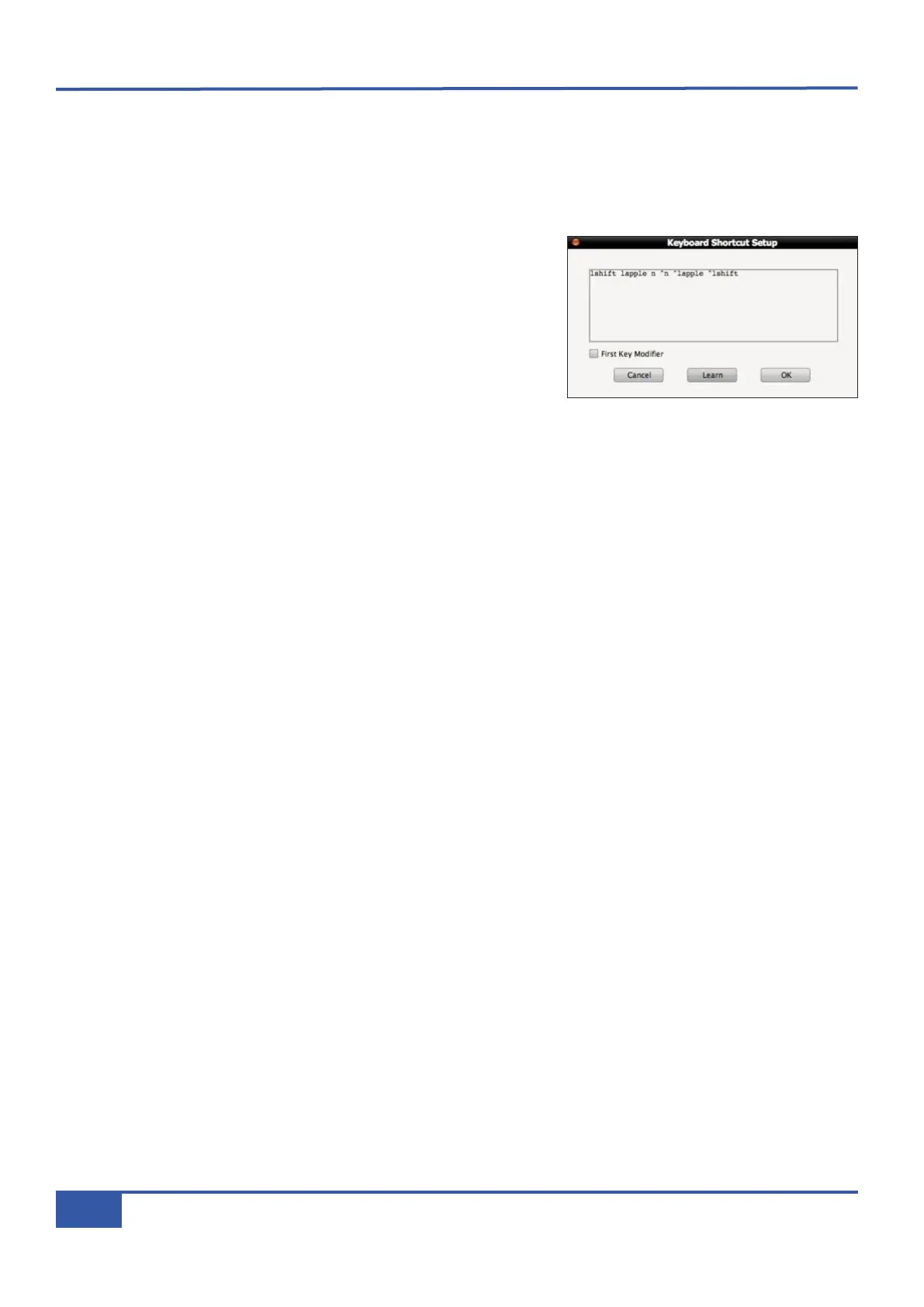
Shortcut Setup pop-up window which records your keystrokes in order to replicate them when the soft key is pressed.
Press the Learn button to start recording your keystrokes. The button will
darken to indicate that it is recording. Now press the key, or combination of
keys, which you want that soft key to emulate. The Keyboard Shortcut
Setup window will display the depression and release of every key you press
in the sequence in which they happen. Key releases are distinguished from key
depressions by the presence of a caret symbol (^) immediately before it.
If you make an error, press Cancel and start again. Once you have completed
the sequence correctly, press Learn again to stop the recording, followed by
OK to close the Keyboard Shortcut Setup box. Soft key assignments must
be saved before they appear in the Matrix soft keys.
First Key Modifier
Selecting the First Key Modifier box before pressing Learn causes any modifier release signals to be delayed until Learn is
pressed again. This allows key combinations which the computer will recognise and hijack to be programmed without the
associated control message actually being sent. For example, to program
⌘⌘
+Tab on a Mac, without causing the computer to
switch between programs:
- Select the First Key Modifier box;
- Press Learn;
- On the QWERTY keyboard, press and release
⌘⌘
.
- On the QWERTY keyboard, press and release Tab;
- Deselect Learn.
You will notice that the
⌘⌘
release does not appear in the pop-up until after the Learn button is deselected.
Chapter 6 - DAW and CC Configuration
86
Matrix Owner’s Manual


 To Next Page