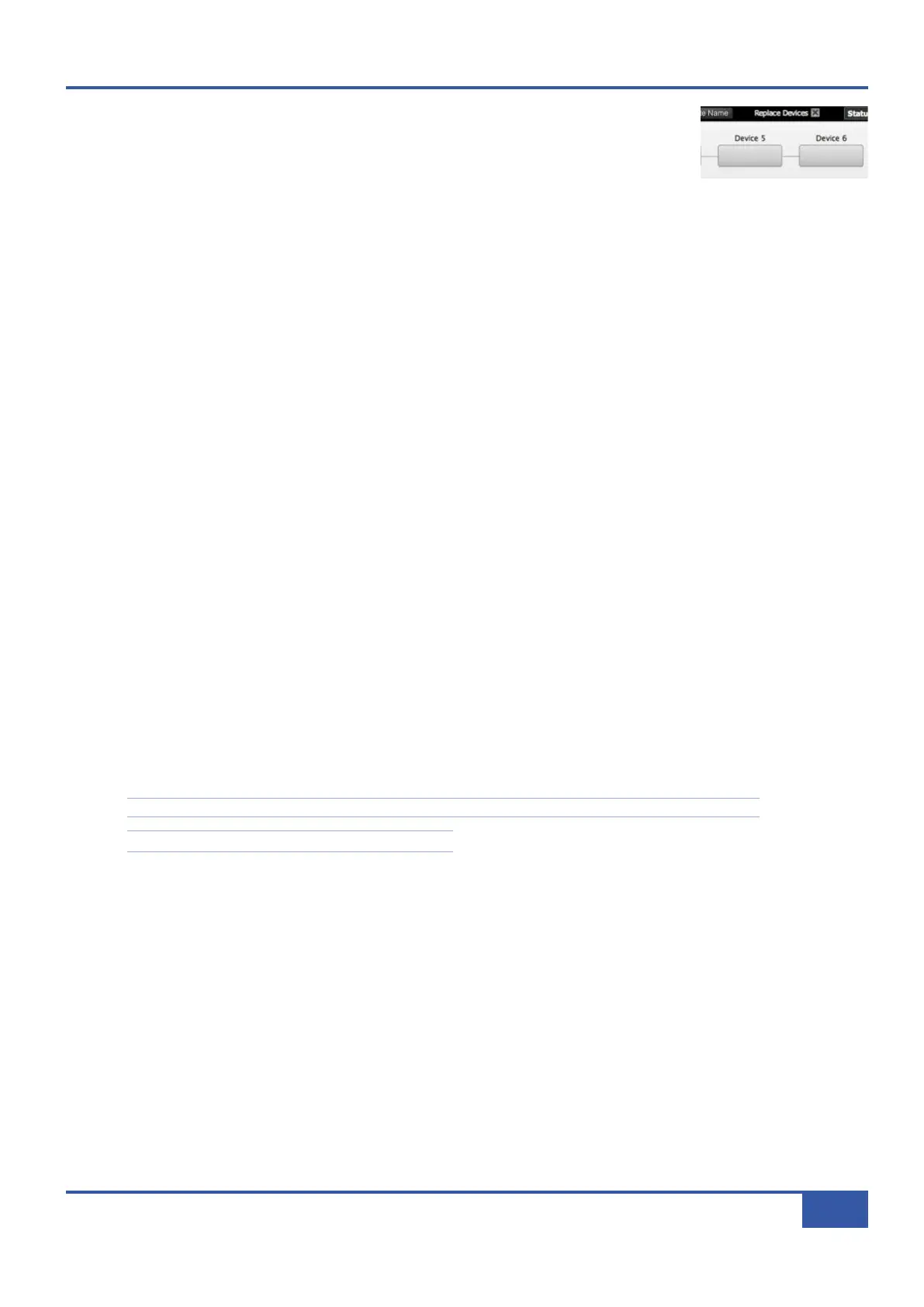
When a new Device is selected for a box which is already occupied by another Device, the
Replace Devices check box to the top right of the Chain Setup area defines whether that
n
ew Device is added alongside the Device already occupying the box, or whether it replaces it:
A
A
d
d
d
d
i
i
n
n
g
g
:
:
If a new Device is selected for an occupied box while the Replace Devices box is unchecked, then a new selection is added to
that point in the Chain, and the Device previously in that box or any box to its right is moved to the right. In other words, to
add another Device into the middle or beginning of a Chain without losing any other Devices, make sure that the Replace
D
evices box is unchecked. You can only insert a Device in this way if the right-most Device box in that Chain is empty.
R
R
e
e
p
p
l
l
a
a
c
c
i
i
n
n
g
g
:
:
If a new Device is selected in for an occupied box while the Replace Devices box is checked, the new Device replaces the
previous selection. In other words, if you want to swap an unassigned Device with a Device in the Chain, make sure the Replace
Devices box is checked.
Once you have inserted all the elements you wish to include, press the Save button, found to the left of the Chain Setup area.
The new Chain will now appear in the left-hand column of the tab. The Remote will not let you save a Chain without any Devices
inserted. Hovering over the Chain name with the mouse will bring up a quick list of Devices assigned to that Chain.
When a Chain is assigned to a channel, it becomes greyed-out in the Chains list and has the channel to which it is assigned added
to the end of its name, indicating that it is not available to other channels. If any Devices within a Chain become assigned to
another channel before the Chain itself has been assigned, the Chain is no longer usable. The Chain’s name will therefore also be
greyed out in the Chain list and the phrase Insert(s) in use is added to the Chain name.
To cancel changes to a Chain, press the Cancel Chain button. A pop-up will appear asking you if you want to save any unsaved
changes before leaving the Chain editor; Press Yes to save changes or No to exit the Chain editor without saving your changes.
Editing Chains
To edit a Chain, double-click on the Chain name. Alternatively. right-click (Mac: ctrl+click) on the Chain name in the left-hand
menu, and select Edit. The Chain will re-appear in the Chain Setup area. Device selections can now be edited or deleted.
The Chain name can be edited by re-typing it in the Chain Name box in which it appears and then pressing Update Name.
Any edits then need to be saved by pressing Save again.
Note that pressing Save without pressing Update Name will result in any name change not being saved.
Note also that you cannot edit a Chain while it is in use.
Deleting Chains
To delete a Chain, right-click (Mac: ctrl+click) on the Chain name in the left-hand menu, select Delete, and press OK in the
warning pop-up which appears.
Chapter 4 - Matrix Remote
61
Matrix Owner’s Manual


 To Next Page