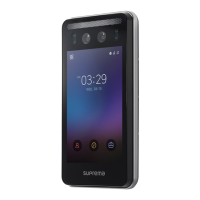
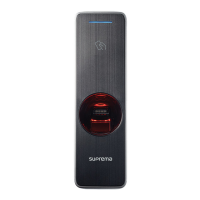
Basic Screen Views
Face Authentication Screen
The following screen is displayed during face authentication.
9
8
7
6
1
2
3
4
1
Home Goes to the Home screen.
2
ID Goes to the ID authentication screen.
3
T&A Selects Time and Attendance options.
4
Menu Goes to the Administrator's menu.
5
Face Detection Icon Displays the face detection status.
6
Image Display
Screen
Displays an image from the camera.
7
Authentication
Method
Displays the authentication method.
8
T&A Event
Displays the current T&A mode.
9
Current Time Displays the current time on the device.
10
Face Detection
Guide Line
Displays the guide line for face detection.
(Blue circle: Face Detected/ Orange: Face Not Found)
Home Screen
The following screen is the default home screen.
1
9
7
6
5
2
3
4
1
Status Button Click to display the status of the device.
2
Additional T&A
Button
Click to select up to 12 time & attendance options
in addition to the 4 basic time & attendance
buttons.
3
Menu Button Click to enter the administrator menu.
4
Call Button Click to use the selected video phone.
5
Basic T&A Button Displays 4 basic time & attendance events
6
ID Authentication
Button
Click to initiate the ID authentication mode.
7
Face Authentication
Button
Click to initiate the face authentication mode.
8
T&A Event Displays the current T&A mode.
9
Status Bar Displays the date and time on the device.
8
5
10


 To Next Page