Note: You may need to reference the configuration notes that you recorded
before starting this reimaging procedure so you can recreate the same storage
pool configurations.
15
The configuration process asks if you want to edit the storage configuration.
The greater the total storage size that you specify, the longer it takes to
complete the storage configuration.
Do you want to edit the storage configuration? [yes,no]: no
16
Disconnect the laptop from the NIC1 appliance port.
Note: If your network uses the 192.168.x.x IP address range, refer to the
following topic for important information:
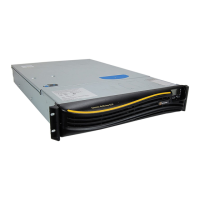
Complete loss of appliance and attached storage disks
If the location your appliance resides has encountered a catastrophic event that
requires an entire appliance replacement, use the following steps as a guide to
replace the appliance. This scenario assumes that your appliance, operating system
drives, and attached storage disks are not recoverable.
Note: Please contact Symantec Technical Support to assist you in replacing your
appliance. The steps provided in this procedure serve as a general guide for
performing a disaster recovery.
Table 11-6
Steps for replacing an appliance and attached storage disk units
after they have been rendered non-operational
DescriptionActionSteps
Symantec Technical Support will dispatch
service personnel to you who will then help you
get your new appliance installed.
Remove the damaged
appliance and replace with a
new appliance.
Step 1
All damaged storage systems must be replaced
at the same time the appliance hardware is
replaced so a proper configuration can be
achieved. Symantec Technical Support will
assist you in replacing the storage systems.
Remove the damaged storage
systems and replace with new
storage systems.
Step 2
153Disaster Recovery
Disaster recovery scenarios


 To Next Page