Introduction
DIGIgarde PLUS User Guide
Copyright
©
2012 TDSi Last Change
Page 8 13 May, 2016
1.4.3
1.4.31.4.3
1.4.3 Co
CoCo
Common reasons for
mmon reasons for mmon reasons for
mmon reasons for enrolment
enrolmentenrolment
enrolment
failure
failurefailure
failure
This section lists some of the common reasons for enrolment failure
Problem Remedy
Finger is too dry or
dirty
Rub the finger in the palm of your hand to clean and
breathe onto the finger to moisten.
Finger applied too
lightly
Place a finger firmly and flat on the sensor surface.
Finger positioned
incorrectly
Your finger should cover most of the sensor window.
Finger removed or
moved during scan
Hold your finger still and do not slide it on the sensor
window until the verification process is complete
Injury or wear has
changed the fingerprint
pattern
If the problem occurs with 1:N verification, try 1:1
verification, if this is an available. Contact the
administrator. You may need to enrol another finger or
use a password verification method instead.
Enroll
EnrollEnroll
Enroller’s
er’ser’s
er’s
guidelines
guidelinesguidelines
guidelines
When enrolling, we recommend you enrol users with their left or right index or
middle finger. Check the fingers for any injuries or wear.
If the user’s fingers are small, it may be preferable to use a thumbprint.
Few people’s fingerprint quality is too poor to verify but in difficult cases it is
advisable to use an ID & fingerprint verification method with the threshold reduced
accordingly. In extreme cases, use password verification to avoid fingerprint
verification problems.
1.5
1.51.5
1.5 LED indication
LED indicationLED indication
LED indication
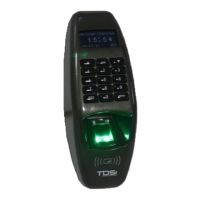
The DIGIgarde PLUS unit has a red/green status LED in its top-left corner. This
provides information about the verification process.
Normal Red light flashes
Verification failure Red light on constant for 3 second
Verification successful Green light constant for duration of ‘Lock Open’ state.


 To Next Page