User Setup
DIGIgarde PLUS User Guide
Copyright
©
2012 TDSi Last Change
Page 26 13 May, 2016
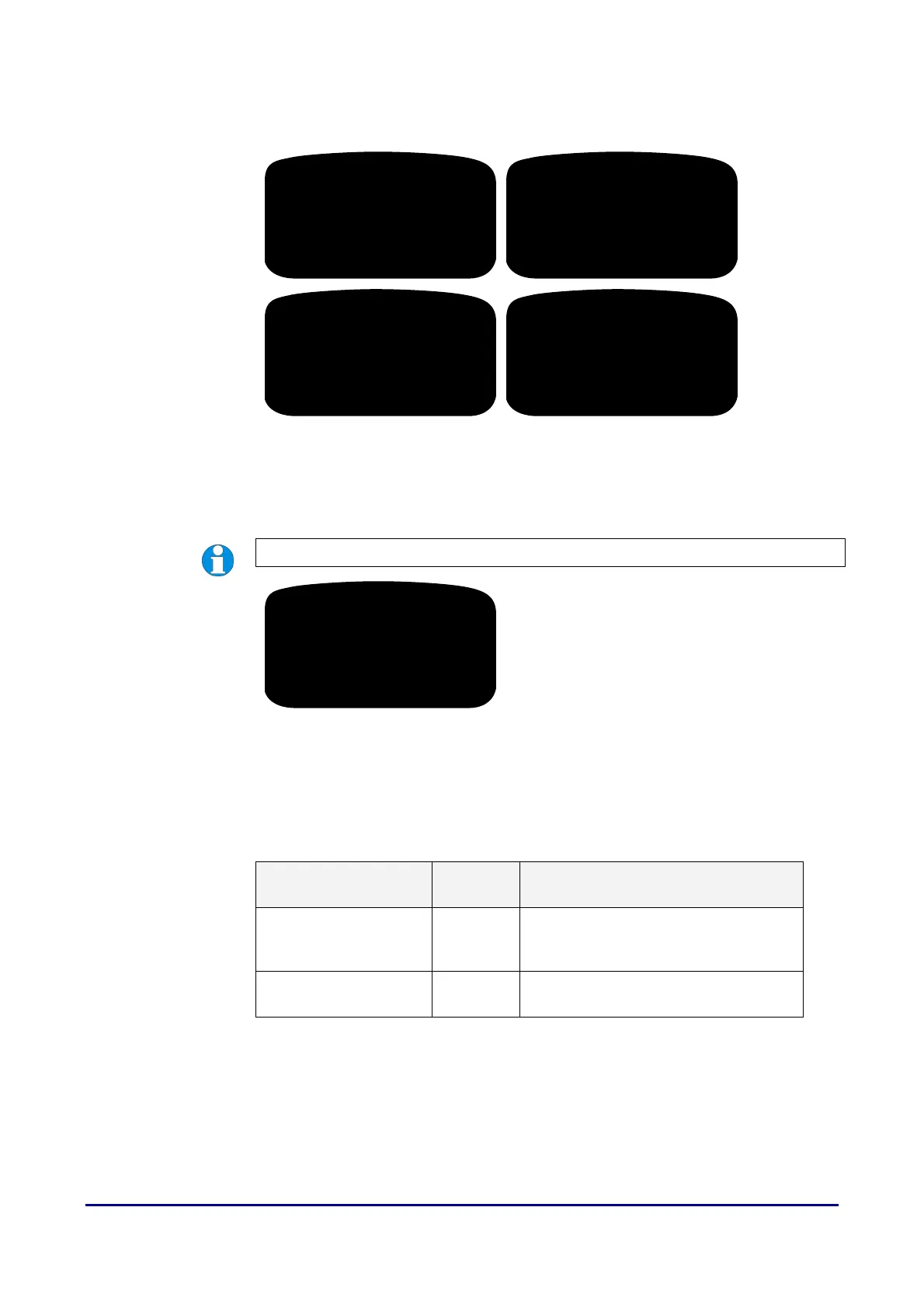
6. The scanning process takes a few seconds. When this is complete, the
DIGIgarde PLUS beeps and prompts the user to remove their finger. Repeat
this procedure for two further scans.
7. If the enrolment is successful, DIGIgarde PLUS prompts you to save the
scanned fingerprint. Press the OK button to save the fingerprint template
and create the user account or press ESC to discard the scans and cancel
the enrolment.
NOTE. If you forget to press the OK button the template will not be saved.
If you want to enrol another user, press the OK button.
If you want to enrol a backup fingerprint for the same user, press ESC.
If you want to return to the main menu, press ESC twice.
Table 7 Possible fingerprint enrolment errors
Screen message Voice
prompt
Description
Input again “Please
try again”
Error during scanning. For example, a
different finger was used for one of the
scans.
FP Enrolled Alrd “Duplicate
finger”
The fingerprint has already been
enrolled to an existing user ID.
000000001-0
000000001-0
Remove finger
000000001-0
Remove finger
000000001-0
Third Press
000000001-0
Second Press


 To Next Page