User Setup
DIGIgarde PLUS User Guide
Last Change Copyright
©
2012 TDSi
13 May, 2016 Page 23
3. In the User Manage menu, use the ▲▼ keys to select the Enrol Admin
option. Press the OK button to select the Enrol User menu option.
4. In the Enrol Admin menu, use the ▲▼ keys to select the enrolment method:
Enrol FP enrol a fingerprint to a new or existing user.
Enrol PWD Enrol a password to a new or existing user.
FP & Pwd Enrol a fingerprint and password to a new or existing user.
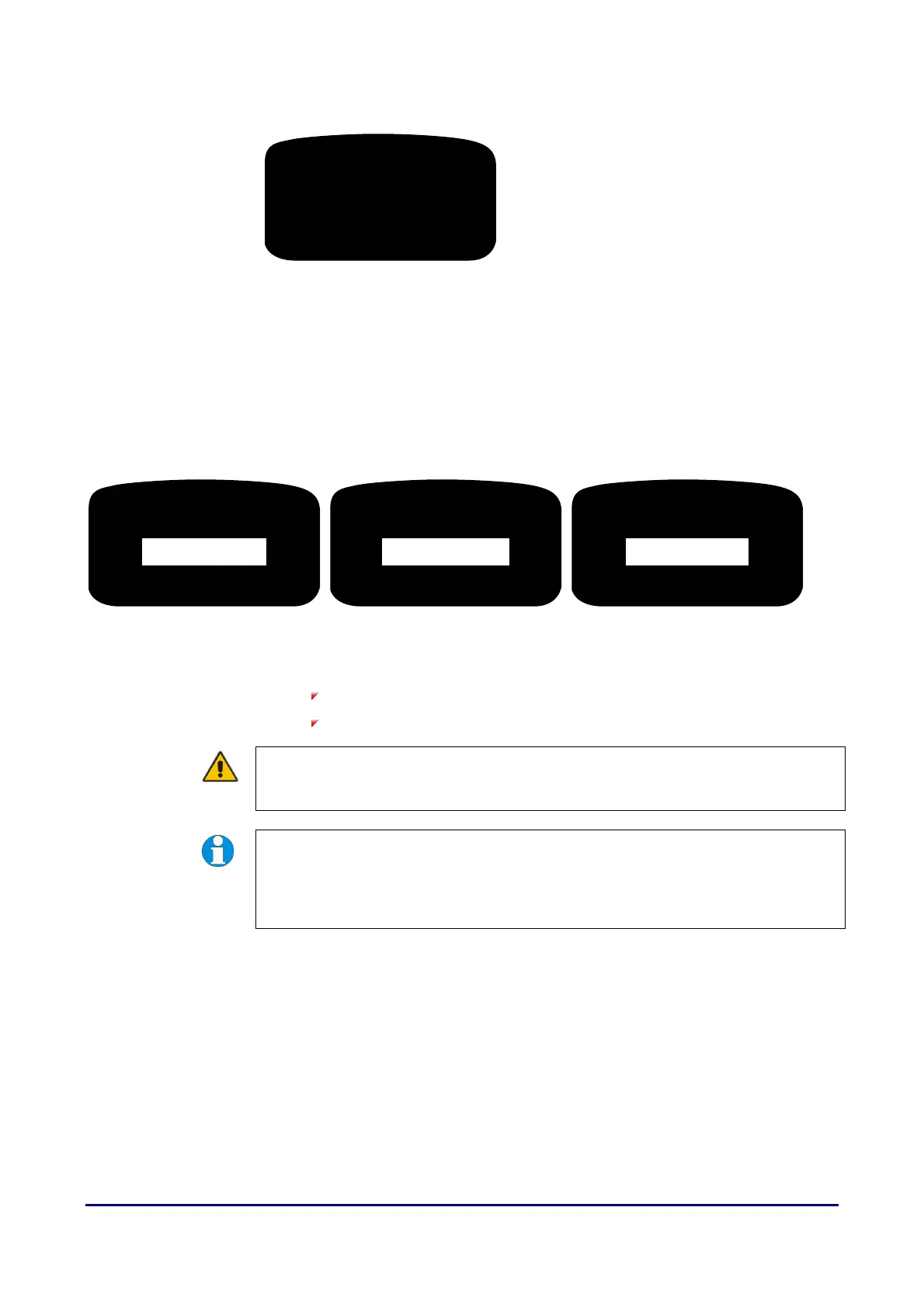
5. Press the OK button. The Admin Accredit screen is displayed. Use the ▲▼
keys to choose the management role for the user to be enrolled.
6. Press the OK button. Now follow the procedures described in the following
sections:
Enrolling a fingerprint
Enrolling a password
CAUTION! If the admin is unable to log in, it will be necessary to carry out a
factory reset of the unit to be able to carry out any admin functions (see page
57).
NOTE. If you change the verification mode of group 1, the default user group,
make sure you do not lock yourself out of the menu. For example, if you set group
1 to PW verification, enrol yourself as Admin with PW-only verification, and
subsequently change group 1 to FP verification, you will be unable to get back in to
the menu.
Admin Accredit
Enroller____
Admin Accredit
Manager____
Admin Accredit
Admin__ ___
► Enrol FP
Enrol Pwd



 To Next Page