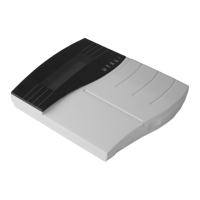
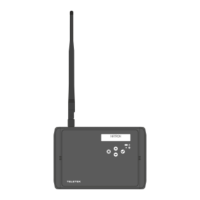
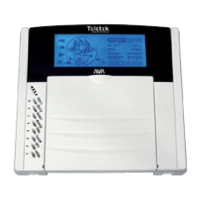
The menu allows for detector sensitivity adjustments. The
values that can be selected are between 00 and 07, where
the greater number shall be of higher sensitivity. The preset
default value is 03.
Reference to a group of sensors.
NOTE: By default the rst enrolled in the system device shall
be assigned to Group 1, the second to Group 2 and every next
to Group 3.
The performance is as described in §3.1.2.
The performance is as described in §3.1.2.
The performance is as described in §3.1.2.
This is the menu for adjusting the lowest ambient tempera-
ture reading (with precision of ±1°С) where the sensor can
operate. Upon reaching the programmed value, the control
panel shall generate and transmit via the communicator (if
such is available in the system) an EV_FREEZE_ALARM
event message – see Event-LOG Table, page 58. The occur-
rence of such an event will also be indicated with the t sym-
bol on the control panel display, but with no sound signal.
Where the ambient temperature rises above the value that
has been programmed, the t symbol will be removed and
the communicator will generate an EV_FREEZE_ALARM_R
event. Where the selected Low Temperature event for acti-
vating the output has been selected (PGM – see §3.3), any
temperature above that programmed shall restored the ini-
tially programmed status of the output. The preset default
option is not used.
Use the
button to conrm all entered data and changes.
3.1.4 Programming of МС 100 ТЕ Magnetic Contacts
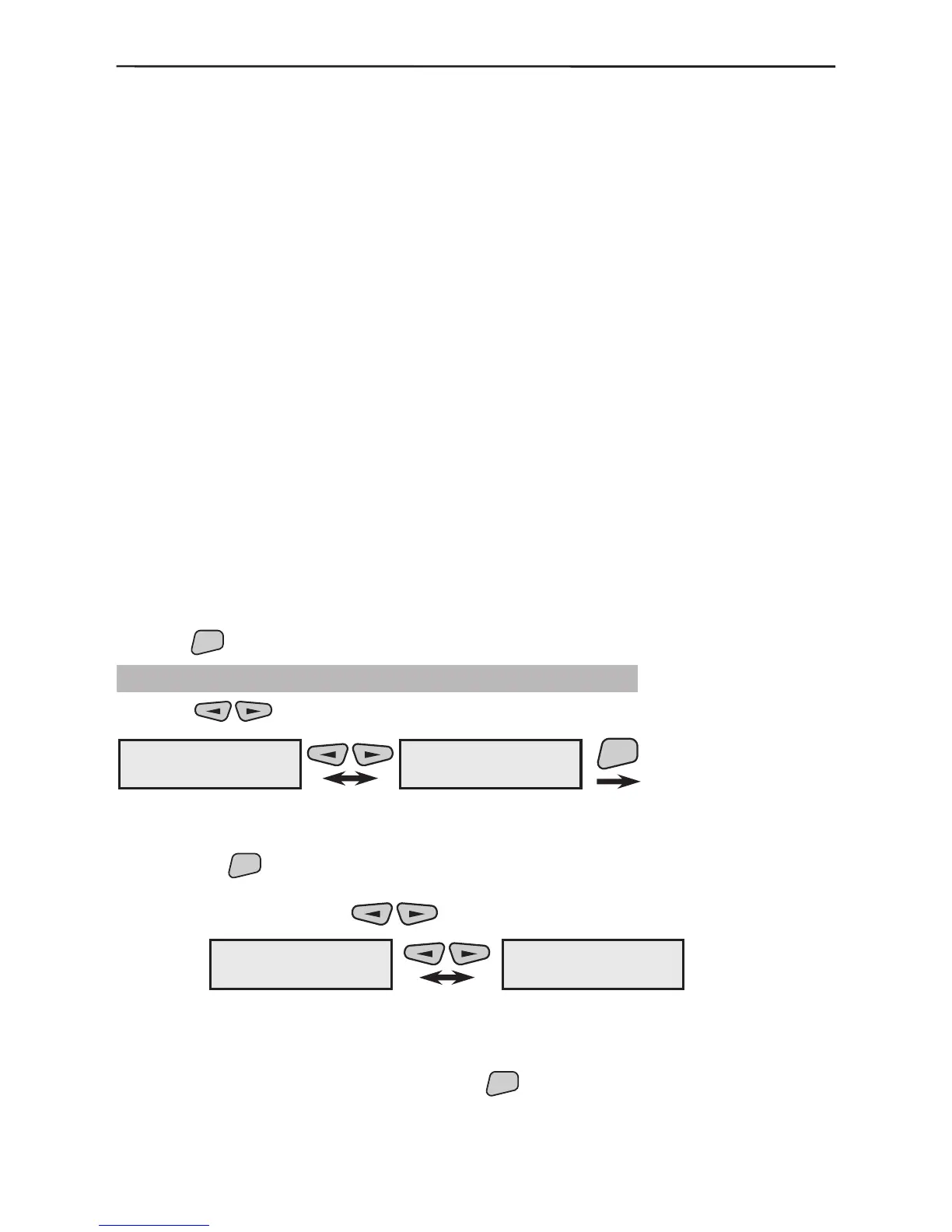
Use the buttons to select the next menu from the 2)Program Device:
This is the menu for scrolling through and programming the parameters of all available
in the system magnetic contacts. Two types of actions are possible from this screen after
pressing the
button.
1. The various enrolled and recorded in the system magnetic contacts can be scrolled
through with the help of the
buttons.
Example:
The rst magnetic contact (MC01) in this example has been recorded as a second sys-
tem device (02MC) and the second (MC02) as the fourth (04MC). The names of the
devices have been edited according to their location within the system.
2. From the screen of each device press the


 To Next Page