Page | 50
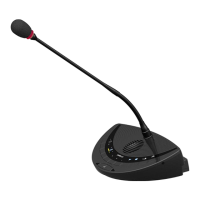
In case you want to delete a conference unit from the configuration,
you have to select the microphone number on the central unit in the
Delete Unit menu item. Once you have selected the appropriate
number and pressed the ENTER button, then you can remove the
conference unit.
Note: When you enter the Manual Init – Full Init menu item, then
all data about previously reserved numbers will be lost.
Choosing the conference mode
By selecting a certain conference mode, you can strongly influence
the character of a discussion:
you can determine the level of control of the chairman,
and you can determine whether the conference participants can
take the floor immediately or if they have to “apply” for the
floor.
Note: A chairman is always able to speak! No matter what mode
the conference system is in, the chairman or VIP is always able to
speak by pressing his MICRO button.
You have the choice between 10 different operating modes. The
operating mode is selected in the Operating Mode menu item. Note
however that one mode is only useful in combination with a PC
installed with the software control suite. This mode is: No request.
Without a PC you can use the With request, With request – no
clear, Direct Access, FIFO, Group 1-4 and Override. With a PC
and the software control suite all the operating modes can be used.
Operating modes:
No request: the participant willing to speak has to notify the
conference manager that he is willing to speak. He can do this
by raising his hand or any other means not involving the
microphone. Once the conference manager has noticed that a
participant has requested the floor, he can activate microphone
of the participant or ignore his request. The conference operator
has total control over the microphones.
With request: enables the participant to send a request to the
chairman or conference operator by pressing the microphone
button (or to cancel his request by pressing the microphone
button again). Once the floor is requested, the green LED above
the microphone button will flash and when configured so, the
LED ring on the microphone too. This means that the
conference unit is in request mode. The chairman or conference
operator grants the participant the permission to talk by clicking
the green microphone on the computer screen. While the



 To Next Page