Operation
HiPer Pro Operator’s Manual
4-14
4. Click Delete (Figure 4-8 on page 4-13).
5. Click Ye s at the delete files confirmation dialog box. PC-CDU
deletes the selected files.
6. Click Exit on the File Manager screen.
7. Continue with other operations. Or Click FileDisconnect, then
FileExit to quit PC-CDU.
Checking Receiver Options
TIP
TIP
For a complete list of options and their details, visit the
Topcon website.
You can check the status of your receiver’s options, and load any new
OAFs, using the RS232 cable, a computer, and PC-CDU. Refer to the
PC-CDU User’s Manual for a more complete description of the PC-
CDU software.
1. Connect your receiver and computer. See “Connecting the
Receiver and a Computer” on page 2-10 for this procedure.
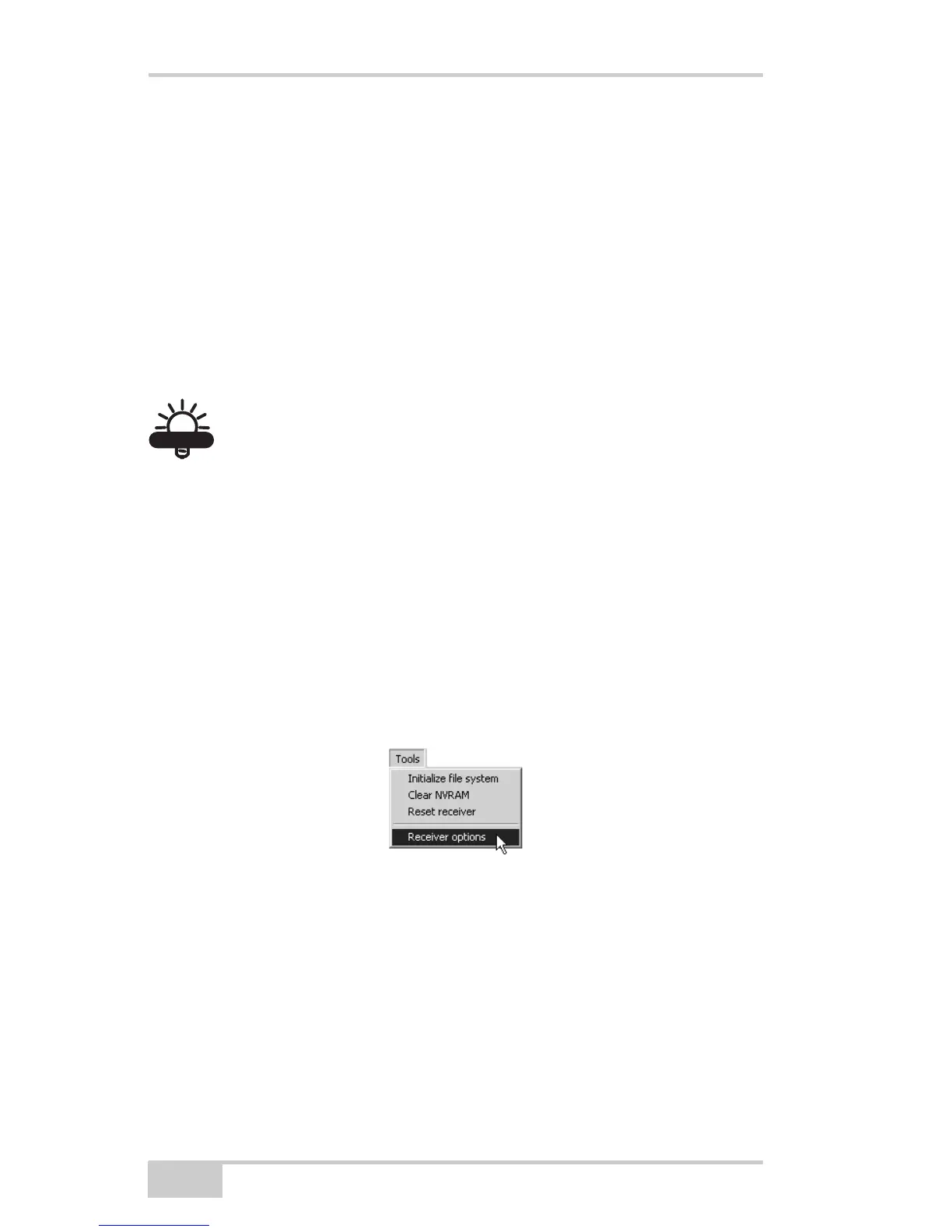
2. Click ToolsReceiver Options (Figure 4-9).
Figure 4-9. Open Receiver Options
The Options Manager dialog box displays (Figure 4-10 on
page 4-15) and contains the following information:
• Option name – a name/description of the option
• Current – the current status of the option
• Purchased – if the option is purchased or not
• Leased – if the option is leased or not


 To Next Page