Connecting the Receiver and a Computer
P/N 7010-0681
2-13
Establishing a PC-CDU Connection
PC-CDU is a Personal Computer-Control Display Unit software used
to manage the various functions of your receiver. The full range of
PC-CDU configuration and function is outside the scope of this
manual. For more information on any of the procedures in this section
or on PC-CDU, refer to the PC-CDU User’s Manual available on the
TPS website.
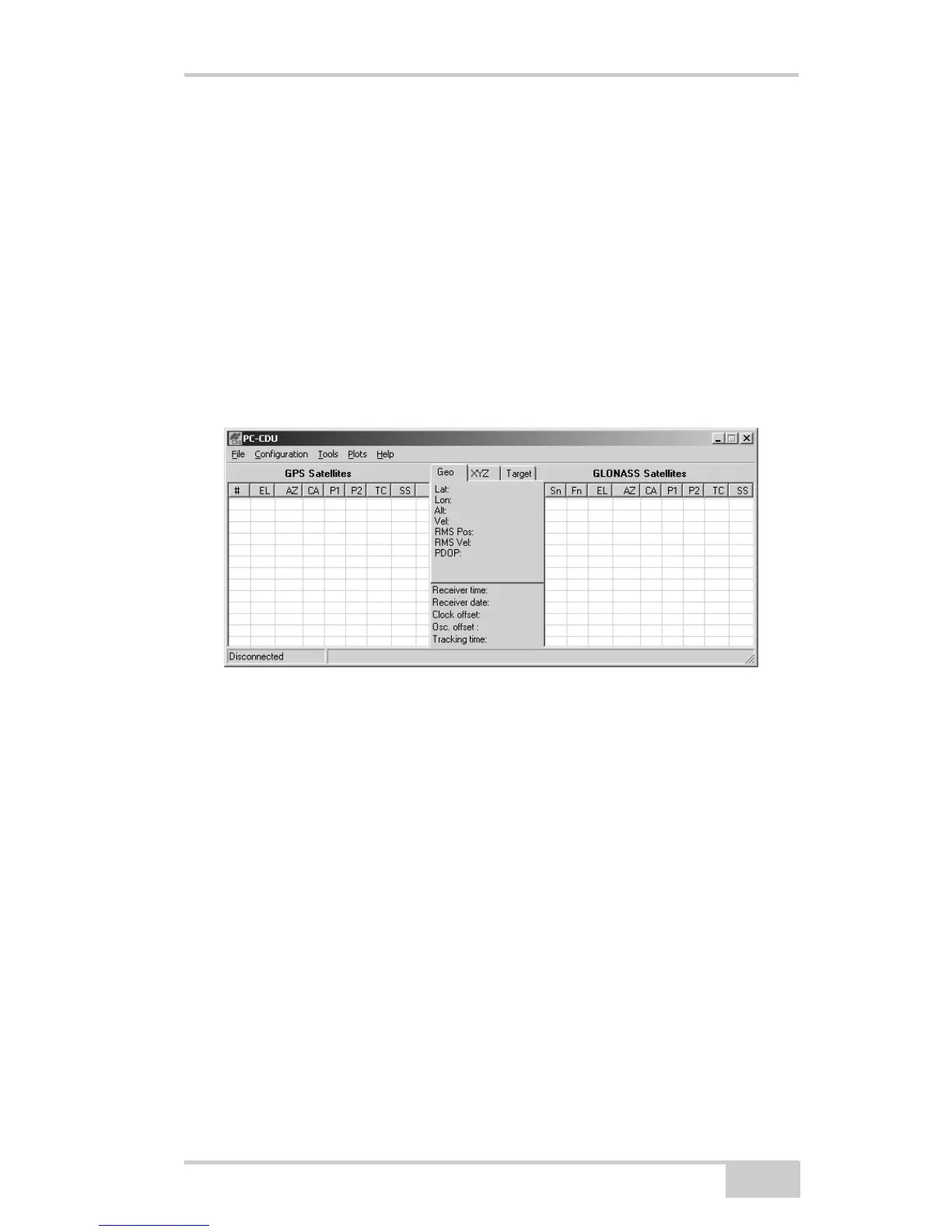
1. Once the receiver and a computer are connected, start PC-CDU
on your computer. The PC-CDU main screen displays
(Figure 2-7).
Figure 2-7. PC-CDU Main Screen
Notice that the lower-left hand corner shows the receiver status as
“Disconnected”.
2. Click FileConnect.
3. On the Connection Parameters dialog box, select the following
parameters and click Connect:
• for Bluetooth or RS232 connections (Figure 2-8 on
page 2-14):
– Set the Connection mode (Direct).
– Set the port for your computer (typically COM1, COM2
for RS232 connection and COM3, COM4, etc. for
Bluetooth connection) from the Port drop-down list.


 To Next Page