EasyManua.ls Logo

Topcon HiPer Lite - User Manual

Topcon HiPer Lite
180 pages
Print Icon
To Next Page IconTo Next Page
Loading...
HiPer
®
PRECISION GPS+: HiPer Lite & HiPer Lite+
HiPer
®
&
Operator’s Manual

Table of Contents

Questions and Answers

  • G
    Gail KellyAug 14, 2025
    What to do if Topcon GPS receiver does not power up?
    • C
      Chelsea HaasAug 14, 2025
      If your Topcon GPS receiver doesn't power up, it might be in Zero Power Mode; try pressing the Reset key. If you're not using an external power source, the batteries might be discharged; connect a fully charged external power source. If you are using an external source, the internal batteries may be discharged; charge them overnight. If it still fails to power on after charging, it may have a defective charger or batteries.
  • D
    David DavisAug 17, 2025
    Why Topcon GPS receiver can't find receiver?
    • M
      Manuel ThompsonAug 17, 2025
      If the Topcon GPS receiver cannot be found, ensure the receiver has power and is turned on. If using a cable, check that the cable connector is properly attached to the correct serial port. Unplug the cable, then securely and properly reconnect it. If using a cable, ensure you are using an undamaged cable. Also, verify that the COM port the receiver is attached to matches the one selected in BTCONF.
  • R
    Robin HendersonAug 21, 2025
    What to do if Topcon HiPer Lite GPS receiver cannot establish a connection to a computer or external controller?
    • N
      Nicholas ScottAug 21, 2025
      If your Topcon GPS receiver cannot connect to a computer or external controller, ensure the cable is properly plugged into the correct serial port by unplugging and securely reconnecting it. Check if the cable is damaged and use an undamaged cable. Also, verify that the receiver port used for the connection is in Command mode. To change the port to Command mode, connect your receiver and a computer using a free port and start PC-CDU. Click Configuration?Receiver?Ports. Change the Input for the serial port used for connection to Command.
  • S
    Sarah PerryAug 25, 2025
    Why Topcon HiPer Lite GPS receiver cannot obtain Code Differential and/or RTK solutions?
    • K
      kevinhernandezAug 25, 2025
      If the Topcon GPS receiver cannot obtain Code Differential and/or RTK solutions, the base coordinates entered may be incorrect; specify the correct coordinates for the Base station using PC-CDU or other field data collection software. Ensure the receiver is configured correctly as a Base or Rover. The corresponding receiver options may be disabled or expired, enable or prolong the validity of the options by ordering a new OAF with the desired options activated. There may also be not enough common satellites; ensure that both the Rover and Base receivers use the same, and updated, almanac and check that the elevation masks of the Rover and Base receivers are the same.
  • D
    Deborah SmithAug 28, 2025
    How to fix 'Open COM# port failed: Access is denied' error for Topcon GPS?
    • R
      Rhonda BarberAug 28, 2025
      If you encounter an 'Open COM# port failed: Access is denied' error with your Topcon GPS, it means another application is using the computer port dedicated for the connection. Close the application and reconnect, or connect the receiver via another, unused computer port.
  • J
    jeffrey48Aug 31, 2025
    Why Topcon HiPer Lite receiver tracks too few satellites?
    • A
      Amy MckayAug 31, 2025
      If the Topcon GPS receiver tracks too few satellites, the elevation mask value might be too high; lower the elevation mask. Also, the survey might be conducted near obstructions. In this case, check that the Multipath Reduction boxes have been enabled by connecting your receiver and a computer and starting PC-CDU. Click Configuration?Advanced?Multipath Reduction and enable the two boxes. If applicable, move to an area free of obstructions.
  • H
    haleymelanieSep 3, 2025
    Why Topcon HiPer Lite can’t find Bluetooth?
    • J
      Jane LunaSep 3, 2025
      If the Topcon GPS can’t find Bluetooth, the receiver’s Slot 3 might be turned off; connect your receiver and a computer using an RS232 cable, click Configuration?Receiver?General, and in the Turn on/off Slots area, enable the Slot 3 (B) check box. The Bluetooth module might be linked with another device; close the connection with that device and then connect to your receiver. The Bluetooth module’s processor might be overloaded; put your receiver in Zero Power Mode, press and hold the Reset key for about one second to return the receiver to normal mode, and then reconnect to the Bluetooth module. The receiver might not have a Bluetooth module.
  • G
    Gabriel WernerSep 6, 2025
    What to do if Topcon HiPer Lite GPS receiver has no free space for files?
    • C
      Corey SmithSep 6, 2025
      If the Topcon GPS receiver has no free space for files, download receiver files to a computer if needed and delete files. Use the AFRM feature.
  • T
    Tina JohnsonSep 10, 2025
    What to do if Topcon HiPer Lite GPS receiver has already logged 512 files into the internal memory?
    • J
      John MitchellSep 12, 2025
      If the Topcon GPS receiver has already logged 512 files into the internal memory, delete unnecessary files and use the AFRM feature.

Summary

Chapter 1 Introduction

Receiver Overview and Functionality

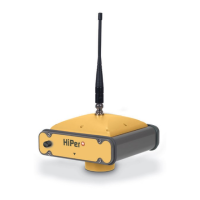
General description of HiPer Lite receivers, GPS basics, and operation.

Standard Package Contents

Items included in the standard RTK package.

System Cables and Power

Details on system cables and power supply.

Software and Literature

Associated software and available documentation.

Receiver Components

Overview of internal and external parts.

Option Authorization Files (OAFs)

How OAFs enable specific functions.

Chapter 2 Configuration

Powering and Charging the Receiver

How to power and charge the receiver.

Connecting Receiver to Computer

Procedures for establishing a connection.

Receiver Configuration Settings

How to configure receiver settings via PC-CDU.

MINTER Interface Configuration

Configuring the Minimum Interface.

Radio Modem Configuration

Setting up the internal radio modem.

Bluetooth Module Configuration

Configuring the Bluetooth module.

Collecting and Updating Almanacs

How to update almanac data.

Chapter 3 Setup and Survey

Receiver Setup Procedures

Steps to prepare the receiver for use.

Antenna Height Measurement

Procedures for measuring antenna height.

Data Collection Management

How to start, stop, and manage data collection.

Static Surveying Method

Method for static surveying.

Kinematic Surveying Methods

Method for stop-and-go kinematic surveys.

Real-time Kinematic (RTK) Setup

Configuration for RTK base and rover stations.

Chapter 4 Operation

Using the MINTER Interface

How to use the receiver's front panel interface.

Data File Management

Downloading and deleting survey data.

Receiver Options and OAFs

Checking options and loading OAFs.

Memory and NVRAM Management

Managing receiver memory and clearing NVRAM.

Receiver Mode Changes

Switching between operational modes.

Firmware Management

Checking and loading new firmware.

Chapter 5 Troubleshooting

Initial Problem Checks

First steps for diagnosing issues.

Power and Receiver Issues

Solutions for power and general receiver problems.

Connectivity and Bluetooth Problems

Troubleshooting connection and Bluetooth issues.

Radio Modem Issues

Problems related to the radio modem.

Obtaining Technical Support

How to contact support for further assistance.

Appendix A External Antenna Setup

Connecting an External Antenna

Steps for connecting and configuring an external antenna.

Antenna Offset Specifications

Details on antenna offsets.

Appendix B Specifications

Receiver Technical Specifications

Detailed technical specifications for the receiver.

Connector Details

Details on various connectors used.

Appendix C Safety Warnings

General Safety Precautions

General safety precautions and guidelines.

Battery and Usage Warnings

Specific warnings for the internal battery and product usage.

Appendix D Warranty Terms

Product Warranty Information

Details on the product warranty.

Topcon HiPer Lite Specifications

General IconGeneral
Update Rate20 Hz
RTK Horizontal Accuracy1 cm + 1 ppm
Data StorageInternal memory
CommunicationBluetooth
TypeGNSS receiver

Related product manuals