DE35-ST Operating Instructions
D292469I 29
Show Dimensions:
1. Right click on the desired object (must be a crosshair, rectangle, or ellipse).
2. Select “Show Dimensions”.
Using Dimensions:
Once dimensions are configured as described above, a shape can be drawn around any item of
interest (die, surface defect, feature, etc.), and the real dimensions of that shape will be
calculated and displayed.
Recipes:
Recipes allow the user to save the screen pattern (all shapes, text boxes, and
dimensions shown onscreen) as an .rtv file. This allows the user to set up a different
screen pattern for each different die size and save it as a separate file. When switching
between different die, the user will only need to change recipes.
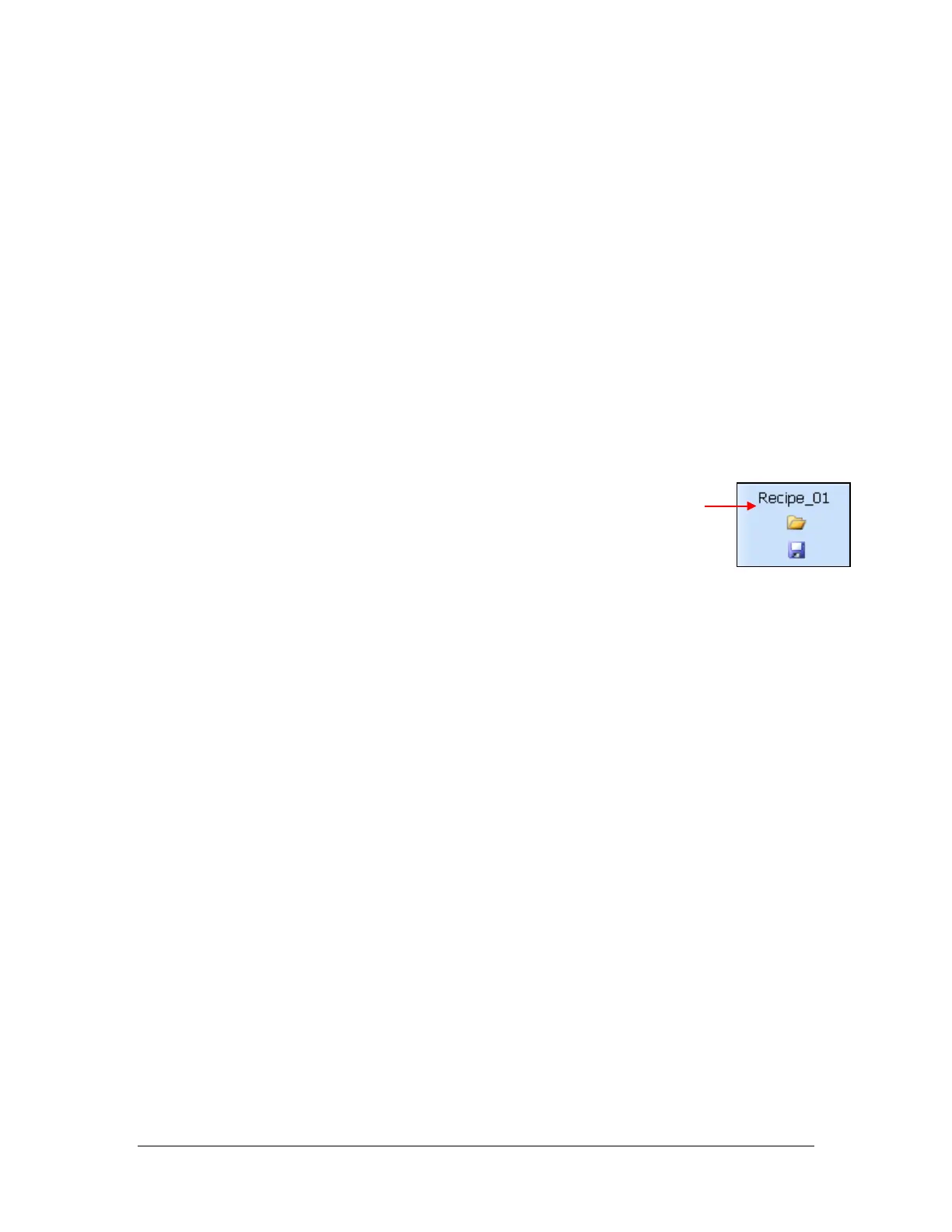
• The name of the active recipe is displayed in the toolbar.
• To save the current screen pattern as a new recipe, click on the
Floppy Disk Icon on the toolbar. This will open the Windows File Structure
window where the user can enter a file name and select where they want to
save the recipe file. The default location is:
C:\Program Files (x86)\Royce Instruments\RoyceTechnicalVideo\Recipes
• To open an existing recipe file, click the Open Folder Icon on the toolbar. Select
the appropriate .rtv file and select OPEN. The program will load the selected
recipe.
Note 1: The program automatically saves any changes to the open recipe when the
program is closed or a recipe is opened.
Note 2: Recipes created in the Royce Technical Video software program are separate
from the Process Recipes 1-9 that are programmed via the DE35-ST keypad.


 To Next Page