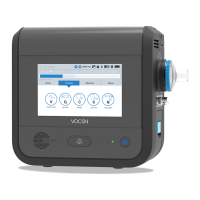
Multi-View
VentecLife.com 103
Exporting Multi-View Data to a USB Drive
Using software versions 4.06 and later, V*Home data can be exported to USB, then uploaded to the cloud to create
Multi-View trending reports, which provide insight into the use of all 5 therapies over time including the frequency of
alarms, settings changes, and monitored parameter trends.
To export Multi-View data to USB:
1 Install a USB drive into the USB port in the back of V*Home.
NOTE: USB drives used with V*Home must be USB 2.0 compatible, and formatted to
FAT32. Do not plug anything else into the V*Home USB port. To purchase a V*Home
compatible USB drive, see VentecLife.com/usbdrive.
2 Navigate to the Event Log by pressing Menu and then the LOGS button. Press the Events tab.
3 Select the EXPORT button to begin exporting Multi-View data to the connected USB drive. When the export is
complete, press OK and remove the USB drive.
NOTE: V*Home stores and exports Multi‑View data for the past 90 calendar days of use. Previous data is
overwritten.
4 Insert the USB drive into a computer, and open the “VOCSN” folder on the drive. Ensure you’re connected to
the Internet and double-click the “Click to open Multi-View.html” link to open the Multi-View portal. Follow
the instructions on the Multi-View portal, and see “Generating Multi-View Reports” on page 104 for more
information.



 To Next Page
 Loading...