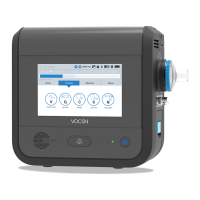
The Touchscreen
VentecLife.com 57
The Settings & Alarms Button
Press the SETTINGS & ALARMS button to modify Ventilation control settings and alarms for any
of the three congured Ventilation therapy Presets. This button will open the Ventilation Presets
conguration screen.
See “Changing Ventilation Therapy Settings” on page 60 and “Changing Alarm Settings” on
page 81 for conguration instructions.
The Device Settings Button
Press the DEVICE SETTINGS button to modify V*Home system controls such as alarm volume.
See “Device Settings” on page 78 for more information.
The Logs Button
Press the LOGS button to view the Alarm Log and the Event Log. The V*Home Logs screen is
also accessible by tapping the alarm icon in the status bar.
See “The Alarm Log” on page 91 and “The Event Log” on page 92 for more information.
The Clinician Access Button
When the Unlock Required? device setting is set to Yes, pressing the CLINICIAN ACCESS button
locks and unlocks V*Home. See “Clinician Access Mode” on page 76 for more information.
Pressing the padlock button will prompt you to enter a Clinician Access Passcode to unlock the
device and allow the conguration of all control settings.
Each V*Home has a unique Clinician Access passcode. The passcode is the last four digits of the
device serial number. This number is printed on the V*Home back label. It is also visible from the
Service section of the MY VOCSN screen.
When V*Home is unlocked, pressing the unlocked padlock button will lock the device again. V*Home will also
automatically lock again after 15 minutes, regardless of user interaction with the device.
NOTE: Only controls set to “User and Clinician” in the Permissions screen will remain congurable when V*Home is
locked.
SETTINGS
DEVICE
ACCESS



 To Next Page
 Loading...