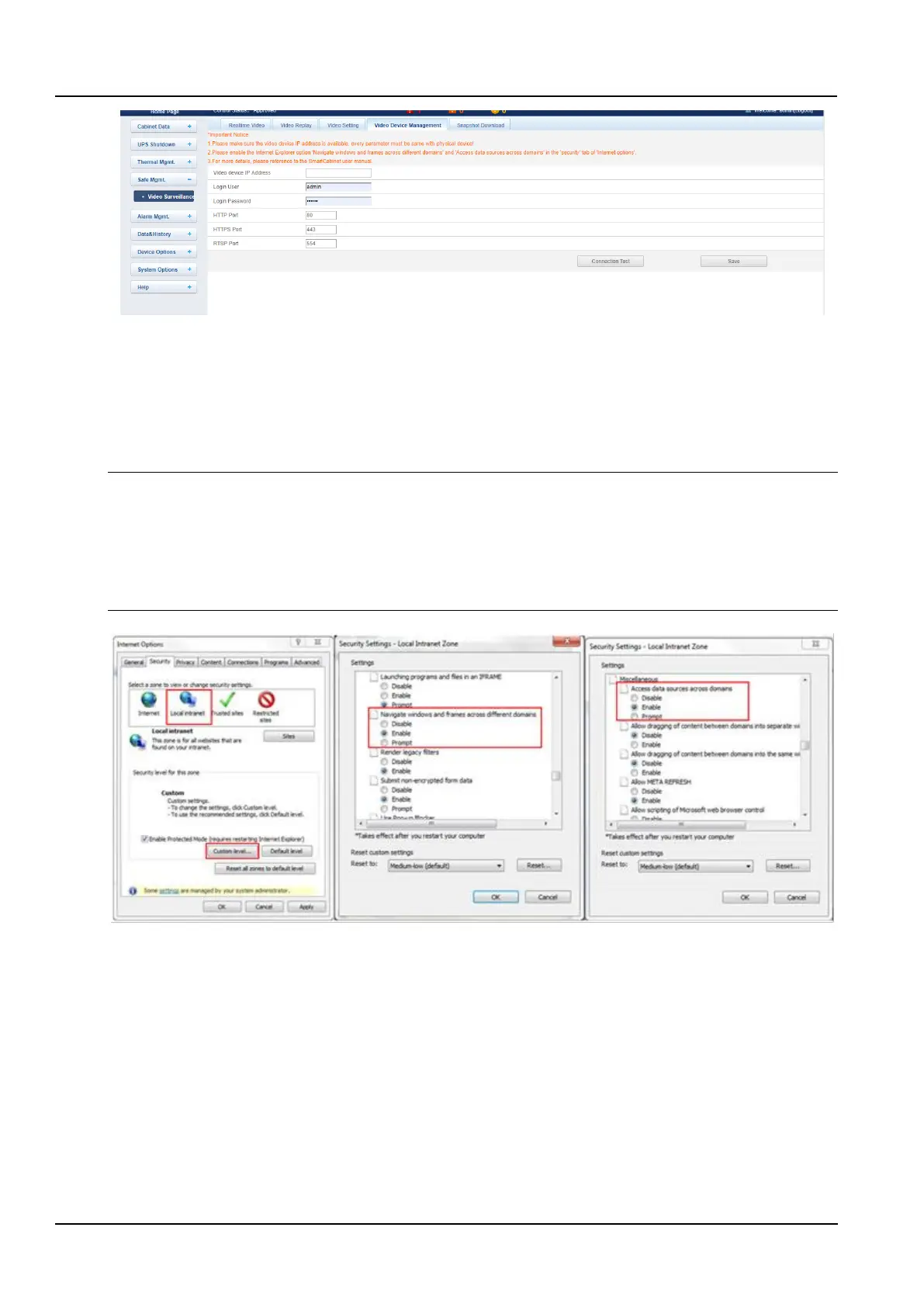
Figure 3-51 Video Surveillance
a) Video device management
Enter the Video device IP Address, Login User and Login Password, HTTP port, HTTPS port, RTSP port, and
click the Connection Test button to test whether the video device is successfully connected. If the message “Video
device connection test successful!” is displayed, the connection is successful, otherwise the connection fails.
Please check whether the input video device information is correct, and the video device connection is correct. Click
the Save button to save the entered video device information.
Notices
1. Please ensure that the input video device IP address is available, and each parameter must be consistent with the actual device!
2. Please enable "Cross-domain browsing windows and frames" and "Access data sources through domain" on the "Security" tab
in Internet Explorer "Internet Options", as shown in Figure 3-52.
3. Support single-channel IPC (IP Camera) camera.
4. In the case of IPC access, up to 1 channel of video is supported.
5. Video management only supports IE browser.
Figure 3-52 Internet Settings
b) Realtime video
Click on the Live Video tab under the Video Surveillance menu and the page shown will be displayed. The following
Table 3-1 gives the icon description.



 To Next Page