5. Alarm Mgmt.
The alarm mgmt. provides a centralized alarm management function, which allows users to customize the alarm
notification and alarm linkage rules and complete the historical alarm query function.
In the home page of the intelligent monitoring unit, click the Alarm Mgmt. menu on the left, and you can see four sub-
menus, including: Current Alarm, History alarm, Alarm notification, and Alarm Actions.
a) Current Alarm
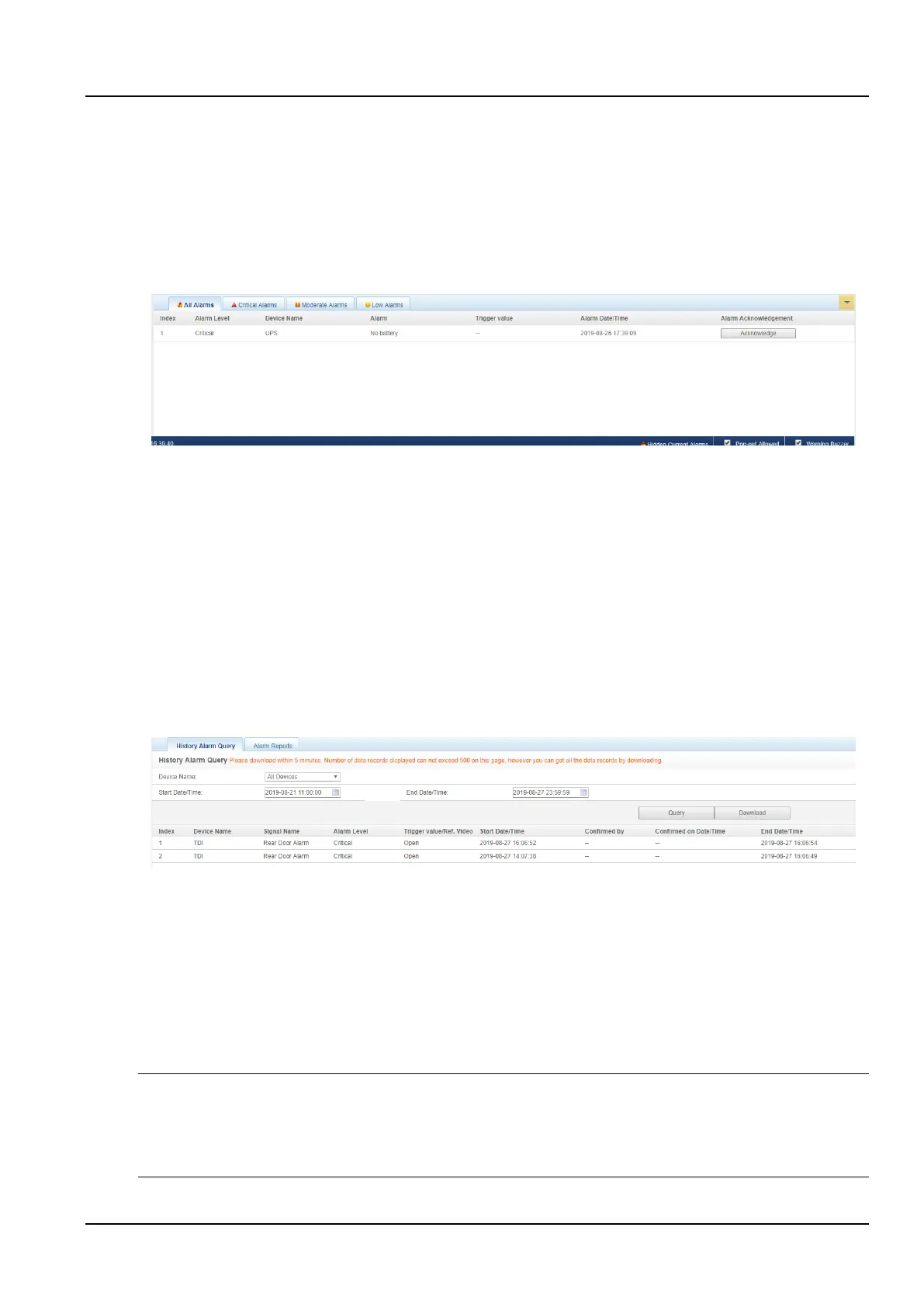
Click the Active Alarm submenu under the Alarm Mgmt. menu, or follow the 3.2.3 4. Real-Time Alarm Reminder
Settings section to pop up the current alarm display list, as shown in the Figure 3-63.
Figure 3-63 Current alarm
(1)Click the tab above the alarm list to view the current alarms of the system by alarm level.
(2)Click the unconfirmed button to confirm the alarm. The confirmed alarm will no longer participate in the alarm
linkage, and the alarm notification will be sent only once.
(3)When the mouse cursor is on the confirmed link, the alarm confirmation message will be displayed in floating,
and the mouse cursor will disappear automatically after being removed.
b) History alarm
Click the History Alarms submenu under the Alarm Mgmt. menu to view historical alarm records. Select a device
name (such as "All Devices") and set the start data/time (for example "2019-08-21 11: 00: 00") and the end data/time
(for example "2019-08-21 23: 59: 59"). Then click the Query button to list all the alarm records from the start time to
the end time. The information includes: Index, Device name, Signal name, Alarm level, Trigger value/Ref. Video,
Start data/time, Confirmed by, Confirmed on date/time and End date/time, as the Figure 3-64 shows.
Click the Download button to download the query results.
Figure 3-64 History alarm query
c) Alarm notification
(1)User alarm notification configuration
Click the Alarm Notification submenu under the Alarm Mgmt. menu to pop up the page as shown. The user can
select which notification mode to receive which alarm notifications for which devices. The user can select the
language type of the alarm notification information and customize the alarm content (the device name, alarm
description, alarm time, and alarm status are included by default).
Click the Save button to complete the alarm configuration. When the alarm is generated, the user will be notified by
the configured notification method.
Notices
The user must first select the Notification by to edit the Alarm notification table at the bottom of the page can be edited;
When you select “Select All”, all devices are configured with the same alarm level at the same time;
When a low-level alarm is selected, all alarms above this level will be selected.
When a device is selected, the highest level Critical is selected by default.



 To Next Page