Notices
1. The port number defaults to 25. When you choose to enable SSL, the port number automatically changes to 465.
2. When using SSL, make sure the mail server supports SSL.
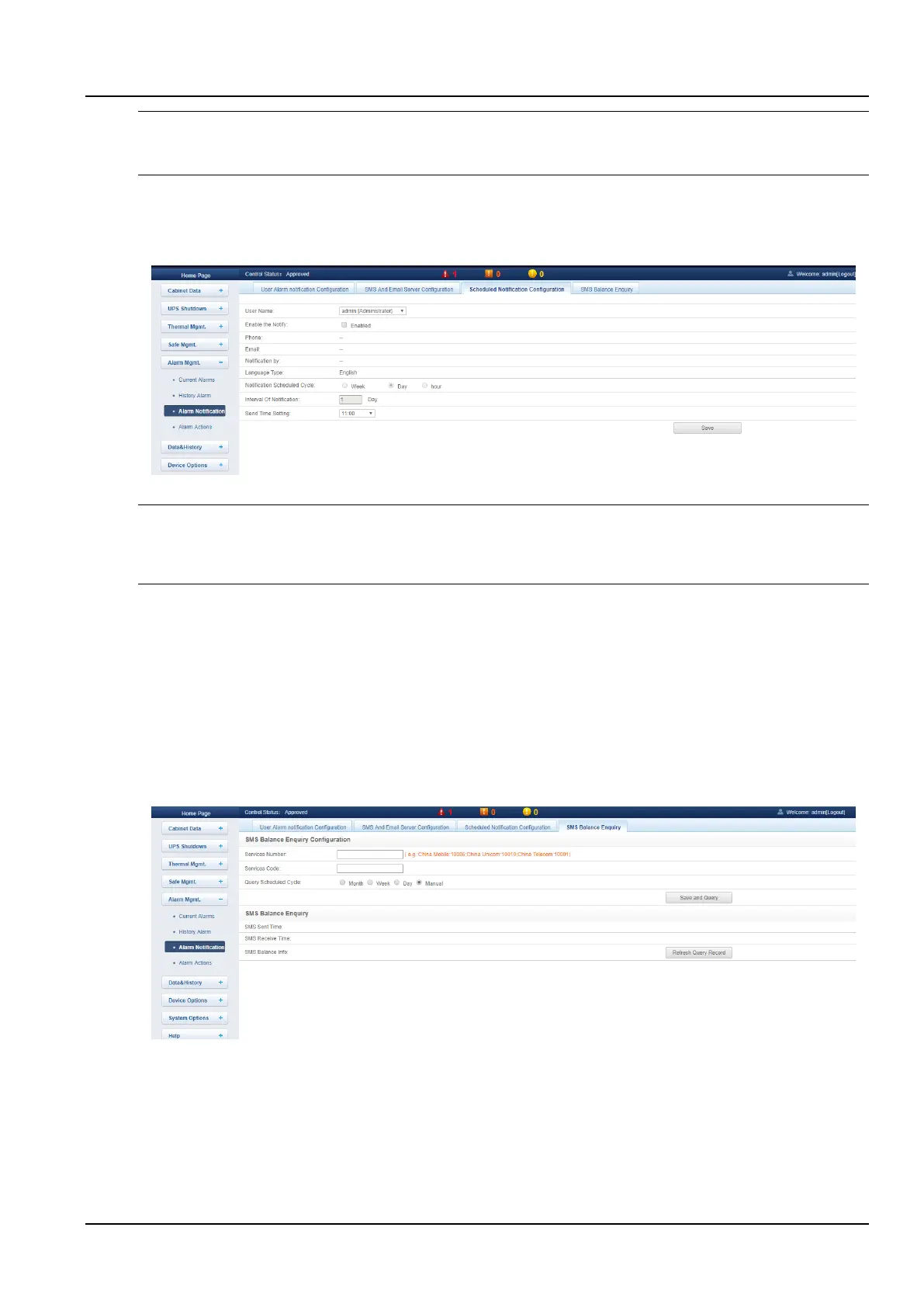
(3)Scheduled Notification Configuration
Click the Alarm Notification submenu under the Alarm Mgmt. menu, then click the Scheduled Notification
Configuration button to pop up the page as shown in the Figure 3-67.
Figure 3-67 Scheduled notification configuration
Notices
1. The system status timing notification configuration must be used in conjunction with the user alarm notification configuration.
Otherwise, the user name, notification method, and sending language cannot be selected.
2. For system status notifications, the phone notification method is not supported.
1) Complete and save the settings of the sending user, the notification mode, and the sending language on the
(1)User alarm notification configuration page;
2) Set the Sending time setting (setting range: 8: 00 to 20: 00), Notification Scheduled Cycle (default: hour),
Interval of Notification (default: 1) and Sending time setting in the Scheduled Notification Configuration page
(default: Starting time).
3) Click the Save button to save the system status notification configuration.
(4)SMS balance Enquiry
Click the Alarm Notification Configuration submenu under the Alarm Mgmt. menu, then click the SMS Balance
Enquiry button to pop up the page as shown in the Figure 3-68.
Figure 3-68 SMS balance enquiry
1) According to the actual carrier, fill in the Services number and Services code, select the Query Scheduled
Cycle, click Save and Query; the following dialog box appears, as shown in Figure 3-69.



 To Next Page