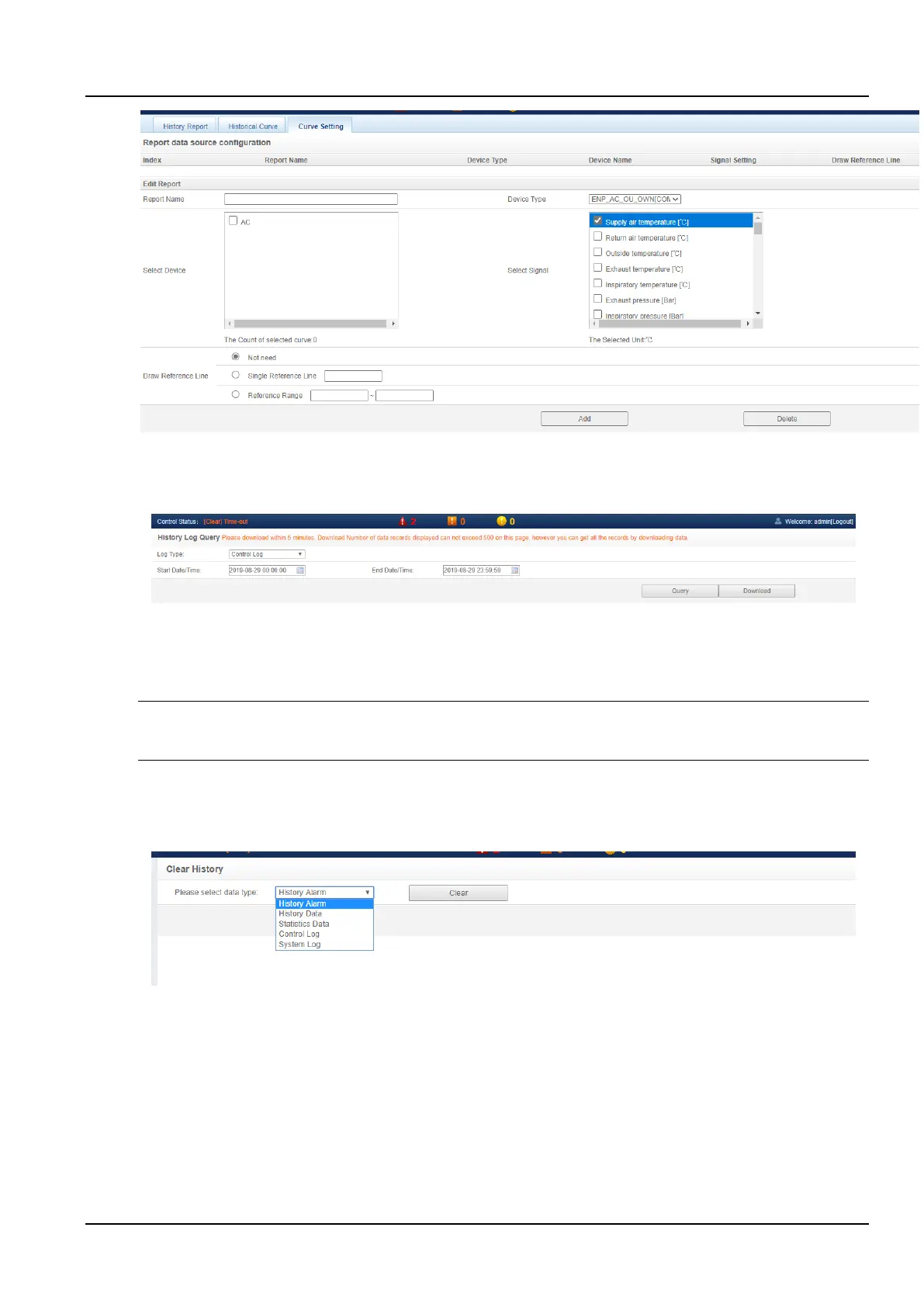
Figure 3-79 Curve Setting
c) History Log
Click the History Log submenu under the Data & History menu to pop up the page as shown in the Figure 3-80.
Figure 3-80 History Log
In the page shown in the Figure 3-80, select the log type (for example, "Control Log") and set the start time and the
end time (for example, from 2019-08-21 11: 00: 00 to 2019-08-21 23: 55: 59), then click on the Query button to list all
control logs from the start time to the end time. Click the Download button to download all the query results.
Notices
When the query type is "System Log" or "Drive Log", after clicking the Query button, the query result will not be displayed on
the page, but will be downloaded directly as a compressed package.
d) Clear history
Click the Clear History submenu under the Data & History menu to pop up the page as shown in the Figure 3-81.
The History alarm, History data, Statistics data, Control log, and System log can be cleared.
Figure 3-81 Clear history
7. Device Options
In the homepage of the intelligent monitoring system, click the Device Options menu on the left, and you can see
three submenus, including: Device management, Signal setting, and Batch configuration.
a) Device management
1) Add/modify/delete device
Click the Device Management submenu under the Device Options menu to pop up the page as shown in the Figure
3-82.



 To Next Page