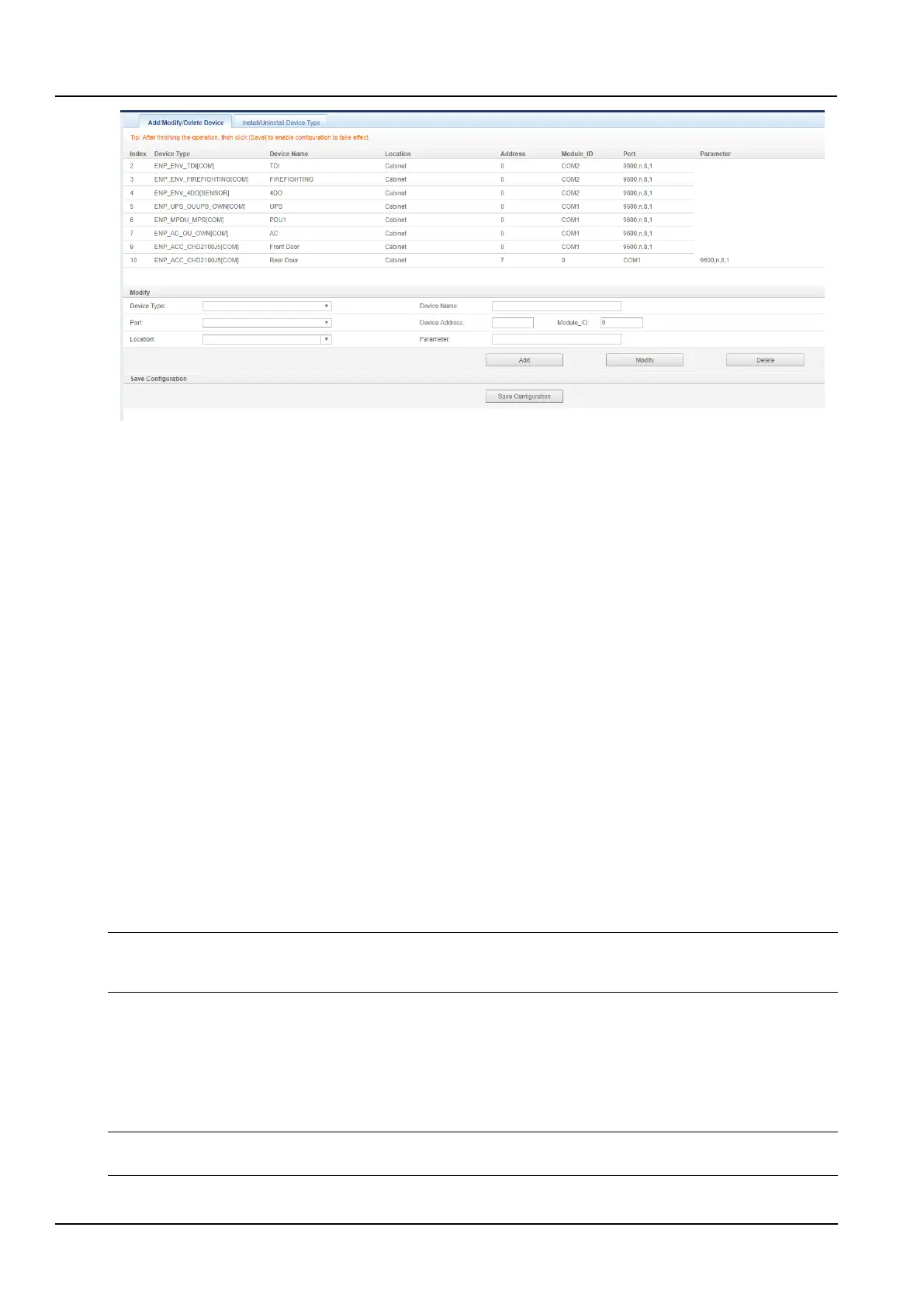
Figure 3-82 Add / Modify / Delete Device
In the page shown in the Figure 3-82, the user can add/modify/delete device information, and the method is as
follows:
⚫ Add device
Select the Device type;
Enter the device name in the text box of the Device name, or use the default device name;
After selecting the device type, the default port number of this device type will be automatically listed in the drop-
down box of the Port; if the device type is not selected, the port number cannot be selected;
Enter the device address in the text box of the Device address. The device address must be an Arabic number from
1 to XX, and the device address under the same port number is not allowed to be duplicated. Some device types do
not require a device address to be entered. At this point, the text box for the Device address will be grayed out and
cannot be edited. When a device has multiple modules, you need to add the module address, the module address
must be an Arabic number from 1 to XX, and the module_ID under one device is not allowed to repeat;
Select or enter the Location;
Enter the Parameter in the text box of the communication parameter. When the device type is determined, the text
box of the Parameter will display the prompt of the communication parameter, including the device type
communication parameter format and the default communication parameter;
Click the Add button, the dialog box is displayed, and a device information is added to the device list. Clicking the
Save Configuration button will prompt the system to restart after the saving is successful. Click OK to pop up the
User Security Verification dialog box. If you click the Cancel button, the newly added device is invalid;
Enter the login password of the current user, click the OK button, and the verification will pass to the system restart
interface. After the system restarts, the newly added device will take effect.
After the system is restarted, the newly added device will be displayed in the list on the device management page.
Notices
The SmartCabinet2-E intelligent system recommends one-click configuration through the HMI local display. The devices added
directly through the intelligent monitoring unit web page cannot synchronize data to the HMI local display.
⚫ Delete device:
Select the device you want to delete from the device list.
Click the Delete button to delete the device;
Click the Save Configuration button to make the device deletion take effect. The specific operation is the same as
adding a new device.
Notices
If you change the information about this device before clicking the Delete Device button, the device cannot be deleted.
⚫ Modify the device:



 To Next Page