Notices
1. Only the admin user has authority to perform batch configuration. If batch configuration cannot be performed, click View
Help to get Help information.
2. The batch configuration files are encrypted after being downloaded to the local.
8. System Options
In the intelligent monitoring system home page, click on the system settings menu on the left, and you can see 8
submenus, including: Monitoring unit, Network settings, User management, Data/Time Setting, Restore
System, Site settings, System upgrade and System Title.
a) Monitoring unit
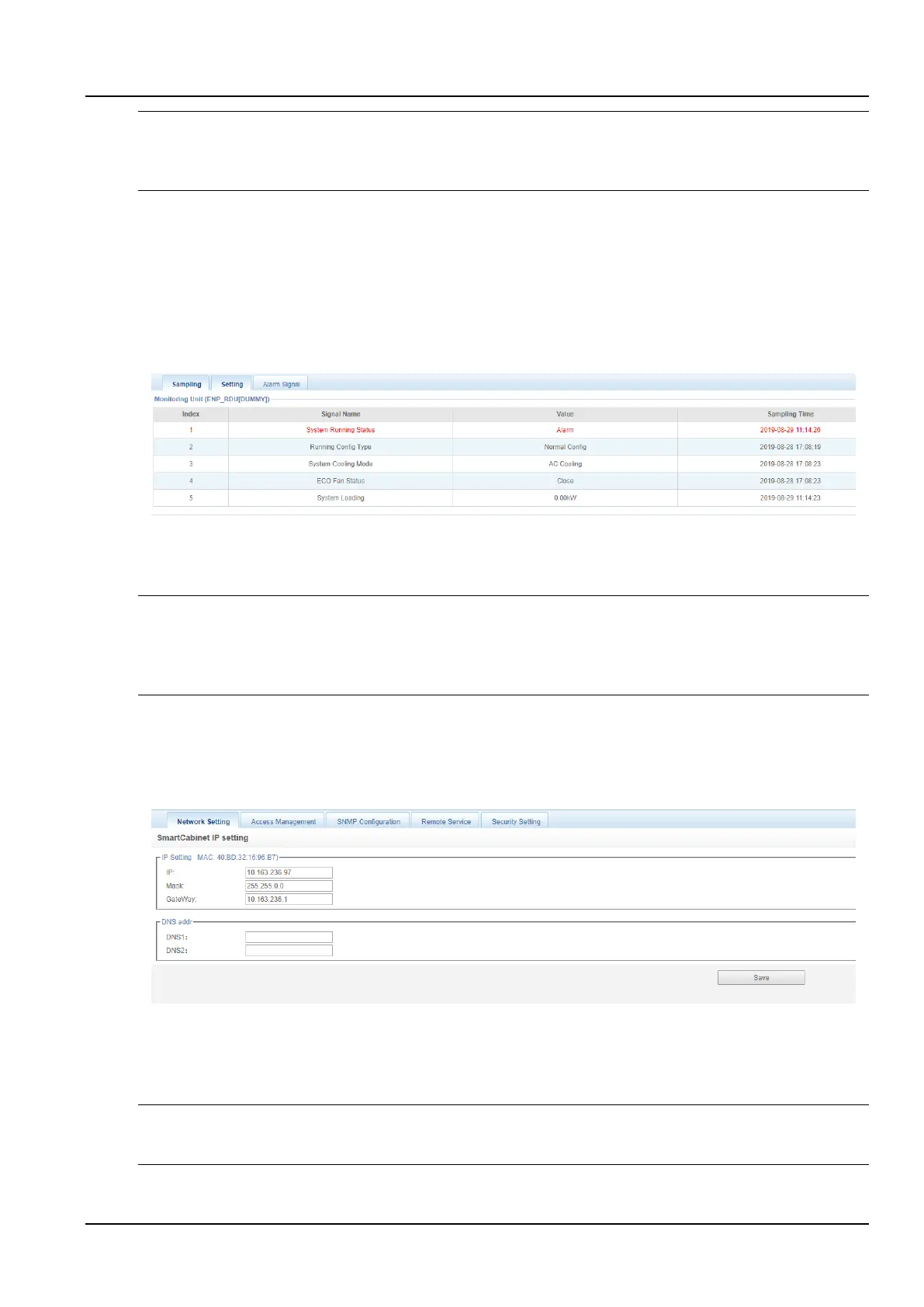
The monitoring unit sets the signals of the intelligent monitoring system itself, including the Sampling, Setting and
Alarm signal, as shown in the figure 3-89.
Figure 3-89 Monitoring unit (signal acquisition)
For the operation method of the three sub-pages of the Sampling, Setting and Alarm signal in the monitoring unit,
refer to 3.2.4 1. Cabinet information.
Notices
1. If the Active alarm blocking is set to "Blocked” in the setting signal, the active alarm will be blocked. In this case:
2. The alarm signal is displayed in the active alarm, but the alarm notification is not sent. After the alarm ceases, the alarm is not
saved to the historical alarm.
3. The Blocking setting of the Active alarm blocking is automatically released after 24 hours.
b) Network settings
1) IP settings
Click the Network Settings submenu under the System Options menu to pop up the page as shown in the Figure 3-
90.
Figure 3-90 IP settings
In the page shown in the Figure 3-90, the network parameters that the user can configure are as follows: IP, Mask,
Gateway, DNS addr. After modifying the network parameters, click the Save button to make the parameters take
effect.
Notices
After modifying the IP address, the default is to jump to the new network address and log in to the intelligent monitoring system
again.
2) Access Management



 To Next Page