40
Visionix EyeRefract User Guide
40
Overview of the Software
Exam results
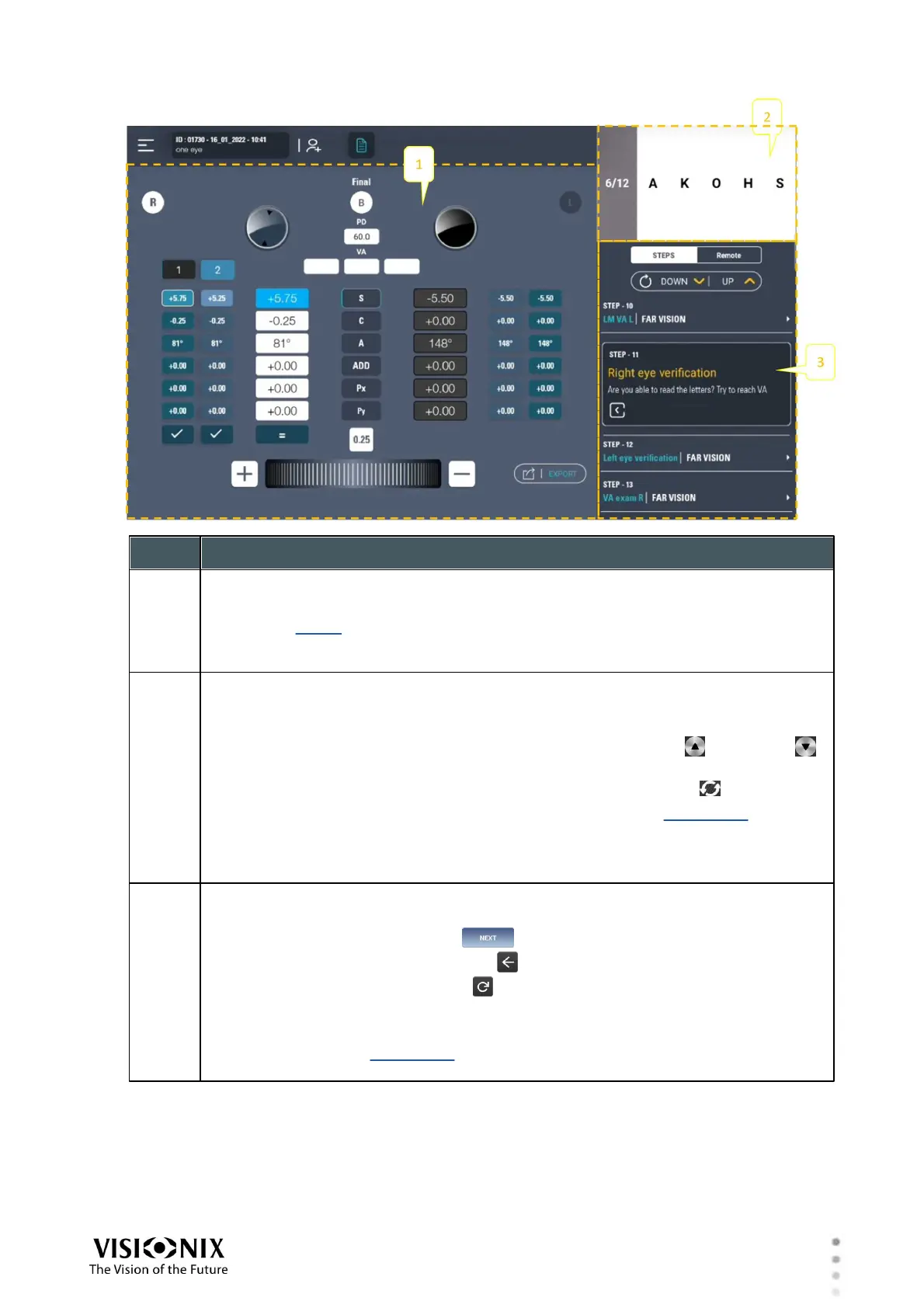
Before the wavefront analysis has been performed (i.e., in Step 1; see the
illustration above), this area contains preliminary questions to ask the patient.
After the wavefront analysis (from Step 2 on), it displays the results for review
and fine tuning. For additional information, see Exam Results in Quick Pro Mode.
Chart display
Shows the current chart display and contains controls for changing it. By default,
letter optotypes are used at the outset of each exam.
To increase or decrease the size of the optotypes, tap the up ( )and down ( )
arrows.
To load new optotypes of the same type and size, tap Refresh ( ).
To change the chart type, tap Remote to open the menu of chart types, and then
select the desired option. To return to the steps, tap Steps.
Note: The default chart type can be changed from letters to numbers in the
Settings screen under Quick mode>General>Optotype.
Quick-Pro Steps
List of steps. The current step is expanded.
To move to the next step, select .
To return to the previous step, select .
To restart the current step, select .
To scroll up and down, drag up and down.
To select a step, tap it.
Note: If the menu of chart types appears in this region of the screen, instead of
the steps, at the bottom of the chart controls (#3), tap Steps.


 To Next Page