Visionix EyeRefract User Guide
69
Overview of the Software
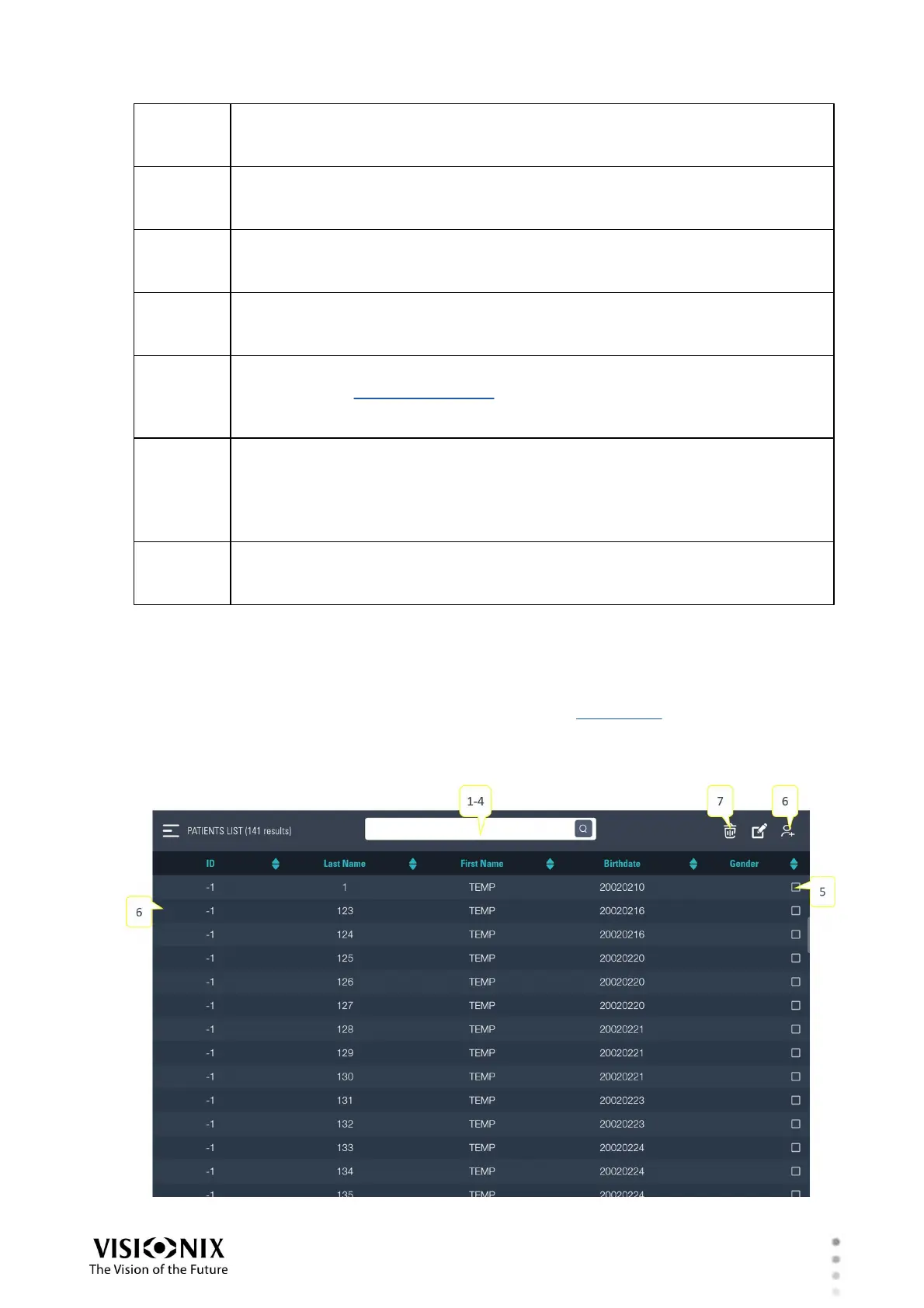
ID filter
Enter a sequence of characters to filter the list of records so that only those
records whose IDs contain the sequence are displayed.
Last Name filter
Enter a sequence of characters to filter the list of records so that only those
patients whose last names contain the sequence are displayed.
First Name filter
Enter a sequence of characters to filter the list of records so that only those
patients whose first names contain the sequence are displayed.
Sort by
Tap to sort by the column to the left of this button. Tap a second time to
reverse the sort order (e.g., 3-2-1 instead of 1-2-3).
New Record button
Tap to open a new patient record.
To edit the patient information in an existing record, select the record in the
list (#7), and then tap this button to open it for editing.
Select Record button
Tap to open the selected record. The window closes, the screen from which
you opened the Patient window closes, and the patient's name and ID
number appear in the header of the screen. The results of the exam you are
currently performing will be stored in this patient record.
List of patient records
The list of patient records that match the filter settings. Tap an item to select
it.
Patient Database Screen
The patient database screen, which can be opened from the main menu, displays a list of the
patient records currently included in the database. It enables you to find existing records by
filtering the list, and to see the data they contain. In addition, you can add, modify, or delete
existing records in this screen.


 To Next Page