Visionix EyeRefract User Guide
63
Overview of the Software
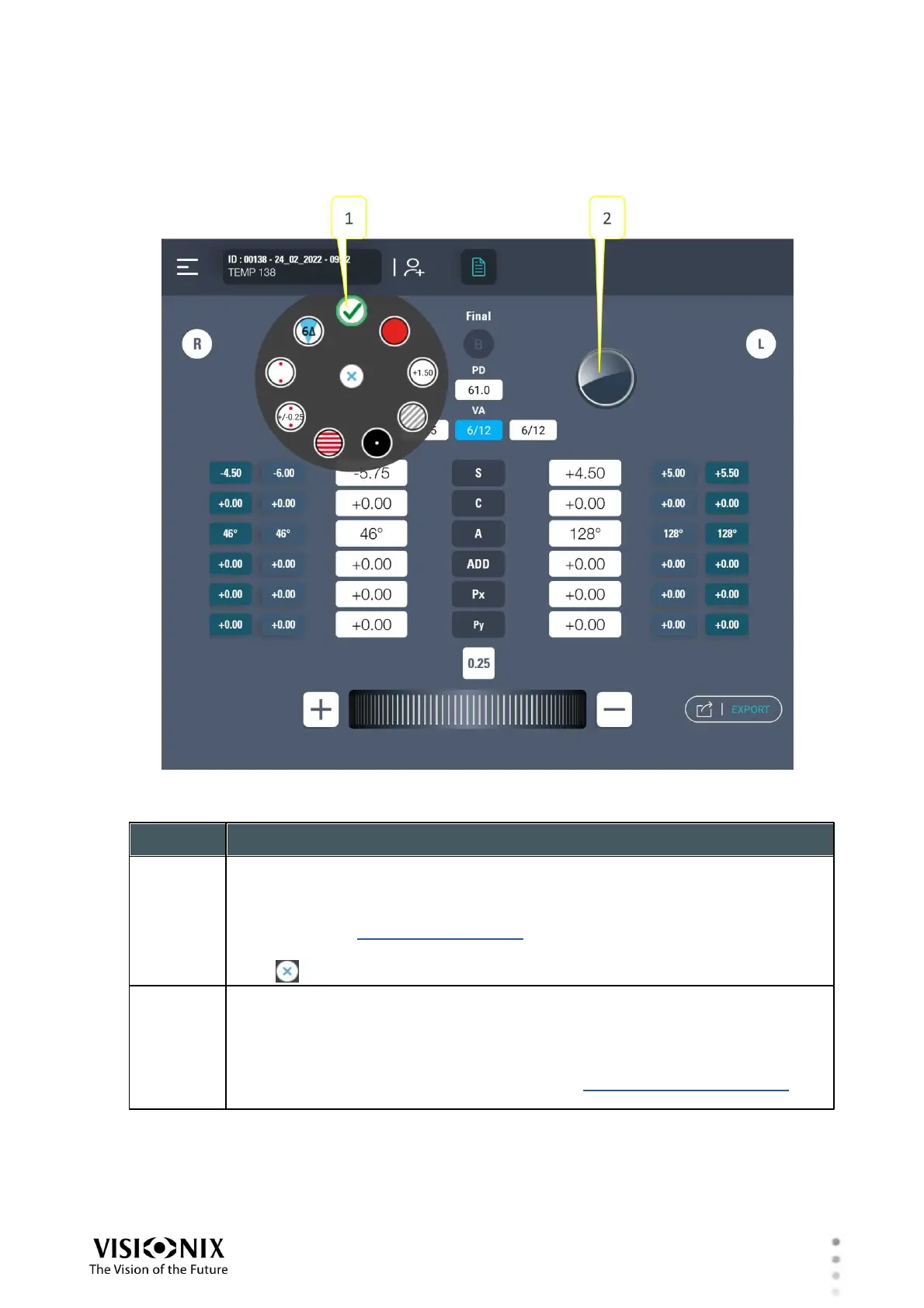
Accessory Selector
Accessories can be added or removed using the Accessory Selectors for each eye.
Accessory selector
Tap an accessory to select it. The accessory is added to the patient's field of
view. Depending on the accessory selected, it is applied either to the one or
both eyes (see Available Accessories.)
Currently selected accessories are marked with a green check mark.
Tap to close the selector.
Accessories button
Tap to open the Accessory Selector.
If an accessory is selected, this button looks like the selected accessory.
The current axis of the lenses is represented by an imaginary line connecting
the triangles along the edge of the circle (see Exam Results in Quick Pro
Mode).


 To Next Page