VIVOTEK - A Leading Provider of Multimedia Communication Solutions
108 - User's Manual
Device Management
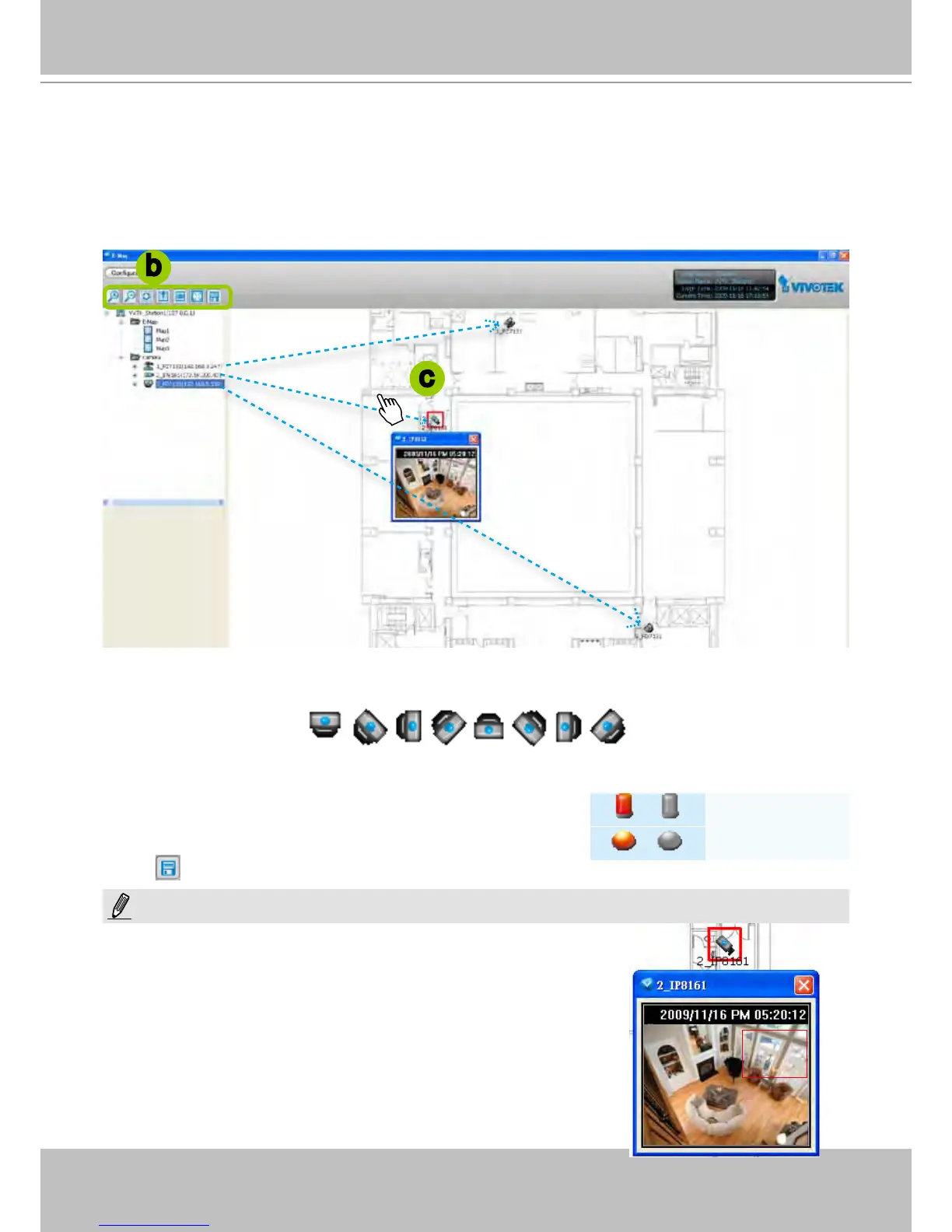
Please follow the steps below to edit an uploaded E-map.
a. Double-click the E-map you want to edit, it will be displayed on the E-map window.
b. Use Quick Access Bar to adjust the size of the E-map. In edit mode, you can also use your mouse to
drag the position of the E-map and zoom in or zoom out the E-map.
c. Drag-and-drop the connected devices to the E-map according to your deployment.
d. Right-click the device icon on E-map, you can rotate the direction or delete the device. The device
can be rotated in 8 derections as shown below.
e. You can also drag the DI/DO device under the connected device onto the E-map. If you want to
change the status of the DO device, double click the DO icon on E-map.
f. Click
on the Quick Access Bar to save the new settings.
b
c
/
Digital input on / off
/
Digital output on / off
The red frame twinkling around the device means there is event trigger(s) going on.
Meanwhile, a live view dialog will pop up beside the model.
For more information about DI/DO settings, please refer to
Association Management on page 60.
NOTE:



 To Next Page