VIVOTEK - A Leading Provider of Multimedia Communication Solutions
User's Manual - 139
How to Search for a Device on the Hierarchical Device Tree
This function allows you to conveniently search for an inserted device, which is useful when
many devices have been inserted.
Please follow the steps below to nd a device on the camera list:
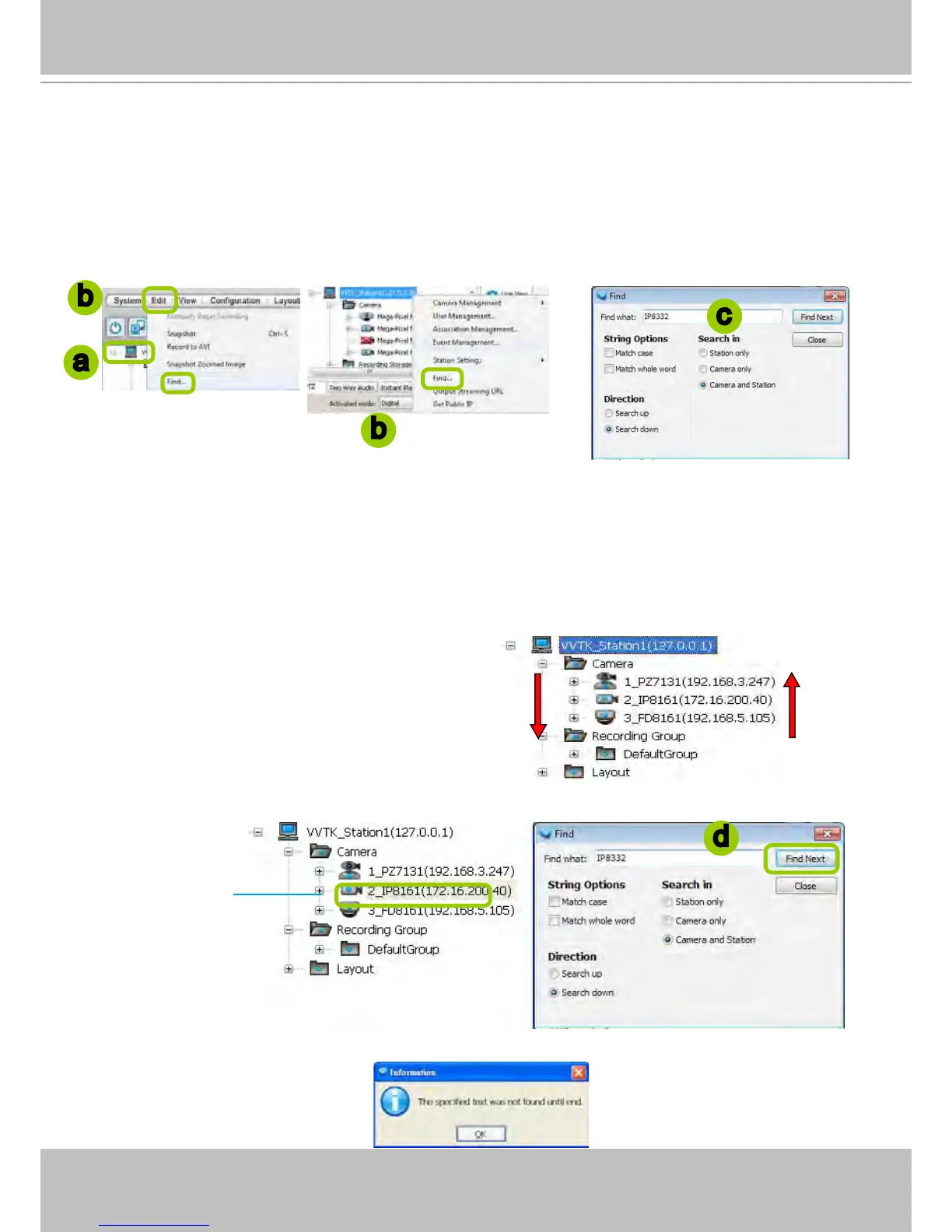
a. Click the station on the hierarchical management tree.
b. Click Edit > Find on the menu bar (or right-click the station and click Find).
c.
The Find window will pop up for you to set your search criteria.
Find what: Enter a string in the blank. The string can be the full or partial name of the device you want
to search for.
String Options: Match case represents that the search results should be identical to the string in
lower-case or upper-case letters, the string can be part of a word. Match whole word means that
the search results should be identical to the string for every character, and that the string should be a
complete word or phrase. If you select both options, the search results should conform to all criteria
listed above.
Direction: Select search up or search down.
Search in: Select search in station or camera.
d. Click Find Next, the seaching result will be marked as shown below.
e. If there is nothing found in the camera list, a message will pop up as shown below:
Search up
Search down
a
b
c
Search results
d
b



 To Next Page