71
Version 2.0.4 | © 2016-2021 wallPen GmbH
Best Practice
and your previous actions to solve it. If your files are too large for email, please use a
service provider like https://wetransfer.com or https://www.filemail.com/ for transfer.
6.2.3
Working with the Reference Point
The two red laser dots to the right of the print head serve not only for automatic
measurement of the distance to the wall (Distance Control) but also as reference points
for the start position of your prints.
Determine the distance values
In order to be able to use these points as a useful reference, the exact distance from
the upper laser point to the lower left corner of your print must first be determined for
each print configuration (1/2/4/8-pass). To do so, please proceed as follows:
1. For printing, use a smooth and clean vertical surface, such as a white plastic plate or
paper.
2. Clean the wheels, make sure the floor is level and clean without any steps or
obstacles.
3. Make sure the print-head unit can freely move up for about 15 cm along the plate,
while the distance to the substrate stays within 2 to 3 millimeters without using the
laser distance control.
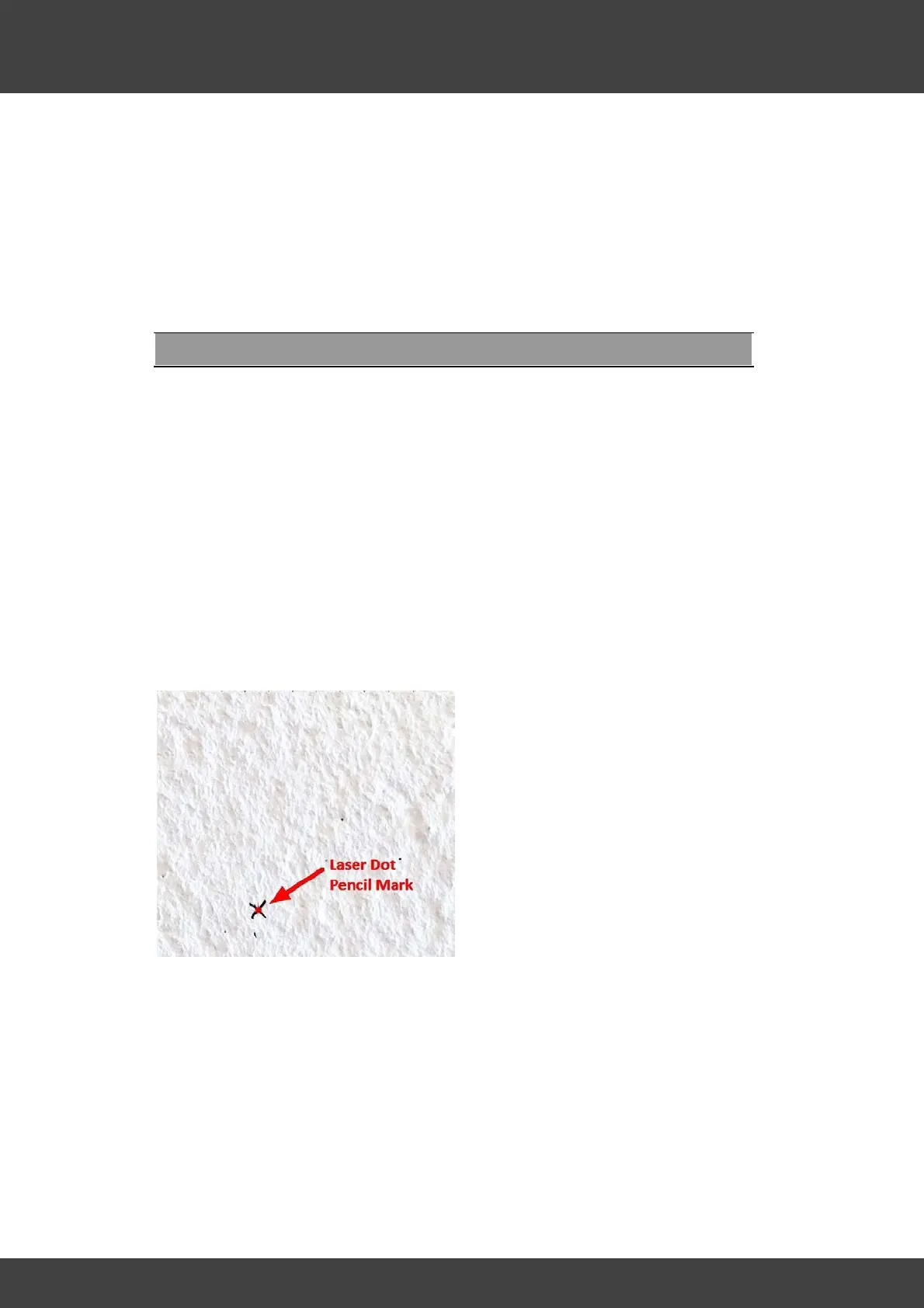
4. Use a pencil to mark the exact actual position of the upper laser dot on the wall
before starting the printing process.
5. Create and print a graphics file, i.e. a simple small rectangle 10 by 10 cm. It might
be any image, until there is color (ink drops) in its lower left corner. The pictures
below show an image with just vertical lines in 1 cm distance and the lower left
corner closed.
6. Measure the horizontal and vertical distance from the lower left corner of the grid
to the pencil mark. For this, the use of a triangle ruler is very helpful, which can be
aligned at the bottom edge of the grid and both distances can be read quite
exactly.



 To Next Page