Installation and commissioning
Page 49 of 127
7.2.2 Inserting / removing the ink cartridge
CAUTION!
Material damage due to improper ink cartridge
replacement!
With the printing process switched on, a print head
electronics fault may arise.
Therefore:
– Replace the cartridge only when the printing
process is switched off.
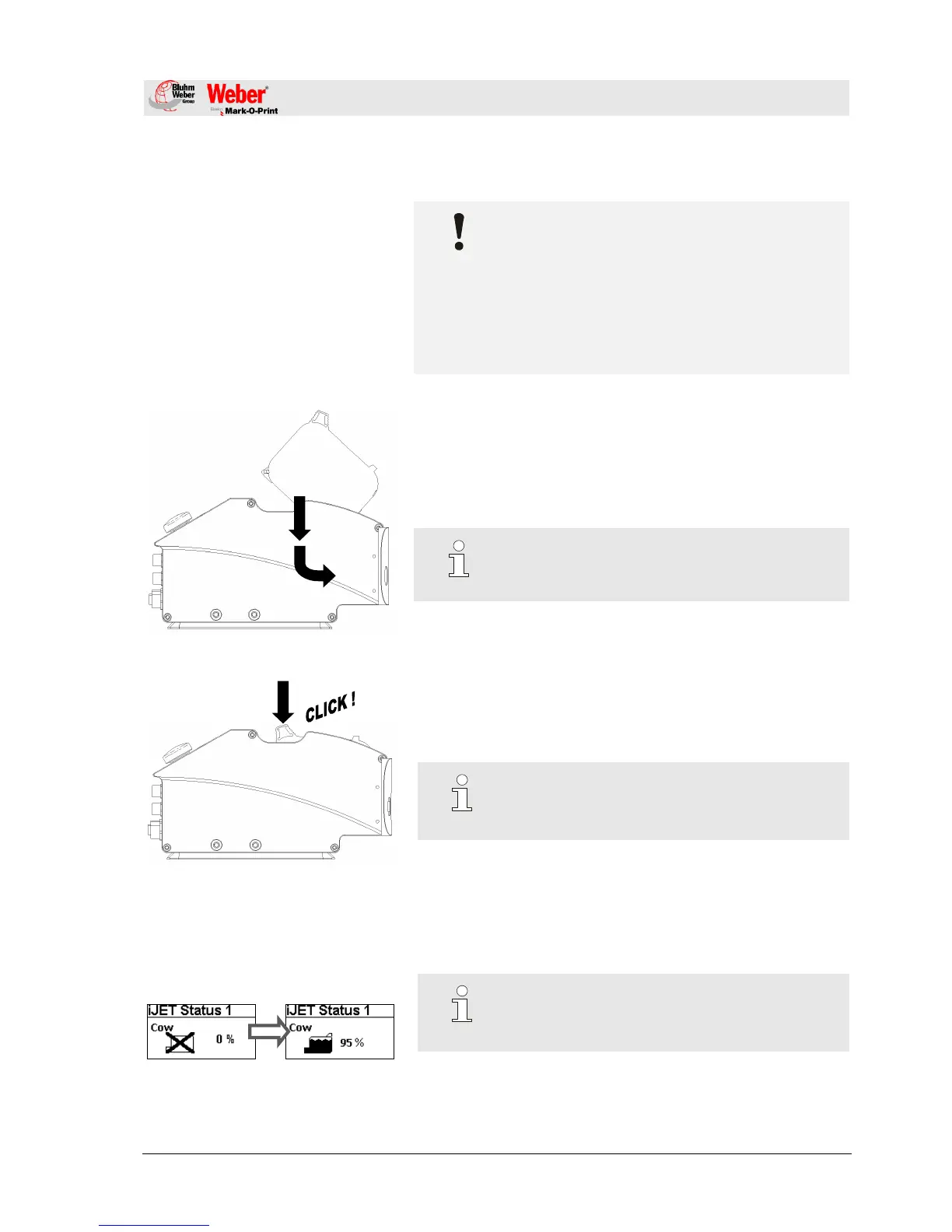
Fig. 13: Inserting ink cartridge
Inserting ink cartridge:
1. Remove protective foil from the nozzle plate.
NOTE!
Use the ink cartridge as soon as possible after
having removed the protective foil.
2. Wipe the nozzle plate before inserting with a lint free cloth.
3. Insert the ink cartridge obliquely into the cartridge holder as
illustrated in the figure opposite.
Fig. 14: Secure the ink cartridge
4. Lightly press down the flap of the cartridge holder to secure
the ink cartridge.
NOTE!
If a new ink cartridge is inserted, the cartridge
counters must be reset.
Chapter 8.16, Page 68
Fig. 15: Display change when properly
inserted cartridge.
5. Lightly press down the flap of the cartridge holder to secure
the ink cartridge.
Note!
The correct position of the ink cartridge can bee
seen in the Status display as in Fig.9



 To Next Page