12 13
1
Click on the desired radio buttons to changesettings.
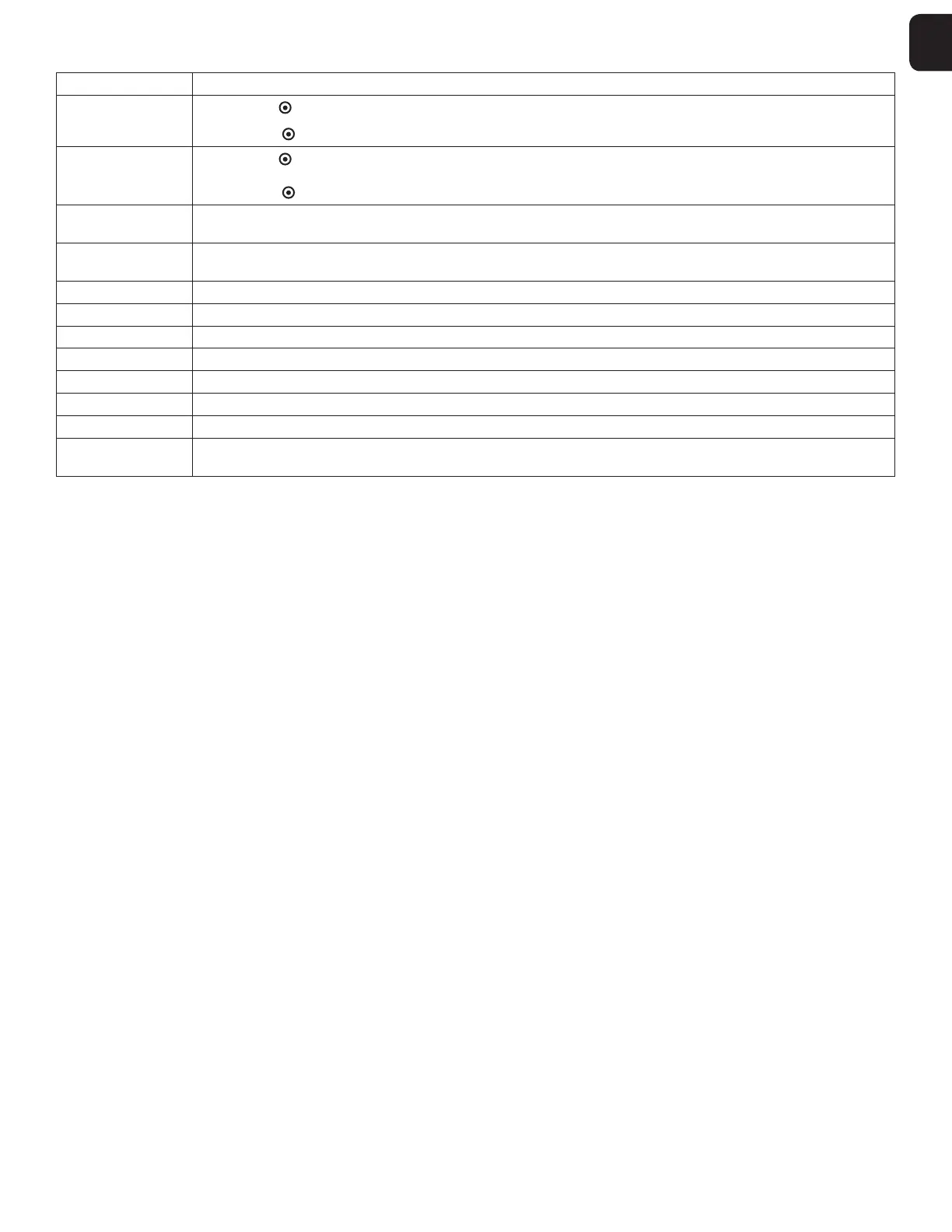
Language
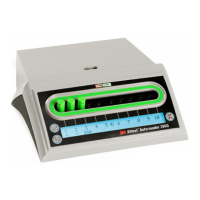
Selected setting indicates language in which text on 3M™ Attest™ Autoreader 490 Web App pages will appear on the computer screen.
Pushbutton
Configuration
Selecting Enable
allows the user to configure the 3M™ Attest™ Autoreader 490 from the buttons on the unit itself.
Selecting Disable prevents the user from being able to configure the 3M™ Attest™ Autoreader 490 from the buttons on the unit itself.
Buzzer
Configuration
Selecting Enable
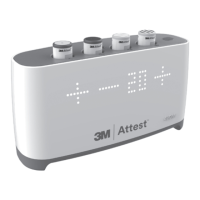
enables the audible alarm. The speaker icon will appear on the LCD panel.
Selecting Disable
disables the audible alarm. The speaker icon will disappear from the 3M™ Attest™ Autoreader 490 LCD panel.
Attest Auto-reader
490 Nickname
Naming the 3M™ Attest™ Autoreader 490 may be useful in facilities with multiple units.The assigned nickname will appear on the 3M™ Attest™
Autoreader 490 Web App Status page.
Enable DHCP
Default: setting is checked indicating the Web App will use the Dynamic IP address automatically assigned when the 3M™ Attest™ Autoreader 490 is
connected to the network. Remove the check if you wish to use a Static IP address assigned by your facility IT.
IP Address Enter Static IP address assigned by IT
Gateway Enter Gateway
Subnet Mask Enter Subnet Mask
Primary DNS Enter Primary DNS
Secondary DNS Enter Secondary DNS.
MAC Address XX:XX:XX:XX:XX:XX (Unique MAC address assigned to device. This value cannot be changed.)
Use Computer Time
Check this box if you wish to set the clock onboard the 3M™ Attest™ Autoreader 490 using the computers clock.
Attest Auto-reader
490 Time
Alternatively, leave the Use Computer Time box unchecked and complete the date and time boxes to set the 3M™ Attest™ Autoreader 490 clock.
After changing desired settings, click on Save Config button to save your changes. A new screen confirming the settings were successfully changed appears.


 To Next Page
 Loading...