CHAPTER 3
108
Preparing and Importing Source Clips
2 Choose Clip > Timecode, specify the following options, and click OK:
• For the first option, type the timecode that matches the frame visible in the clip.
• For Frame Rate and Format, choose options from the menu that match the videotape.
• For Set Timecode At, click File Beginning if you typed timecode for the first frame in the clip;
otherwise, click Current Frame.
• For Reel Name / Description, type the name of the clip’s videotape.
Reading burned-in timecode (Mac OS only)
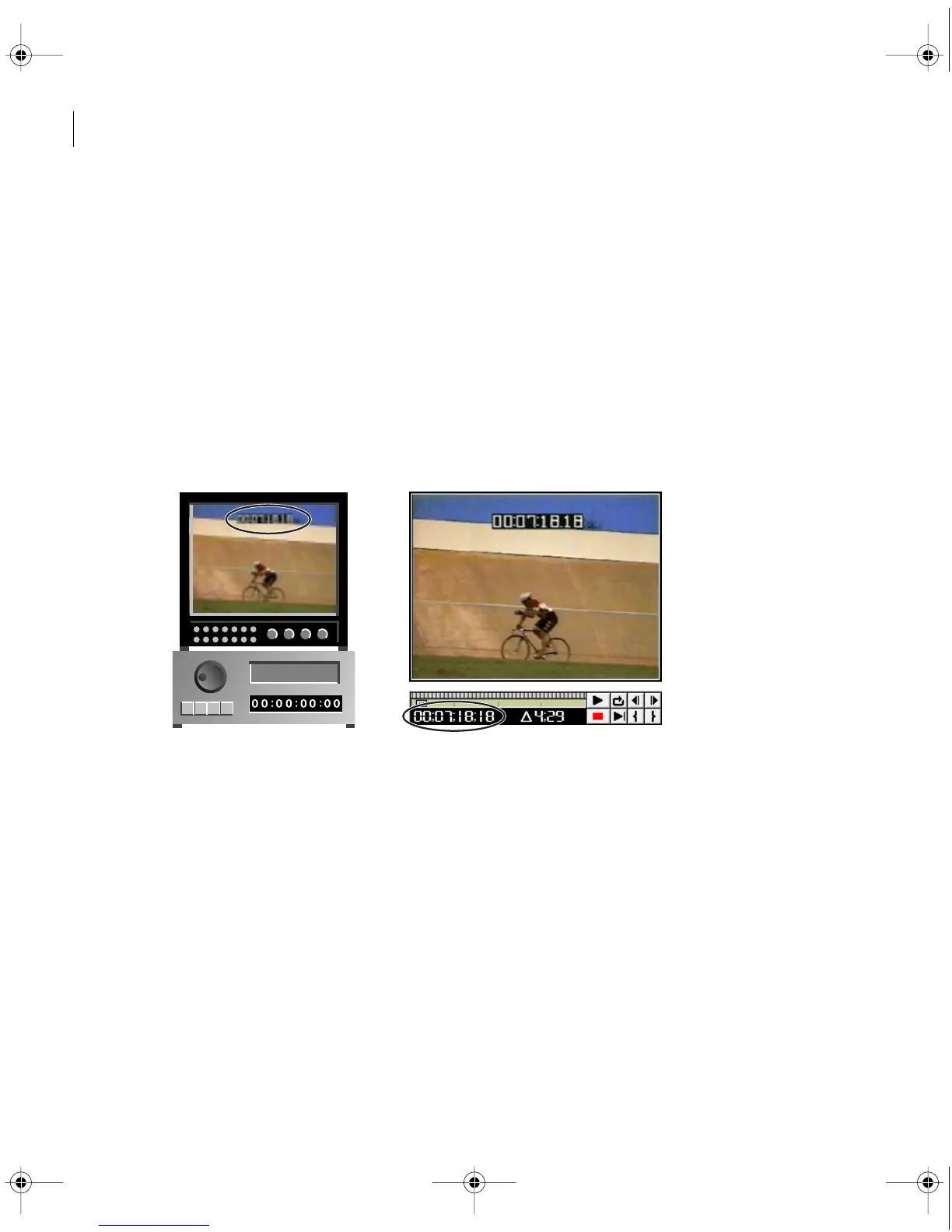
While capturing, Premiere can read timecode from a window dub using optical character
recognition.
When timecode only exists on a tape as a window dub (left), Premiere can read it
so you can use it for editing (right).
To set up the Timecode Decoder:
1 Make sure the Capture window is open, and choose Movie Capture > Timecode Decoder.
2 Press the Play button on the deck to start the tape. The video plays in the Timecode Decoder
Setup window.
c00.book for PS Page 108 Tuesday, March 31, 1998 1:28 PM



 To Next Page