159
ADOBE PREMIERE 5.0
User Guide
To change the speed of a clip in the Timeline only:
1 Select a clip, and do one of the following:
• To change speed numerically, choose Clip > Speed. Type a percentage or new duration
(or type a negative value to play a clip in reverse), and click OK.
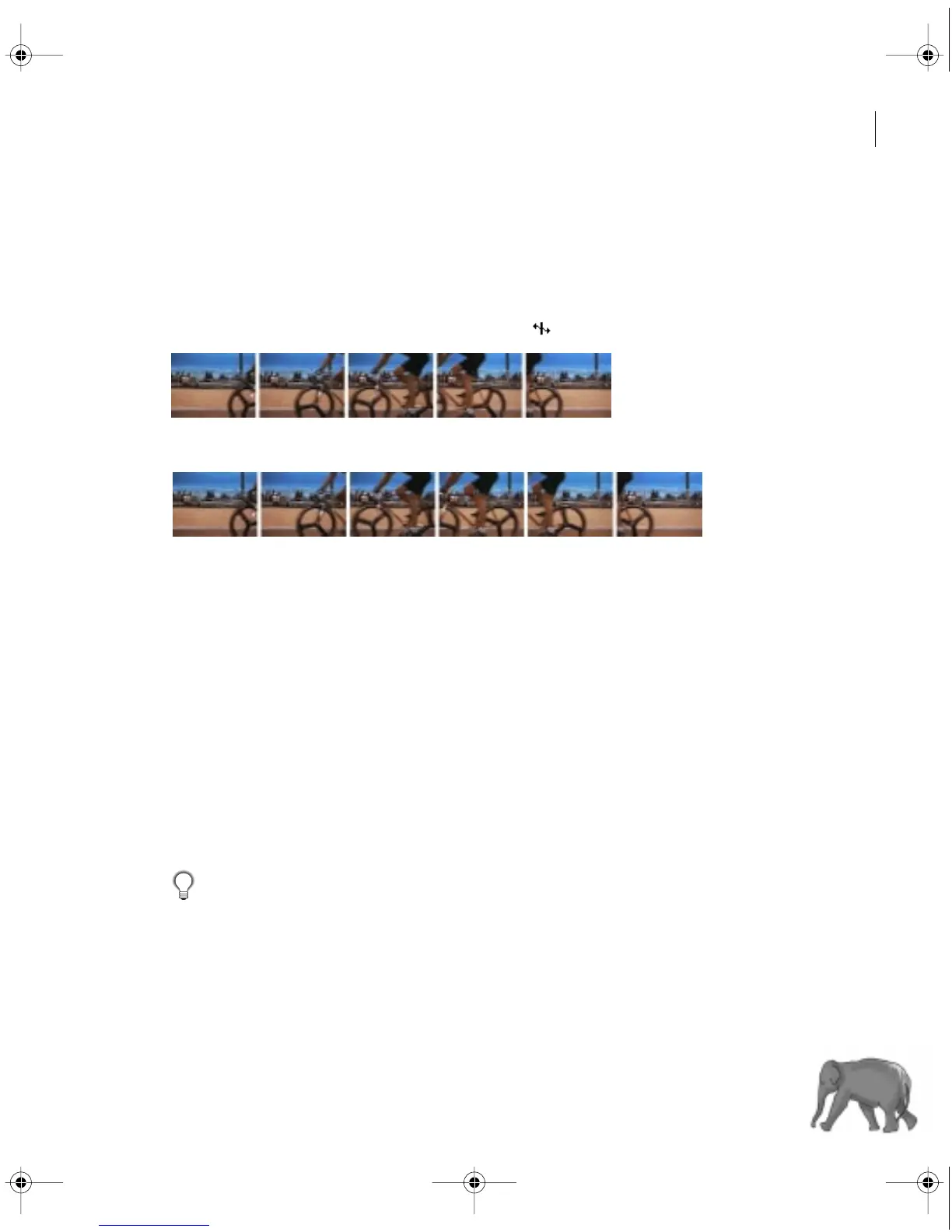
• To change speed visually, select the rate stretch tool ( ) and drag either end of the clip.
Original duration
Duration after specifying a slower speed—clip takes longer to play
To change the speed of a clip that is not in the Timeline:
1 In a Project, Bin, or Library window, select a clip.
2 Do one of the following:
• To specify the new speed in terms of percentage or duration choose Clip > Speed. Type a
percentage or new duration (or type a negative value to play a clip in reverse), and click OK.
Applying this command to a clip in a Project, Bin, or Library window won’t affect clips already
in the Timeline.
• To specify a new speed by changing the source clip frame rate, choose File > Interpret
Footage. Click Assume This Frame Rate, type a value in frames per second, and click OK.
Premiere redistributes all of the clip’s frames to create the new speed. If there are Timeline
instances and subclips based on the clip, their frame rates and durations change accordingly.
If you set a clip in the Timeline to the duration you require, but you don’t like where the
clip begins and ends in relation to the clips before and after it, you can use the slip tool to
adjust the clip without changing the clip’s program In and Out point or duration. See “Editing
a clip that exists between other Timeline clips” on page 176.
c00.book for PS Page 159 Tuesday, March 31, 1998 1:28 PM



 To Next Page