CHAPTER 4
158
Editing Video
The speed of a clip is the playback rate of the action or audio compared to the rate at which
it was recorded. Speed is initially the same as it was when the clip was imported or captured.
Changing a clip’s speed alters its source frame rate and may cause some frames to be omitted
or repeated (see “Understanding frame rates in relation to the timebase” on page 336).
In addition, changing the speed of a clip requires playing the same number of frames
in a different length of time, which also changes the duration (moves the Out point) of
the clip. When you change the speed of a clip containing interlaced fields, you may need
to adjust how Premiere treats the fields, especially when speed drops below 100% of the
original speed. See “Processing interlaced video fields” on page 162.
To change the duration of a clip or still frame:1
1 In the Timeline or Project window, select a clip.
2 Do one of the following:
• To change duration numerically, choose Clip > Duration, type a new duration and then
click OK.
• To change duration visually in the Timeline, move the selection tool over the edge of the
clip, and drag either end of the clip. If you are making the clip longer, the source clip must
contain enough additional frames beyond its source In and Out point for the adjustment
are making.
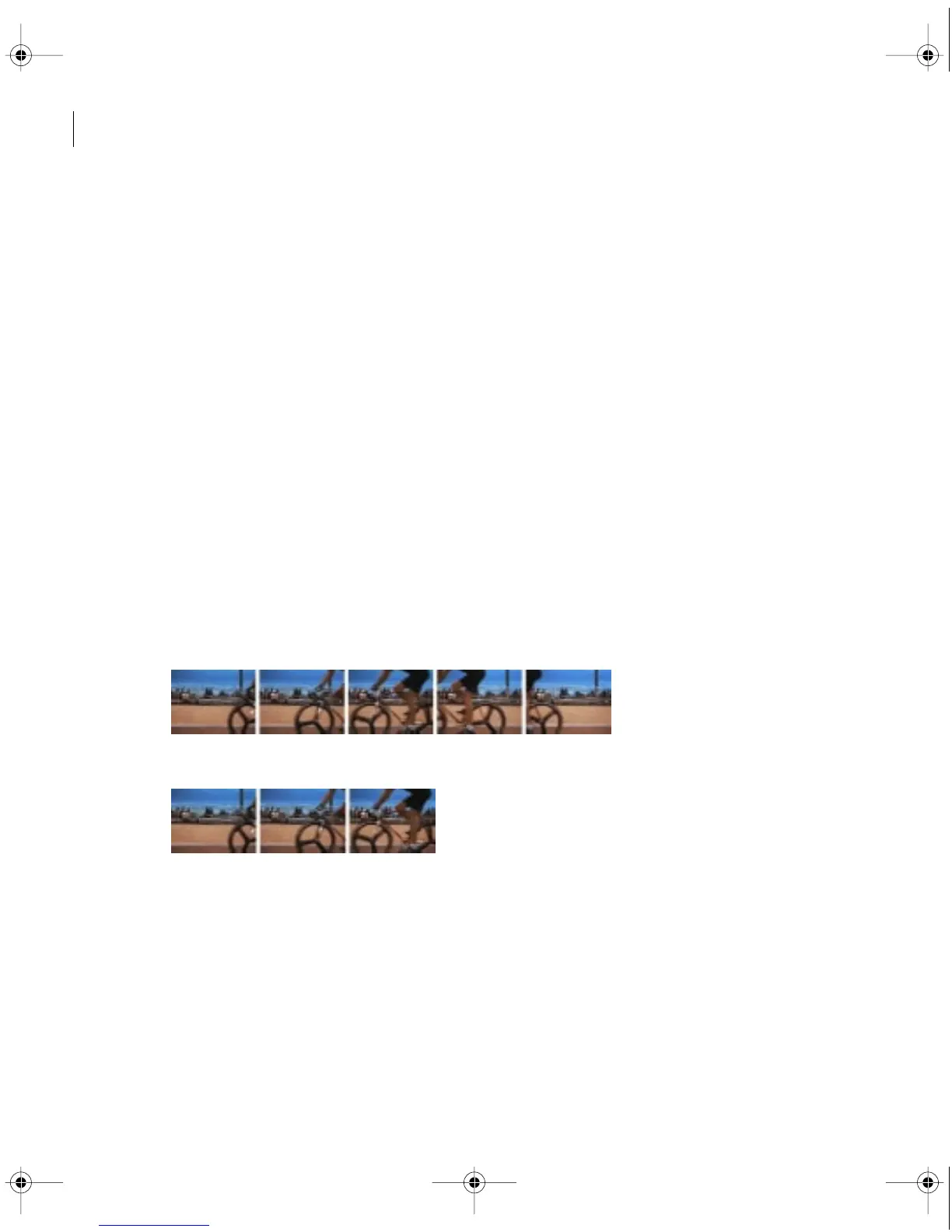
Original duration
New duration
c00.book for PS Page 158 Tuesday, March 31, 1998 1:28 PM



 To Next Page