CHAPTER 4
180
Editing Video
To perform a slip edit:
1 Select the slip tool ( ).
2 Position the pointer on the video clip you want to adjust, and do one of the following:
• Drag left to move the source In and Out points earlier in the clip.
• Drag right to move the source In and Out points later in the clip.
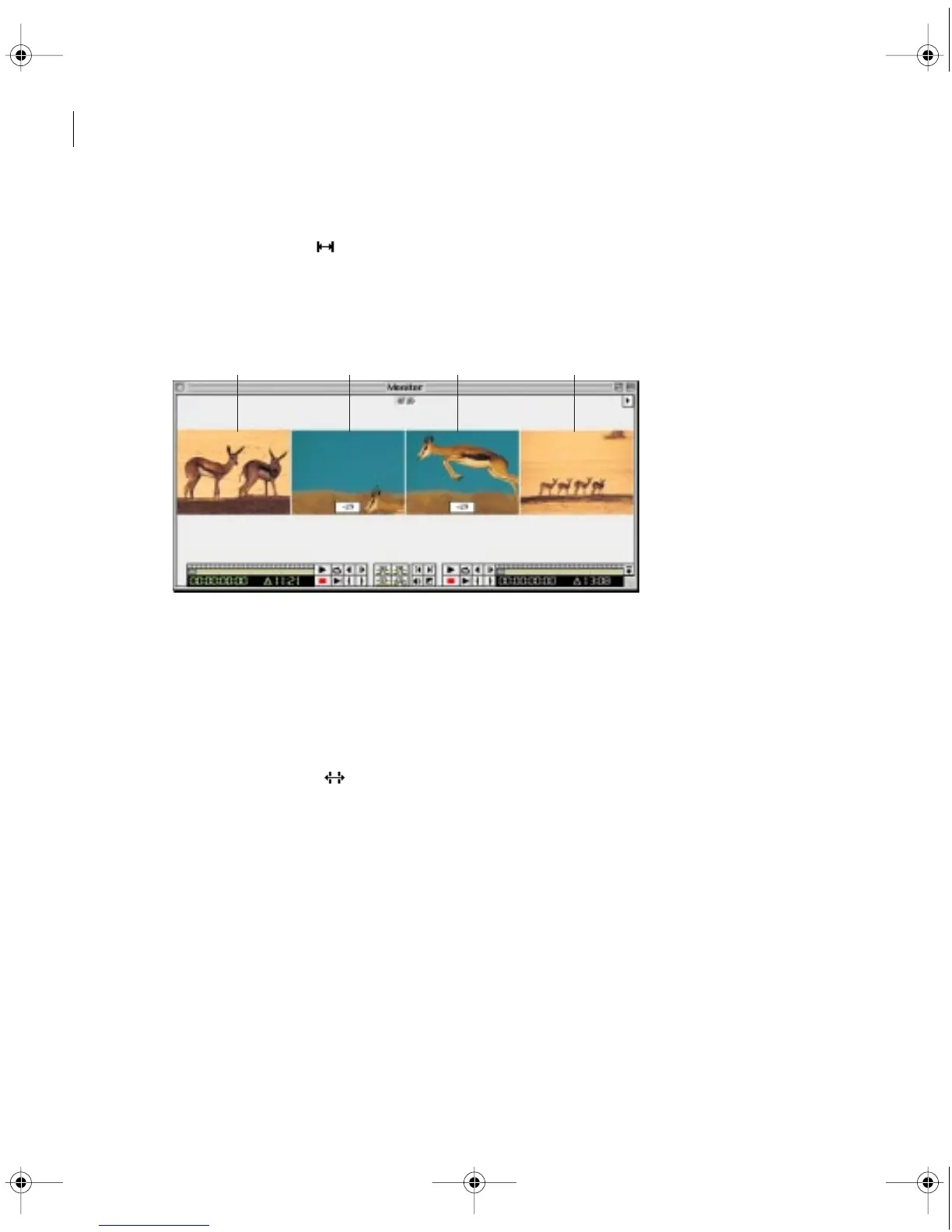
As you drag, Premiere displays four frames in the Monitor window, from left to right:
(A) The Out point of the preceding clip, (B) The In point of the clip you drag,
(C) The Out point of the clip you drag, and (D) The In point of the following clip.
Premiere updates the source In and Out points for the clip, displaying the result in the
Monitor window and maintaining the clip and program duration.
To perform a slide edit:
1 Select the slide tool ( ).
2 Position the pointer on the video clip you want to adjust, and do one of the following:
• Drag left to move the Out point of the preceding clip and the In point of the following
clip earlier in time.
• Drag right to move the Out point of the preceding clip and the In point of the following
clip later in time.
BA C D
c00.book for PS Page 180 Tuesday, March 31, 1998 1:28 PM



 To Next Page