179
ADOBE PREMIERE 5.0
User Guide
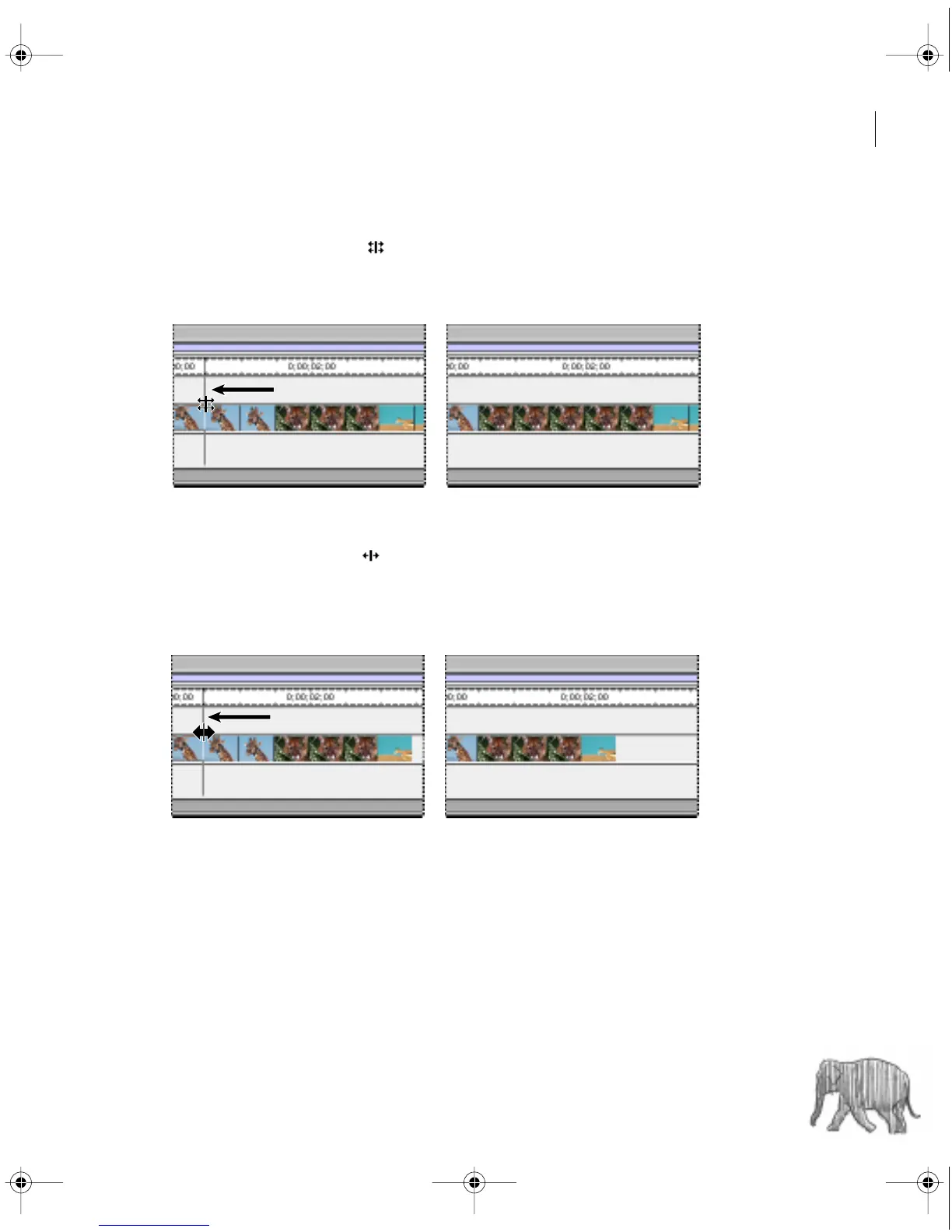
To perform a rolling edit:
1 Select the rolling edit tool ( ).
2 Position the rolling edit tool on the edge of the clip you want to change, and drag left or
right. The same number of frames added to the clip are trimmed from the adjacent clip.
To perform a ripple edit:
1 Select the ripple edit tool ( ).
2 Position the ripple edit tool on the Out point of the clip you want to change, and drag
left or right. The program duration is extended or shortened to compensate for your edit,
but the duration of adjacent clips remain unchanged.
Note: Unlocked clips on other tracks will move to maintain synchronization with your edit.
If you want to change just one track, you may want to lock other tracks. If you do this,
remember to lock both video and audio tracks.
c00.book for PS Page 179 Tuesday, March 31, 1998 1:28 PM



 To Next Page