CHAPTER 5
208
Adding Transitions
2
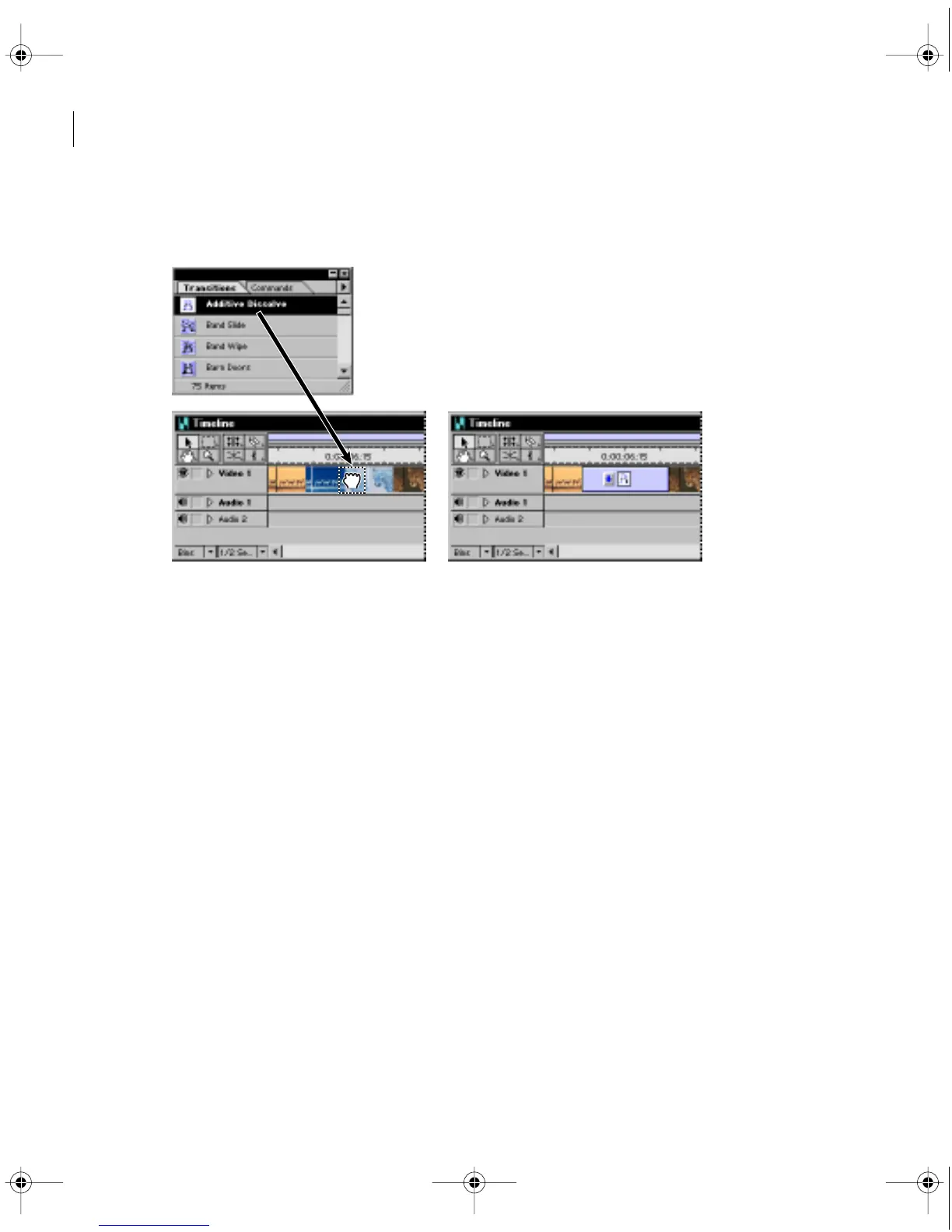
Drag a transition from the Transitions palette onto the meeting point of the two clips.
The overlapping area will be highlighted as the pointer moves over the meeting point.
A transition dragged into a collapsed track overlaps the extra frames created by extended In and
Out points
Note:
If you expand the Video 1 track after adding a transition to the collapsed track, the Video 1A
and Video 1B tracks now display the overlapping frames that you added when you extended the In
and Out points. It is recommended that you do not switch back and forth between the two methods
of adding transitions, since it may not be clear which frames you added for the transition.
Specifying and adding a default transition
If you frequently use the same transition, you can set it to be the default. You can then add
the transition quickly, without stopping to open the Transitions palette and drag the transi-
tion to the Timeline. The technique you use depends on whether you are editing a collapsed
or expanded Video track.
c00.book for PS Page 208 Tuesday, March 31, 1998 1:28 PM



 To Next Page