211
ADOBE PREMIERE 5.0
User Guide
2
Adjust any of the following settings and then click OK:
•
To see the starting and ending frames of the clips, select Show Actual Sources.
•
To change the initial and final appearance of the transition, use the Start and End sliders.
(For example, you might want the Barn Doors transition to begin with the doors already
half open.) Hold down the Shift key to move the start and end sliders together. For example,
you might use this option to start or end the transition in the middle of the effect (50%).
•
To adjust the width of the optional border on the transition, drag the Border slider.
The default Border is None. Some transitions do not have borders.
•
To select a border color, click the color swatch, select a color from the color selection window,
and then click OK.
•
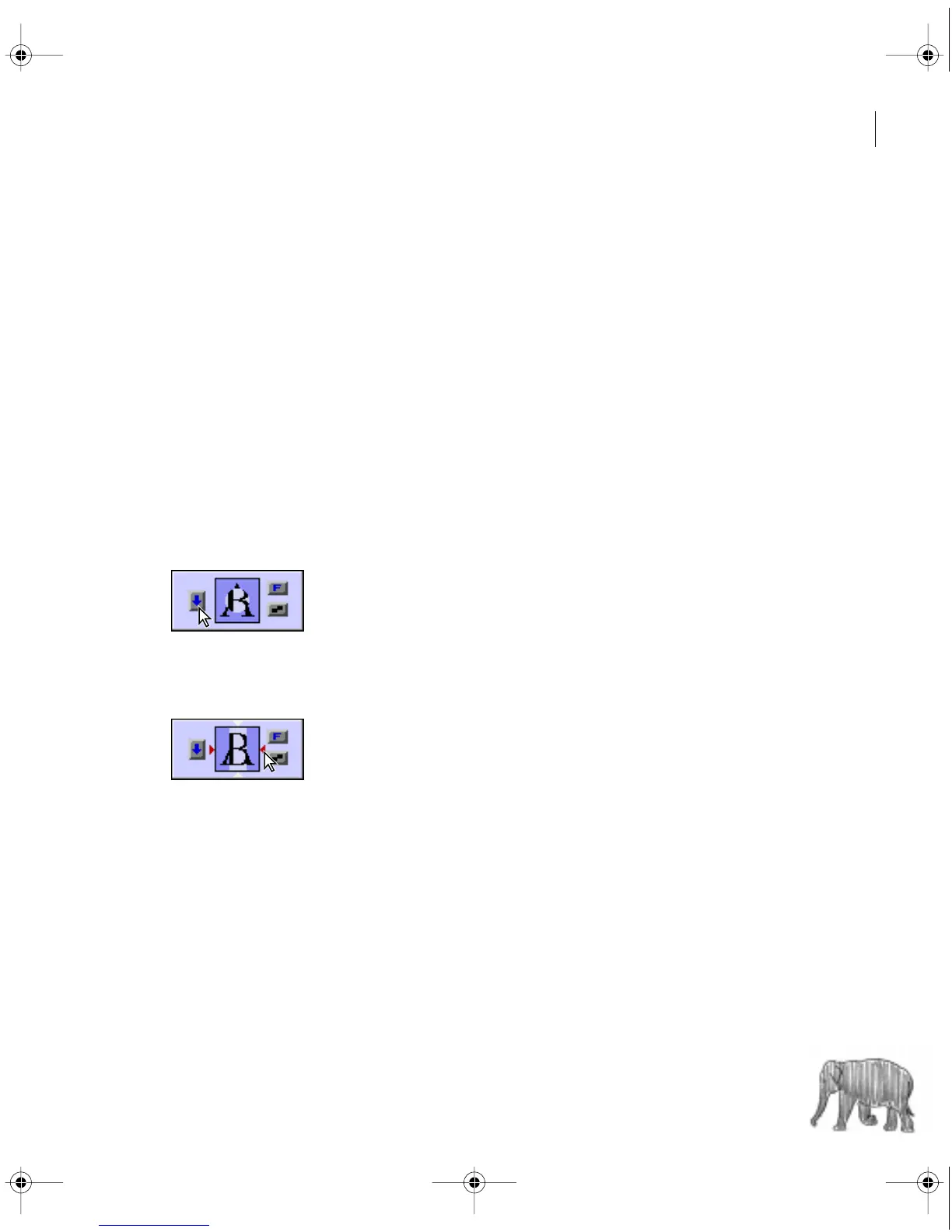
To specify which clip begins the transition, click the Track selector on the left side of the
transition’s thumbnail to toggle back and forth between starting with clip A (the left clip)
or clip B (the right clip). You can also click this selector from the transition’s thumbnail
in the Timeline window if the thumbnail is large enough.
•
To change the orientation of the transition, click an Edge selector on the transition’s
thumbnail. The Edge selectors are small triangles bordering the transition icon.
c00.book for PS Page 211 Tuesday, March 31, 1998 1:28 PM



 To Next Page